
AI Video Upscaler
AI Video Upscaler raises the resolution of a short clip and restores detail, so a low-resolution or soft video looks sharp on large screens.
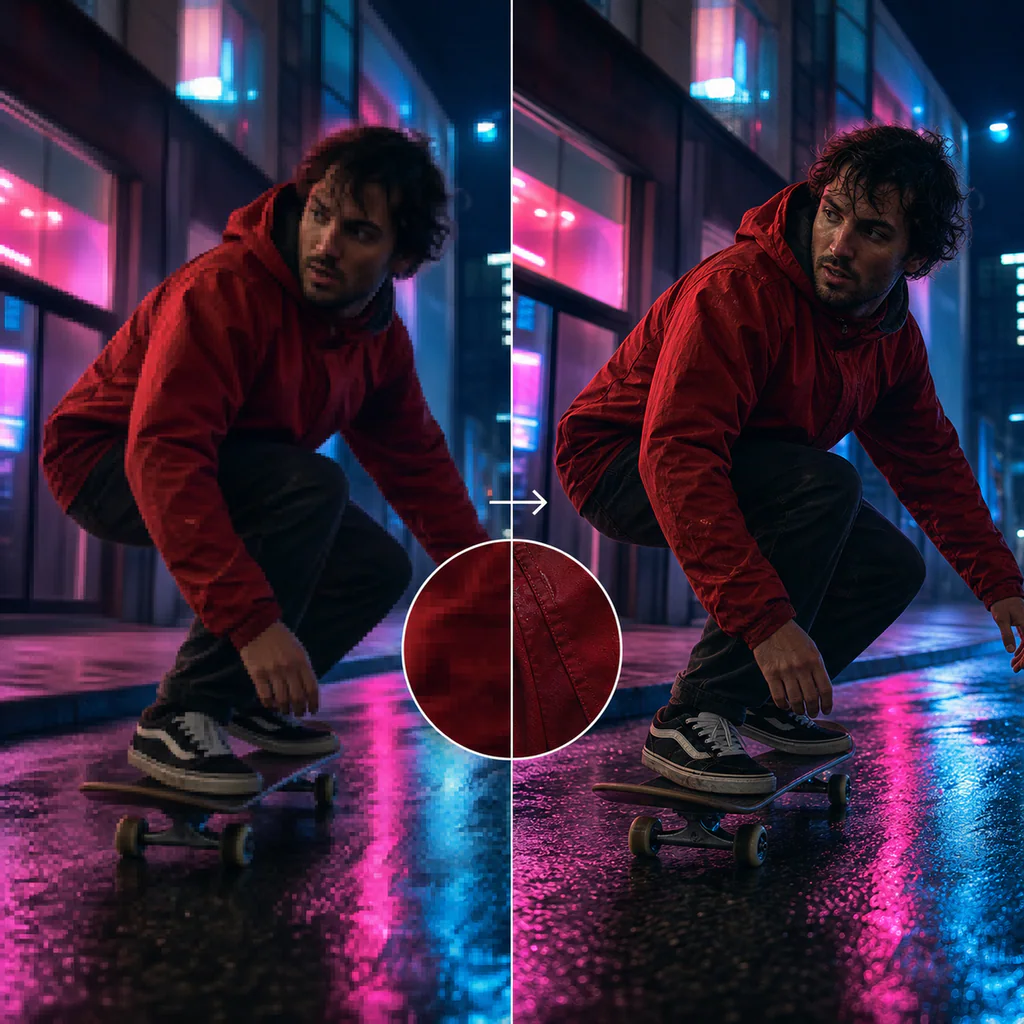
Upscale a clip
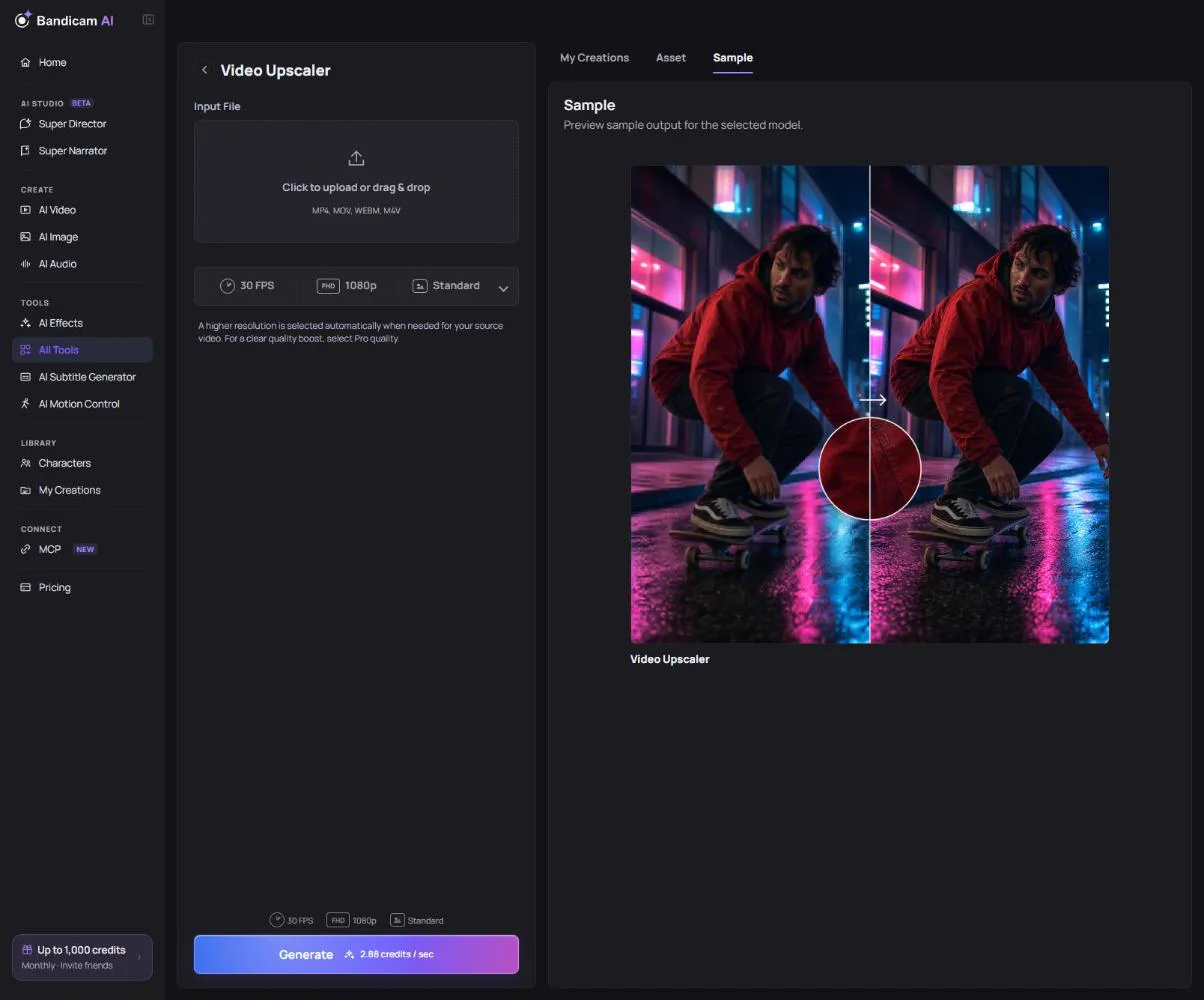
- Upload a video: MP4, MOV, WebM or M4V, up to 100 MB and 15 seconds, with its shorter side below 2,160 pixels.
- Choose the resolution: 1080p, 2K or 4K. A higher one is picked automatically if your source needs it.
- Choose the quality: Standard, or Pro for a clearly visible boost in detail.
- Choose 30 or 60 FPS. 60 FPS makes motion smoother.
- Press Generate.
What it costs
Charged per second of the source video. Higher resolution, Pro quality and 60 FPS each cost more, and Pro costs considerably more than Standard. The price is on the button once the video is added.
Tip: Longer than 15 seconds? Trim the clip to the part you need first. To make a video in a higher resolution from the start, choose the resolution in AI Video instead.