
AI Image
AI Image creates images from a description or edits and combines images you upload. You can make up to four images at once and choose from many image models.
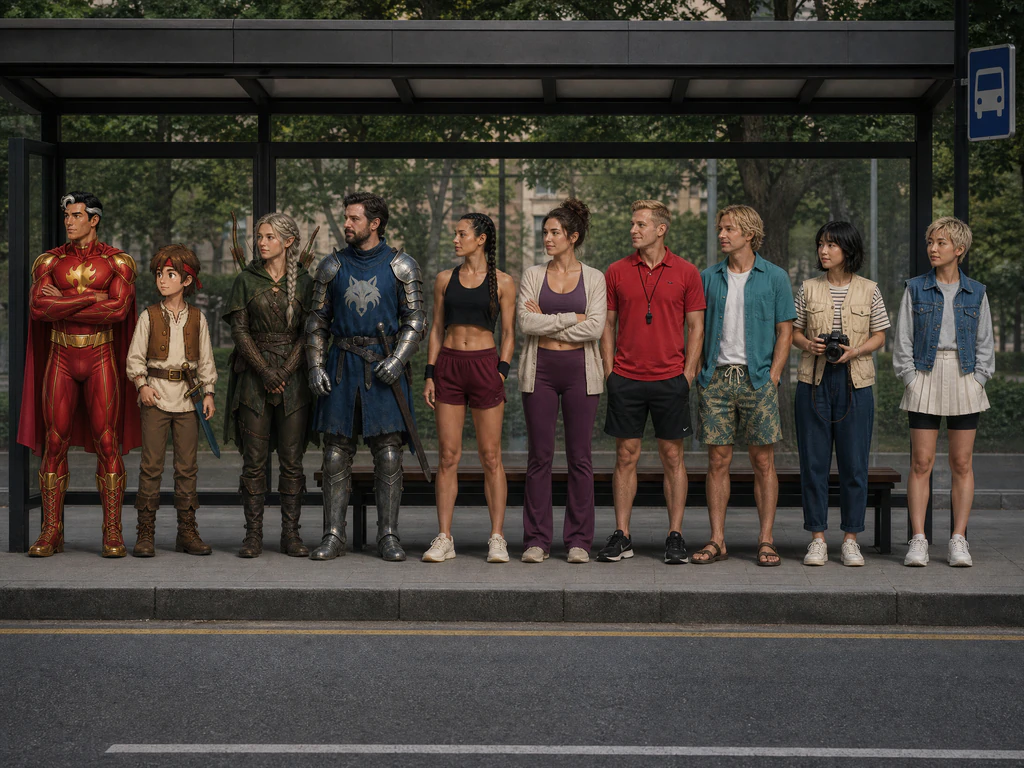
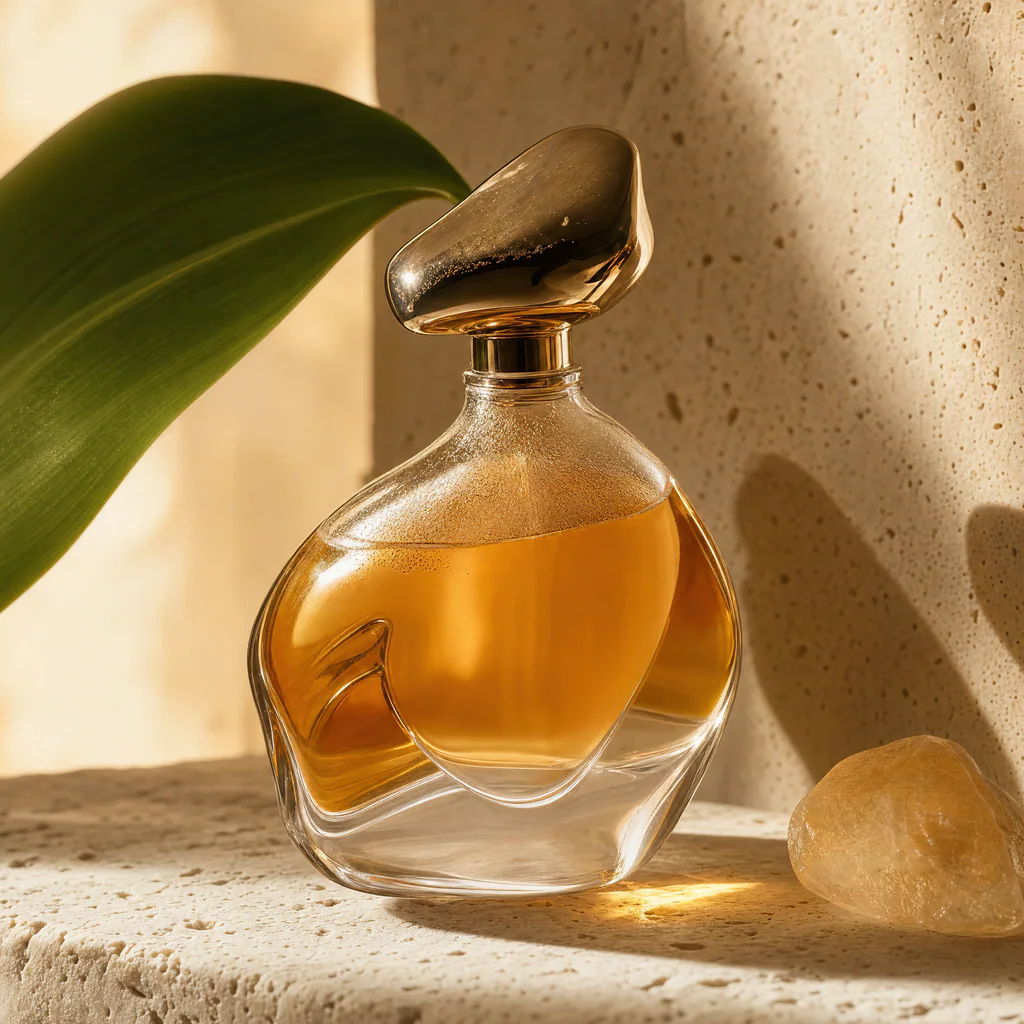
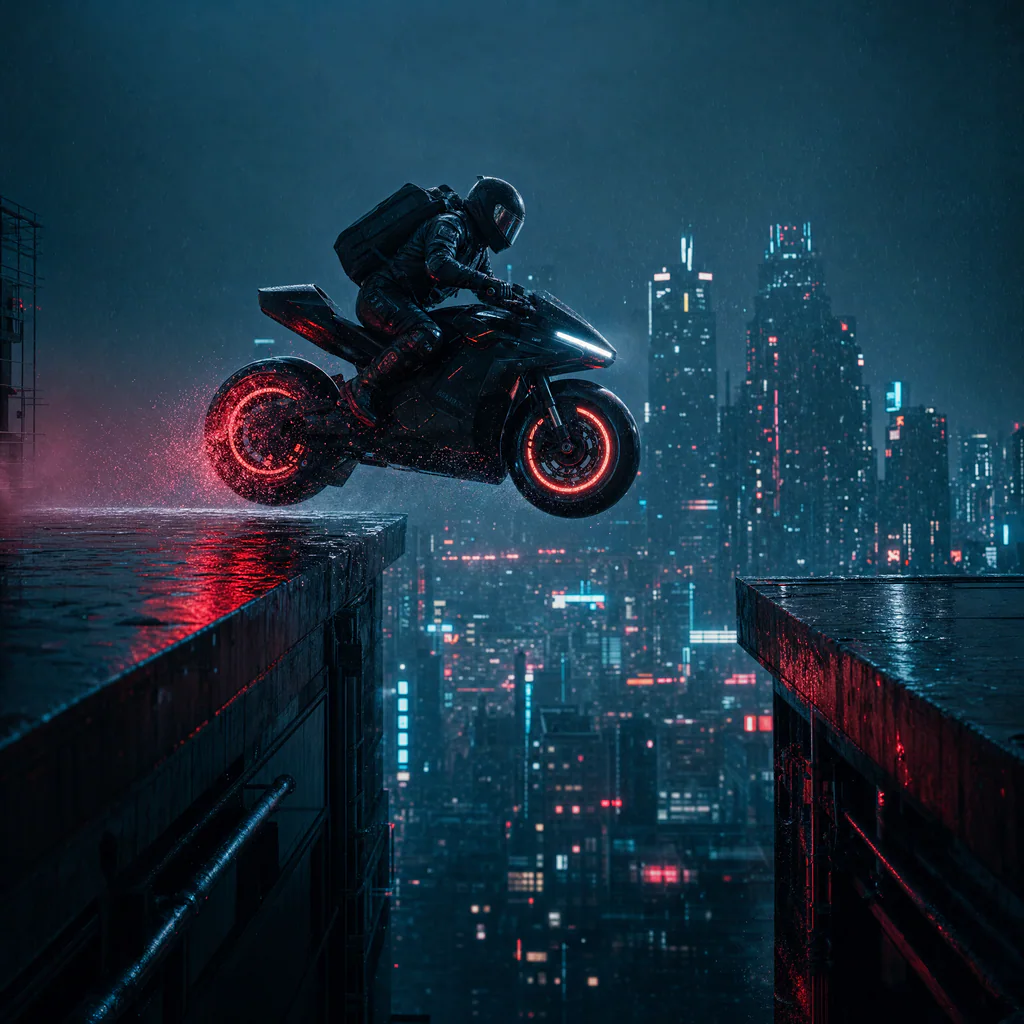
Two ways to create
- Text to Image — describe the image you want.
- Image to Image — upload one or more reference images and describe what to make or change: put your product in a new scene, change the season, combine people into one picture, or turn a sketch into a finished illustration.
Step by step
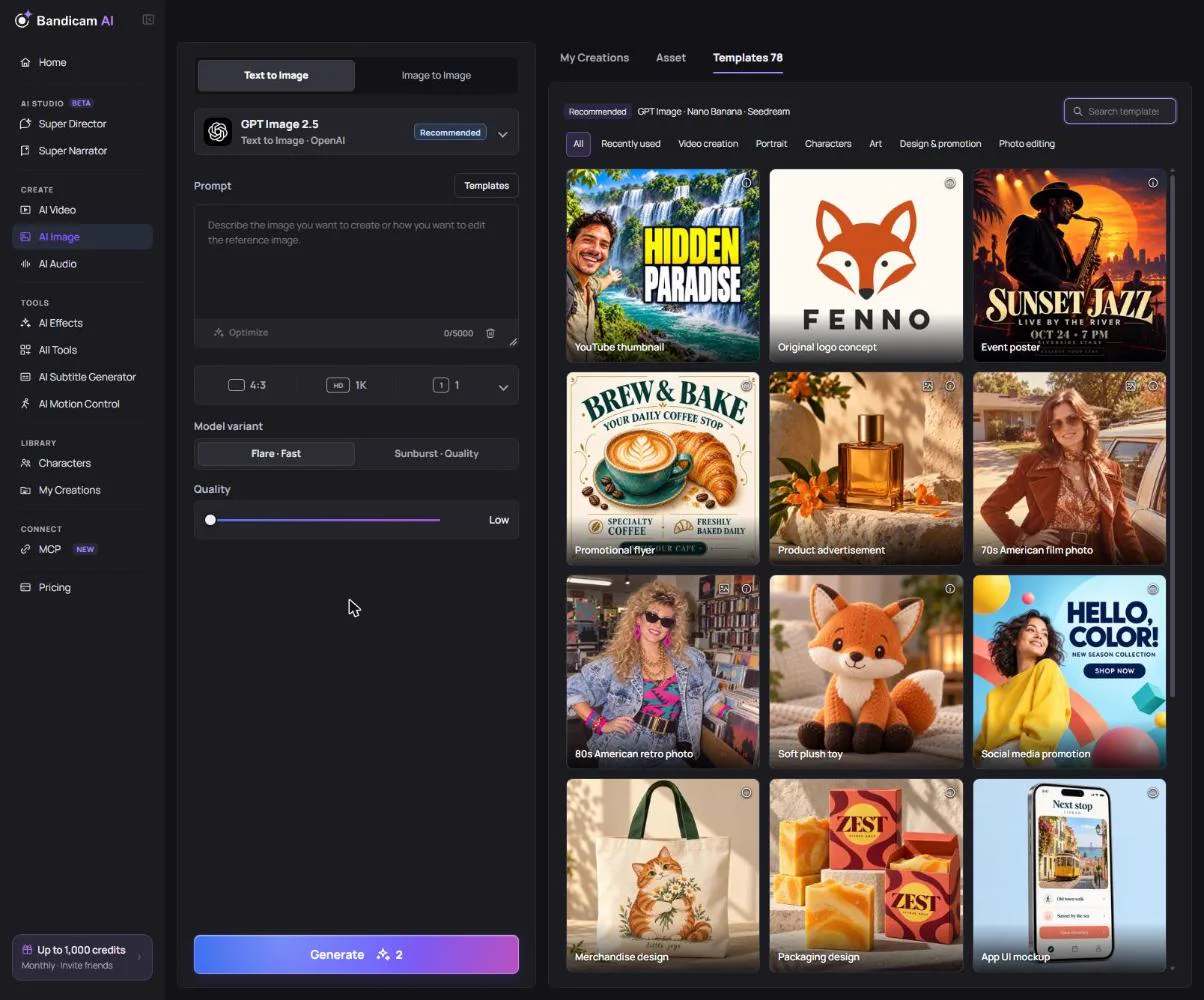
- Choose a tab and a model.
- Add references (Image to Image) with Add reference, or use Add characters to add an official character.
- Write the prompt, or press Optimize to have the AI expand a short idea into a detailed prompt.
- Set the options: Aspect Ratio, Resolution (up to 4K on some models), Quality and the number of Images (up to 4, depending on the model).
- Press Generate. Results appear in a few seconds to a minute and are saved to My Creations.
Choosing a model
| Model | Good to know |
|---|---|
| GPT Image 2.5 | Very precise prompt following and text in images; up to 16 references. Choose GPT Image 2.5 Flare for speed or GPT Image 2.5 Sunburst for fine detail. |
| GPT Image 2 | Renders text precisely; up to 10 references; 1K to 4K. |
| Nano Banana 2.1 / 2 / Pro / Nano Banana | Strong at editing and combining up to 14 references, with sharp text; up to 4K on 2.1, 2 and Pro. Nano Banana is selected by default. |
| Seedream 5.0 Pro / Lite | Photorealistic scenes and products; up to 10 references. |
| Soul 2 | Portraits and fashion photography, from one reference. |
| FLUX.2 Pro, Grok Imagine | Alternative styles to compare. |
| FLUX.1 Schnell | Text to Image only, at the lowest cost. |
The app always shows the current models and their options.
Templates
Not sure what to write? Open Templates on the right for ready-made looks such as product ads, professional headshots and character sheets. See Image templates.
What affects the price
Images are priced per image, so making four costs four times as much. Higher resolution and quality cost more, and some models also charge for reference images. The price is on the button.
Tip: An image you make here can be the start frame for AI Video, or a reference that keeps a character the same in every scene.