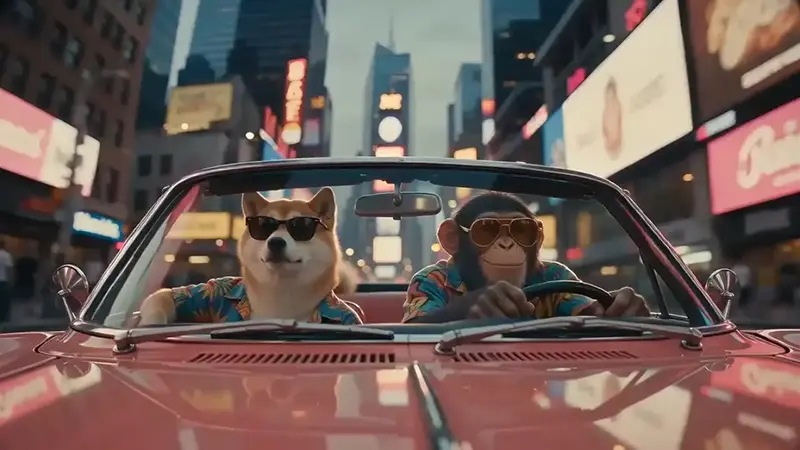
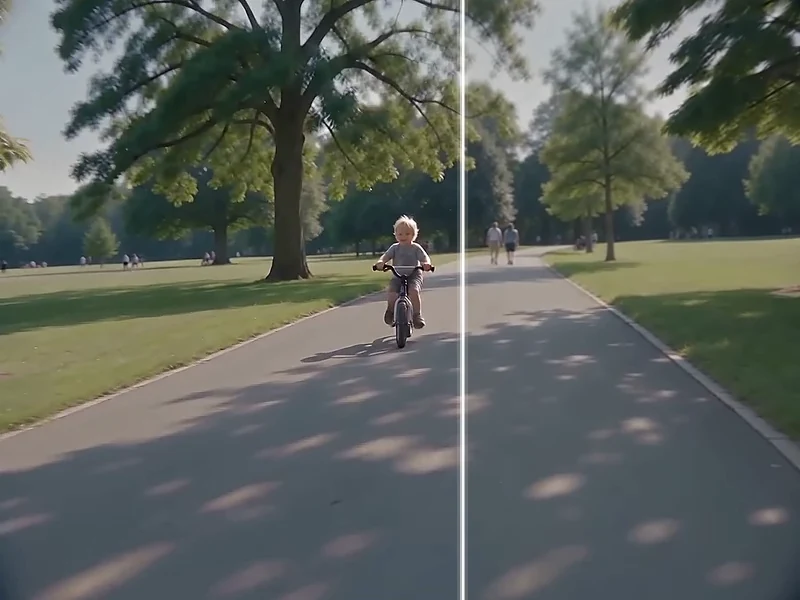
Add supporting footage
Generate supporting footage to illustrate your narration or add context to your main video.
BANDICAM AI STUDIO / TEXT TO VIDEO
Create a video from text with Bandicam AI Studio. Describe your subject, setting, action, and visual style, then generate a clip in your browser.
MAKE IT YOUR OWN
Generate supporting footage to illustrate your narration or add context to your main video.
Turn playful or unexpected ideas into short clips for Reels, Shorts, or TikTok with text to video AI.
Describe fictional places and events to create individual scenes for a short film or story video.
FROM IDEA TO CLIP
Write a description of the scene you want to create. Include the subject, action, and setting, then add camera or lighting details.
Pick the model and setup that fit your scene, then keep the prompt consistent before generation.
Generate a clip and review the result. Download it or refine your description to try a different version.
FEATURES
Start with a written prompt, then refine the scene and video settings in Bandicam AI Studio before generating a clip.
Describe the subject, setting, action, and style to generate a scene without uploading a starting image.
Select a model, then choose from its supported duration, resolution, and aspect ratio options.
Use available tools such as Optimize, tags, or a negative prompt to make the scene direction clearer.
TRY AN EXAMPLE
Choose from Cinematic, Everyday detail, or Fantasy to try a sample prompt. Adjust the description to fit your scene, then continue in Bandicam AI Studio.
A motorcycle rider moves through a neon-lit city at night. The camera tracks alongside at street level. Rain reflects the blue and red signs. One continuous cinematic shot.
GOOD TO KNOW
A text-to-video generator turns a written description into a short clip. Your words guide the scene, action, and visual style without requiring a starting image.
No. You can start with a written description alone. If you already have a picture you want to animate, choose Image to Video instead.
Use concrete details and keep the instructions consistent. If the result differs from your idea, change one detail at a time, such as the action or camera angle.
This tool generates individual clips. For a longer story, divide your script into scenes, generate each clip, and combine them in a video editor.
Choose a model that supports the video length and format you need. Models can interpret the same description differently, so compare the results for the style you want.
Yes. Bandicam AI Studio runs in your browser, so you can write a prompt and generate AI video clips online without installing video editing software.
BANDICAM AI STUDIO
Start with a few sentences and see how your scene takes shape.
Create a video from text