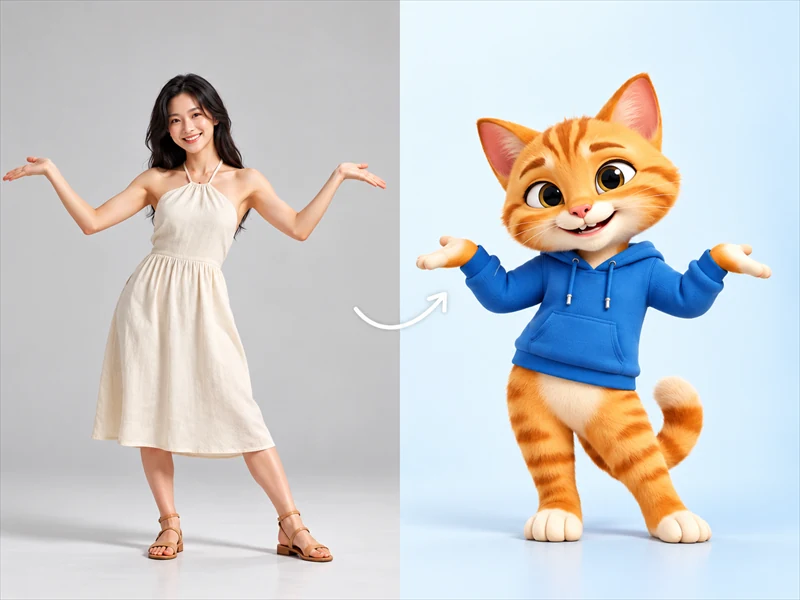
Choose a clear image
Use a front-facing portrait or upper-body image with the face and mouth clearly visible. Avoid side-profile, blurry, or obstructed faces for more stable lip sync results.
BANDICAM AI STUDIO / MOTION & EFFECTS
Create an AI lip sync video with Bandicam AI Studio. Upload an image and an audio file to animate mouth movements that follow the speech.
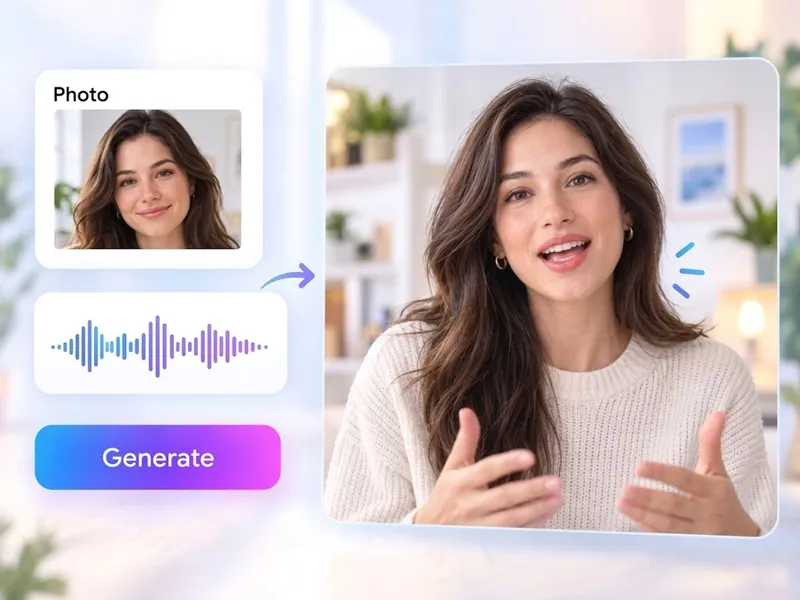
YOUR STARTING POINT
Use a front-facing portrait or upper-body image with the face and mouth clearly visible. Avoid side-profile, blurry, or obstructed faces for more stable lip sync results.
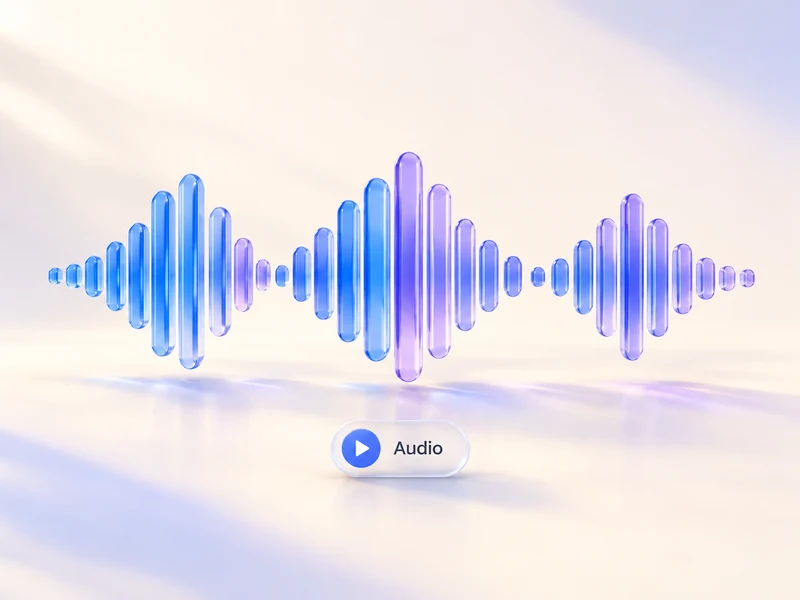
Use an audio file with minimal background noise so the spoken words are easy to hear. A clean voice track helps AI lip sync follow the speech more naturally.

Play the video with sound and check that the mouth movements match the audio, especially during fast speech or strong expressions.
FROM INPUT TO RESULT
Open AI Lip Sync in Bandicam AI Studio and upload an image of the person or character you want to animate.
Upload the speech audio as a separate file. The audio guides the mouth movements in your video.
Generate your clip, preview the lip sync, and download the video.
USE CASES
Use the AI lip sync generator to create dubbing videos, character dialogue, and learning content from one image and a clear voice track.
Create an AI lip sync video for dubbing, voiceovers, or translated clips by matching a portrait or character image to a clear voice track.
Animate a mascot, avatar, or illustrated character with recorded dialogue for product demos, explainer clips, or story scenes.
Use a presenter image with clear narration to make a talking photo video for tutorials, onboarding, or educational content.
GOOD TO KNOW
AI lip sync animates mouth movements to match an audio file, making a person in a still image appear to speak.
You need an image and an audio file, uploaded separately. The image supplies the face, while the audio provides the speech.
Yes. Upload a voice track along with the image you want to animate.
Use a clear front-facing portrait or upper-body image with the mouth visible. Side-profile, blurry, full-body, or obstructed faces may make the lip sync less stable.
Audio files for AI Lip Sync can be up to 30 seconds and 25 MB. Supported audio formats include MP3, WAV, M4A, and AAC.
Creating a lip sync video uses AI credits. Check the amount shown in AI Studio before generating your video.
BANDICAM AI STUDIO
Upload an image and an audio file to get started in Bandicam AI Studio.
Generate video