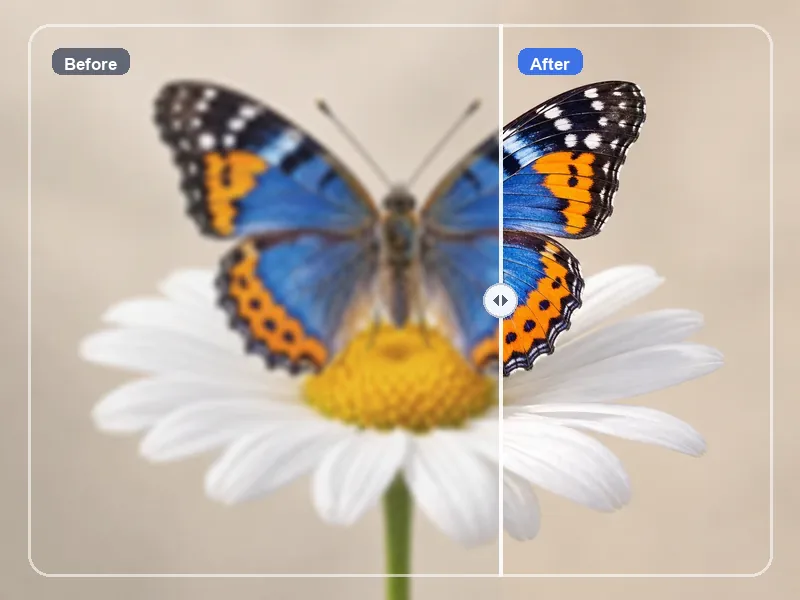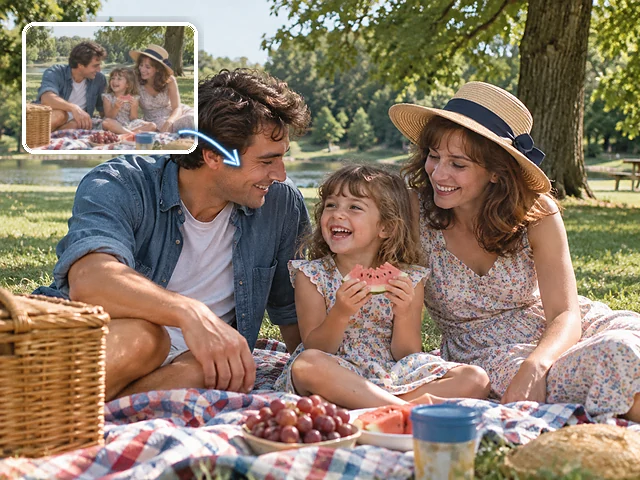
Improve the quality of older videos
Create higher-resolution versions of clips from older recordings to revisit or include in a new edit. Use it for low-resolution video, archived phone footage, or clips that need a cleaner look before editing.
BANDICAM AI STUDIO / ENHANCE
Increase the resolution of your videos with Bandicam AI Studio. The AI video upscaler supports 1080p, 2K, and 4K output for playback on larger screens.
YOUR STARTING POINT
Create higher-resolution versions of clips from older recordings to revisit or include in a new edit. Use it for low-resolution video, archived phone footage, or clips that need a cleaner look before editing.

Upscale product demonstrations, close-ups, and brand videos for store pages, ads, or presentations.

Improve clips recorded on your phone before posting them online. Keep details easier to see when resizing videos for YouTube, social posts, or presentations.
FROM INPUT TO RESULT
Open AI Video Upscaler in Bandicam AI Studio and upload the clip you want to enhance.
Choose the resolution, frame rate, and quality level before starting.
Start upscaling, then preview and download your video. Compare it with the original to check the details and movement.
FEATURES
Use Bandicam AI Video Upscaler as an AI video enhancer when you need sharper playback, larger output, or smoother motion.
Choose 1080p or 2K, or upscale video to 4K for larger screens and editing workflows.
Choose 30 FPS for standard clips or 60 FPS for smoother motion.
Use Standard for regular video upscaling, or select Pro when you want a clearer quality boost.
GOOD TO KNOW
You can choose 1080p, 2K, or 4K output and set the video to 30 or 60 fps. The default is 1080p at 30 fps.
Your source video must be 15 seconds or shorter. Trim longer footage to the section you want to upscale before uploading.
Results depend on the source. Heavy compression or strong motion blur can limit the improvement, and AI cannot reliably restore detail that was never captured.
No. Upscaling increases the resolution of an existing video. Text to Video and Image to Video create new clips from text or images.
Upscaling uses AI credits. Check the credit cost shown in Bandicam AI Studio before processing your video.
BANDICAM AI STUDIO
Create a higher-resolution version of your video with Bandicam AI Studio.
Upscale video