
Cinematic nature video
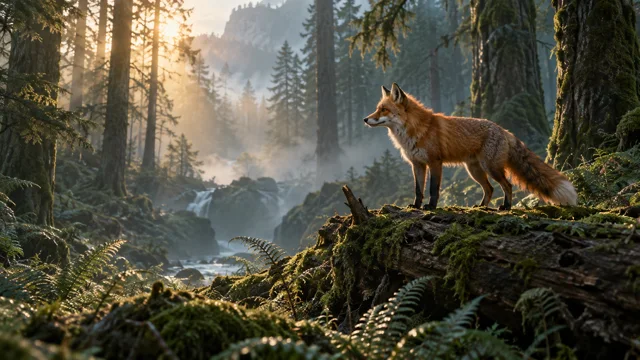
A red fox stands on a mossy log in a misty forest at sunrise. It slowly turns its head as sunbeams filter through the trees. The camera gently pushes in. Realistic wildlife cinematography.
Create video clips from text prompts or images with Bandicam AI Studio. Choose a model and generate your video in your browser.
Choose a sample prompt to fill the input above, then edit the subject, action, or camera movement.
A red fox stands on a mossy log in a misty forest at sunrise. It slowly turns its head as sunbeams filter through the trees. The camera gently pushes in. Realistic wildlife cinematography.

An amber perfume bottle on a sandstone pedestal in warm afternoon light. Orange slices float slowly around the bottle as the camera makes a smooth orbit. Clean luxury product cinematography.

A small mint-green robot with an orange backpack walks across pink sand dunes. A ringed planet rises above the horizon. The camera follows at ground level. Tactile, stylized 3D animation.
Concept artwork for prompt inspiration.
Sample motion prompt: “The fox turns its head as the camera slowly moves closer.”
Upload a photo, illustration, or AI image to use as the starting frame. Describe the movement you want: a head turning, leaves moving in the wind, or a slow camera pan.
Start with a clear subject and space for the intended motion. Focus the prompt on what should move rather than repeating everything already visible in the image.
Supported images: JPG, PNG, and WebP, up to 10 MB.
Explore image to videoWrite a text-to-video prompt, or add an image and describe its movement. Select Generate video to carry your input into AI Studio.
Choose your model and available duration, resolution, and aspect ratio. Review the credit cost before starting.
Create your clip, review it, and download the result. Refine the prompt when you want a different scene or movement.
Describe the subject, action, setting, and camera movement. Focus on one scene and use specific instructions. Avoid combining several scene changes or conflicting camera moves in a short clip.
A small robot walks across pink dunes beneath a ringed planet. The camera follows at ground level.
An AI video generator creates moving images from inputs such as a text description or a still image. Bandicam AI Studio offers text-to-video and image-to-video workflows in your browser.
Use text when you want to describe a new scene from scratch. Use an image when you already have a subject, composition, or style you want to start from.
No. AI video generation runs in Bandicam AI Studio in your browser. Bandicam Screen Recorder is a separate desktop application for capturing your screen.
Generation uses AI credits. The required credits depend on the selected model and settings. Review the displayed cost in AI Studio before generating.
Yes. Choose from the duration, resolution, and aspect ratio options supported by your model. Use a landscape format for a widescreen video or a portrait format for a vertical post when those options are available. Check the credit cost after changing settings.
This tool generates video clips. For a video with several scenes, titles, narration, or transitions, combine your clips in a video editor after downloading them.
Results can vary. Keep each prompt focused on one scene and a clear action, then adjust your description after reviewing the generated clip.