Turn your photos into a little Christmas magic. Create a 15-second AI Santa video of a secret home visit, a magical delivery, a bedtime surprise, or Santa wrapping your gift.
Make a playful ‘Santa caught on camera’ video using your own room and gift photos. Santa tiptoes in, shows the present to the camera, and hides it before leaving—a Christmas morning surprise set in your home.
A present floats from Santa’s sleigh through the window and lands inside your home. Choose a room photo with a visible window so the magical delivery has a natural place to begin.
Santa stops beside your sleeping child and leaves a gift before slipping away. This scene uses a photo of your child already asleep in bed, so the bedroom and bedding become part of the Christmas visit.
Pick a secret visit, magical window delivery, bedtime visit, or gift-wrapping scene. Watch the sample videos to find the Christmas story you want to create.
02
Upload two photos
Follow the image labels for your chosen scene. For a secret visit, add your living room and wrapped gift. You can also click a spot in the room photo to guide where Santa leaves it.
03
Generate your video
Choose vertical 9:16 for phone viewing or landscape 16:9 for a wider room view. Select a video model and resolution, check the credit cost, and generate. Preview the result, then download it to share.
YOUR HOME, AFTER DARK
Turn a daytime room photo into Santa’s midnight visit
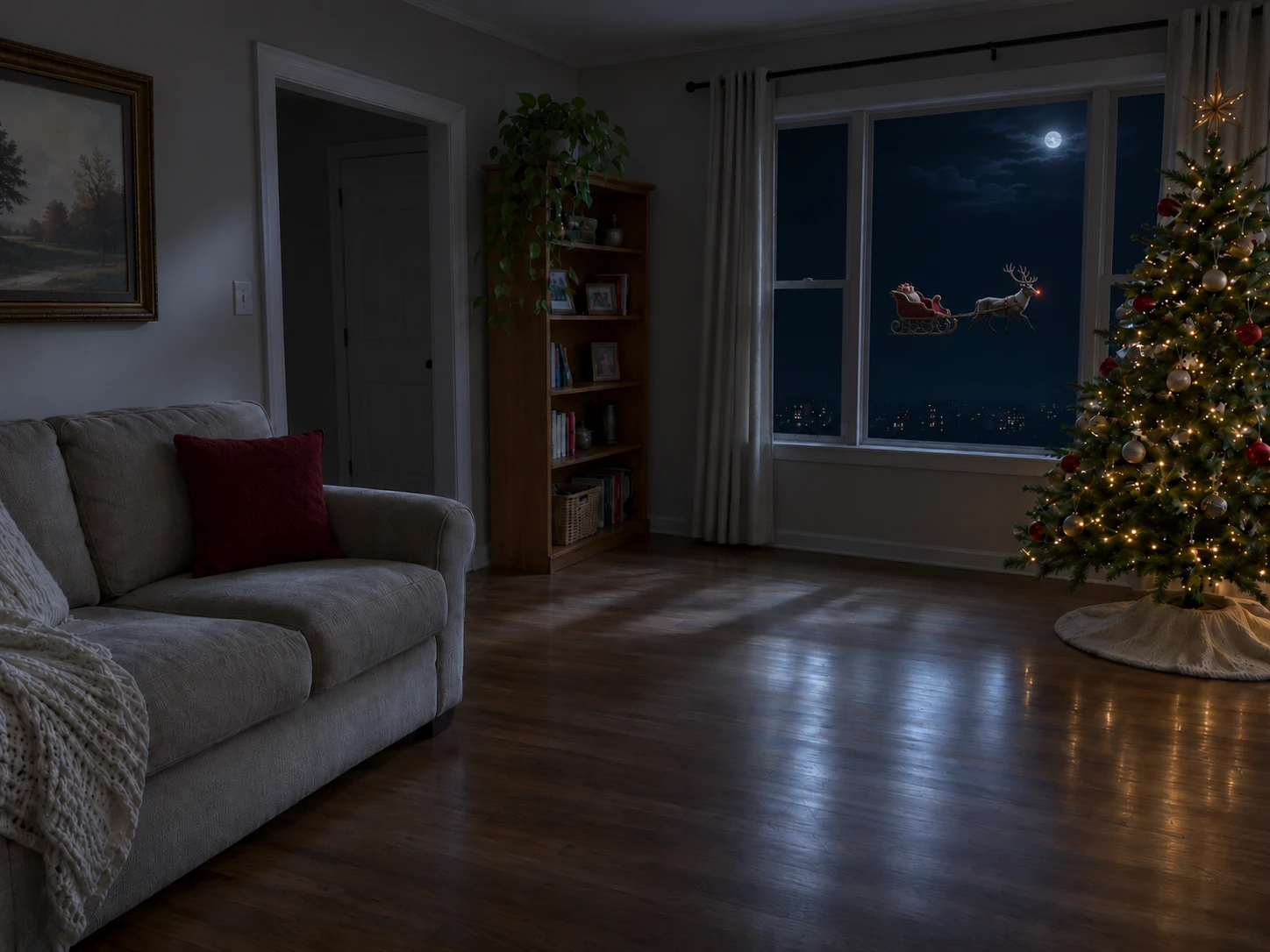
You do not need to photograph your living room at night. For the secret visit and window delivery, the app first prepares a nighttime version of your room photo, then uses it to create the video. The room layout and furniture guide the scene, while daylight inside and beyond the windows changes to soft moonlight.
If an existing window shows the outdoors, Rudolph and his sleigh can appear outside. In an upper-floor apartment, they can float at window height. A room without an exterior window can still work for a secret visit; no window or reindeer needs to be added.
PHOTO CHECKLIST
Choose photos that give Santa room to move
Living room: Show the floor, furniture, and an entryway. A wider view gives Santa space to approach the camera and put down the present.
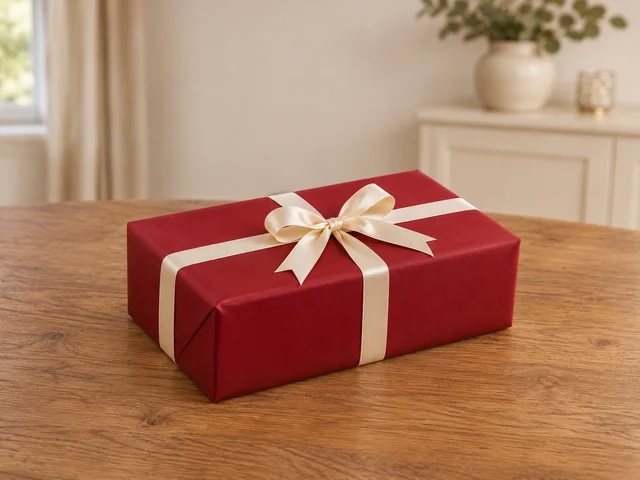
Gift: Photograph one present clearly, with the whole box and ribbon visible. Use the actual gift you want the family to recognize.
Bedtime: Include the sleeping child, bed, and some surrounding room in one image. Keep the face visible and leave space beside the bed.
These are AI-created Christmas scenes, not recordings of a real visit. Details and placement may vary from the references.
FROM SANTA’S WORKSHOP
Watch Santa wrap your gift
Upload a photo of the toy and a photo of the wrapped present to make Santa part of the surprise. The toy guides what Santa handles, while the second image guides the finished packaging and ribbon. This story takes place at his workshop, so you do not need a photo of your home.
Yes. For a secret visit or window delivery, the app prepares a nighttime version of your room, including the view through existing windows. Rudolph and his sleigh can appear outside an existing exterior window.
Can I choose where Santa leaves the gift?
Yes. In the gift-hiding template, click a spot in your room photo to guide where Santa places the present. The exact position may vary.
Do I need a photo of my child?
Only for the bedtime visit. Use a photo showing your child asleep in bed, plus a gift photo. Secret visits and window deliveries use room and gift photos. Gift wrapping uses photos of the toy and the wrapped present.
How long are the videos, and which formats are available?
Each video is 15 seconds long. Choose vertical 9:16 or landscape 16:9. Resolution options depend on the video model.
Is the Santa video generator free?
Creating a video uses AI credits. The price is shown before you generate and includes the nighttime room image when needed.