
Make the video and its clips
When the plan looks right, Super Director generates the video. A short work becomes one video. A long work is split into clips that are made separately and joined at the end. You see the price before anything is charged.
Short works
If the whole plan fits in one generation of the chosen model, generate it from the plan card. The result appears in the chat when it’s ready and is saved to My Creations.
Long works
For a longer work the Director cuts the scenes into clips the video model can make. Before starting, a card lists the clips with their total length and price. Tick the clips you want, then choose how to make them:
- Make it now — the Director makes the selected clips automatically, several at a time.
- Make them yourself in the Clips tab — generate each clip when you’re ready, checking each one as you go.
To check the look before paying for the rest, choose First clip only (preview) to select just the first clip. A clip that continues from another clip is selected or cleared together with it.
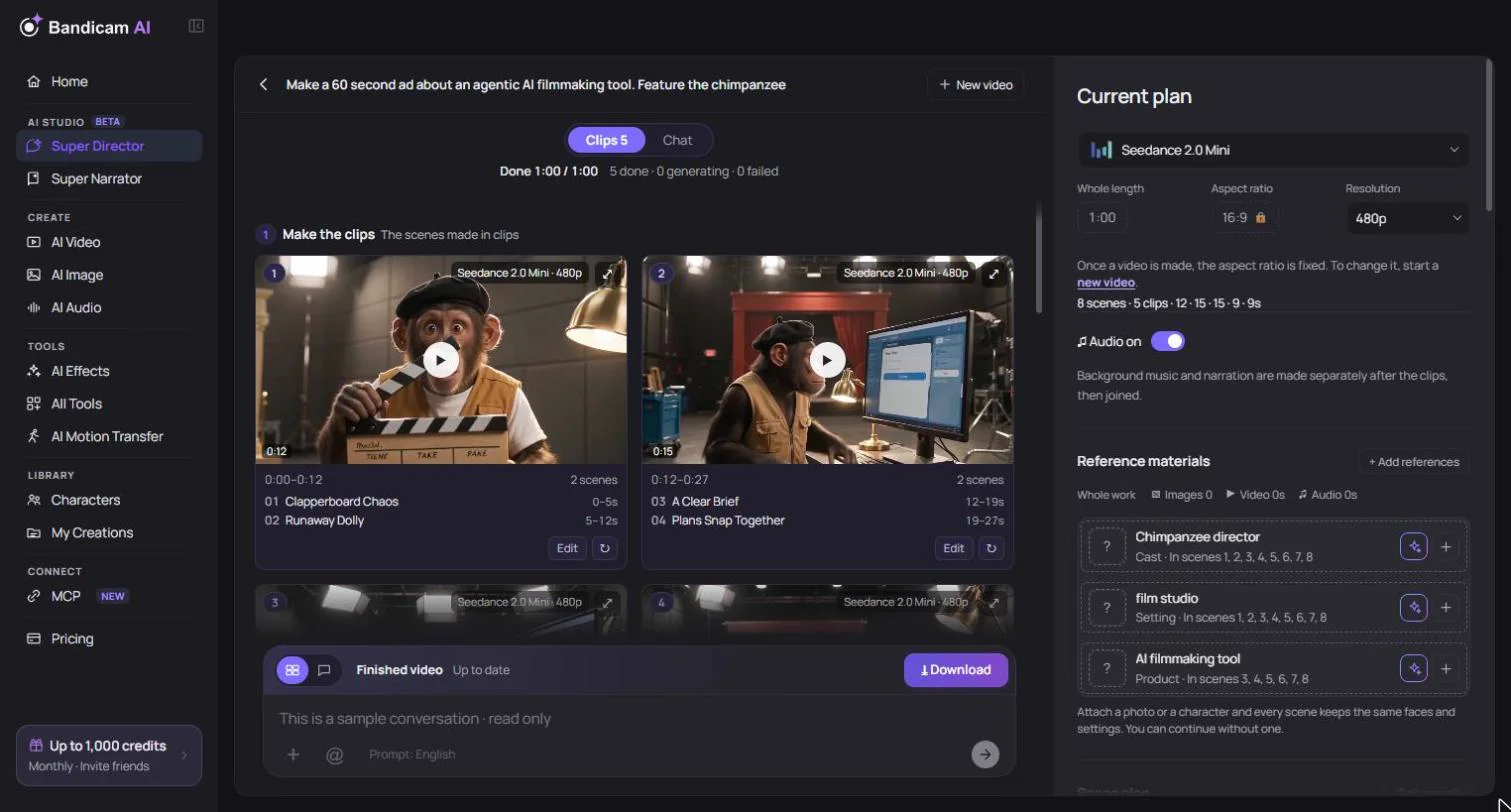
Up to three clips are made at the same time, and each one usually takes 4–5 minutes. Other clips show Waiting for a free slot until one finishes. If a clip takes longer than usual, it’s still being made and appears when it’s done. Keep the conversation open until every clip has started. Clips that have already started keep going if you leave, and you can check them later by opening the conversation from History. Switch between the Chat and Clips tabs at any time.
Prices and confirmations
- The price shown before you start is an estimate. It’s checked again when you press the button; if it changed, you’ll see the new price and press again to confirm.
- Clips that are already made aren’t charged again when you generate the rest.
- If you don’t have enough credits, you’ll see how many are missing. Nothing is charged; top up and press again.
- If a clip fails, its credits are refunded and the card shows Refunded.
Remake a clip
Not happy with a clip? Each clip card has these options:
| Option | What it does |
|---|---|
| New take, same scenes and prompt | Makes the clip again with the same instructions. Every take comes out a little different. |
| Remake with the changed scenes | Makes the clip again after you edited its scenes. A changed clip is marked Modified. |
| Edit | Lists this clip’s scenes; pick one to open it in the scene editor. See Change scenes and the plan. |
A remake uses the model and resolution shown on the card; you can switch to another model before you remake. You can remake a clip while other clips are still being made. You’ll need to wait if clips are still being sent or queued, or while the clips are being joined.
Clips that continue from each other: Sometimes the next clip starts from the last frame of this one so the cut looks seamless. If you remake only this clip, the join may look off, so you’ll be offered Remake clip N too.
Video model and resolution
The Director chooses a video model that suits your plan, and you can change it in Review settings and cost. Models differ in length per clip, resolution, reference support and price; see Compare video models. The aspect ratio is fixed once the first clip starts.