
Edit cuts, captions, music and text
You can change any part of a Super Narrator video before you export it. Edits are saved automatically, and none of them cost credits unless you generate something new.
Cuts
| To | Do this |
|---|---|
| Add a cut | + Add cut, then choose where: at the start or end, before or after the selected cut, or Choose a spot… |
| Split a cut | Split cut divides it at a caption boundary, so each half can have its own picture |
| Merge cuts | Merge with next cut |
| Delete a cut | Delete cut removes the cut with its narration and captions, and later cuts move earlier, so the video gets shorter. The originals stay in your library. The last remaining cut can’t be deleted. |
| Move a cut | Drag it by its handle, or press Alt+↑ / Alt+↓. An Undo link appears right after. |
| Change when a cut starts or ends | Drag the cut’s edges in the timeline, or type the times in Adjust cut time |
In the last step, the Undo and Redo arrows above the preview (Ctrl+Z, and Ctrl+Shift+Z or Ctrl+Y) step back and forward through your edits.
Step 6: Render video
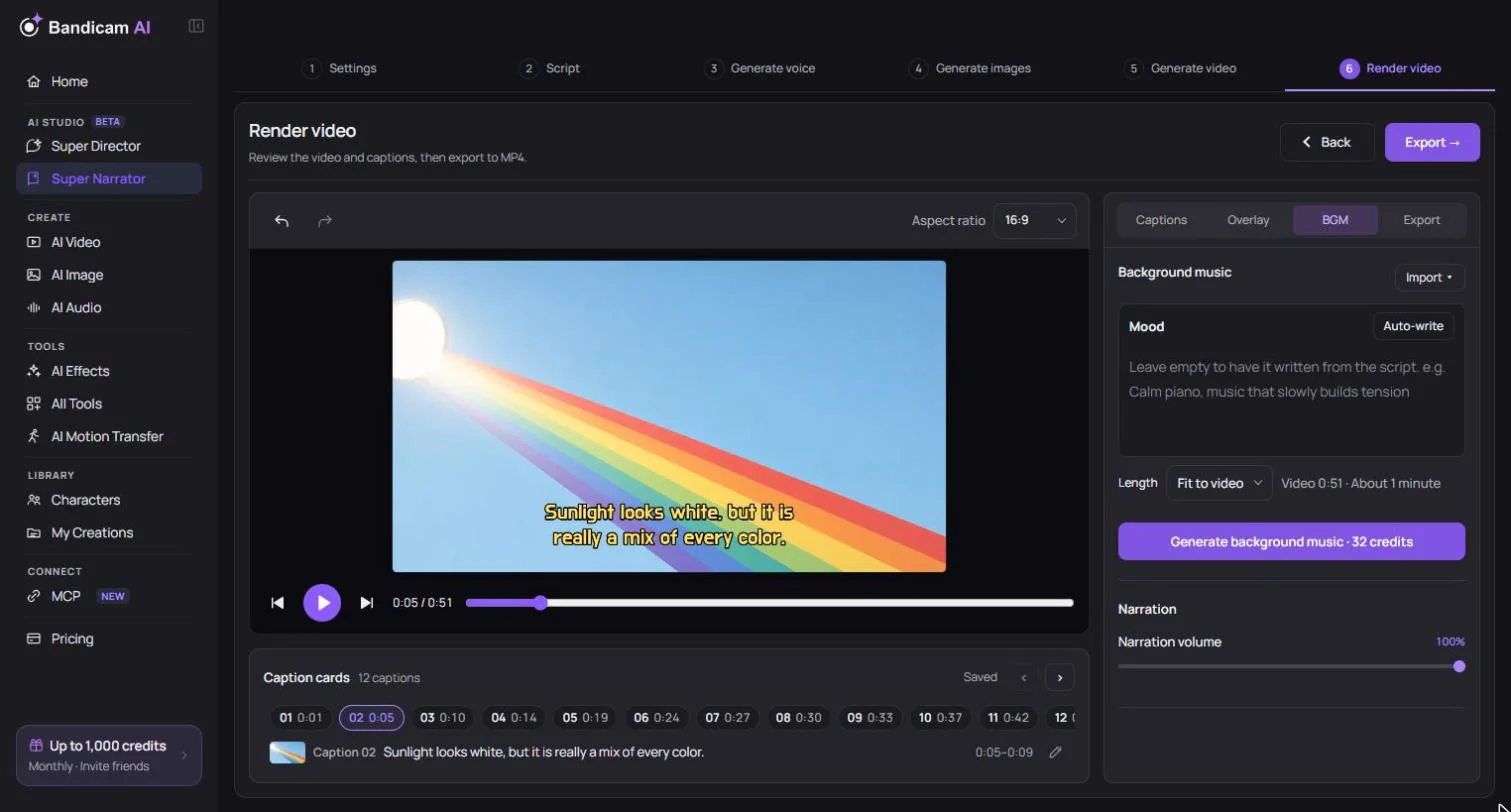
The last step has four tabs: Captions, Overlay, BGM and Export. The preview on the right shows your changes as you make them.
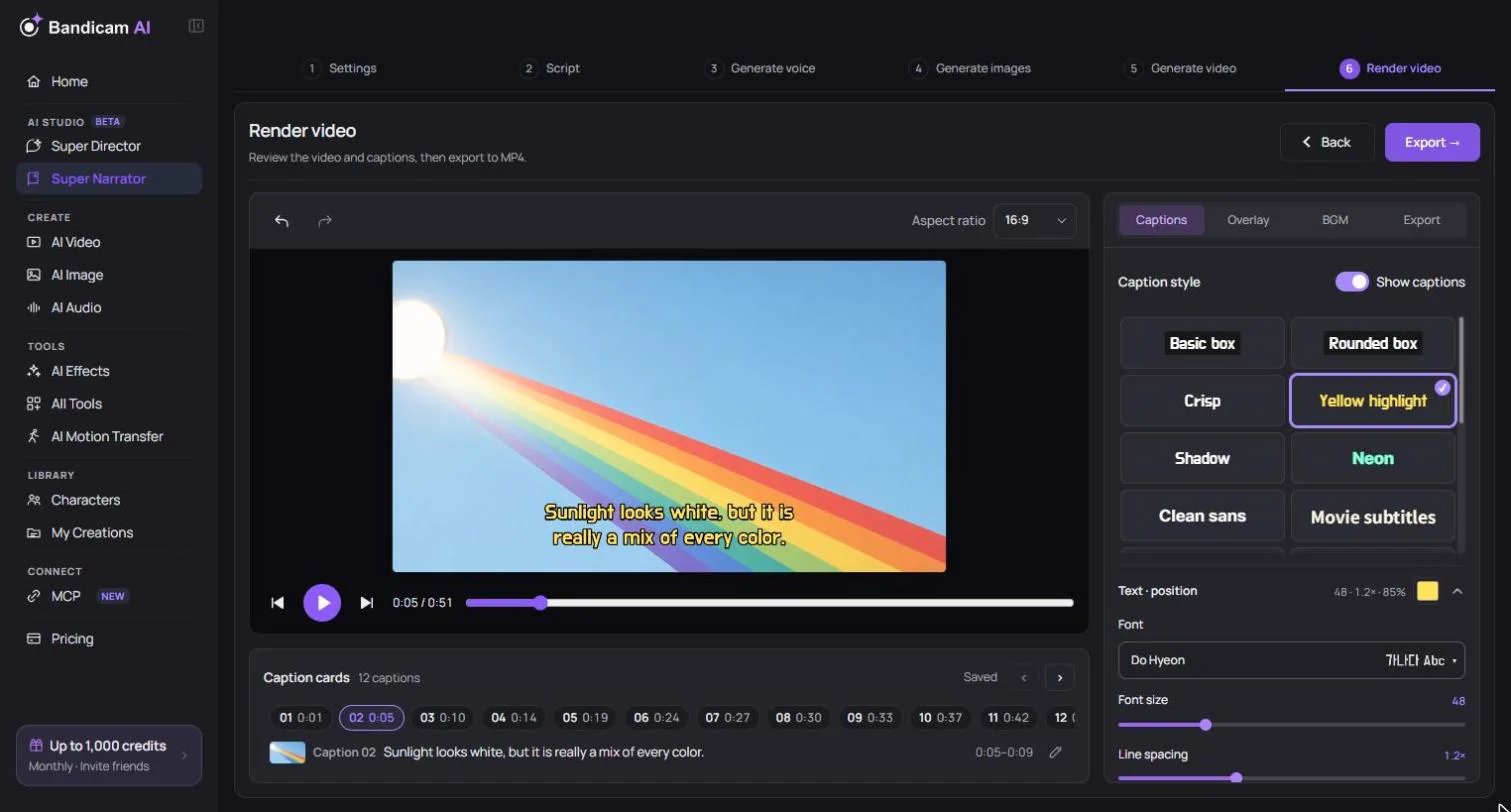
Captions
- Turn Show captions on or off.
- Pick a template such as Basic box, Movie subtitles, News briefing, Neon, Yellow highlight or Handwriting. There are 17 to choose from.
- Fine-tune the font, size, line spacing, outline, shadow and background. Your last few looks are kept under Recent settings.
- Drag a caption in the preview to move all captions up or down.
- To fix a typo, find the caption under Caption cards below the preview and press its pencil button. The numbered chips jump the preview to each caption.
Background music
- Use your own music — Import → Add from my computer or Add from my library. Free.
- Generate music — describe the mood, or leave it empty and it’s written from your script. Choose a length (fit to video, or about 1, 2 or 3 minutes; shorter music loops). Music is instrumental, without vocals. The price is shown on the button.
- Set Background music volume and Narration volume separately so the voice stays clear.
Overlay text
Choose + Add text to place text that’s shown for the whole video, such as a channel name or a title. In a new 9:16 project, the project name is added as a title automatically; edit or delete it as you like.
Saving and working in two tabs
The save status at the top shows Saved when everything is stored; press Save now to save right away. If you edit the same project in two tabs or on two devices, saving stops with a conflict message. Choose Download your edits to keep a copy of your changes, then open the saved version and keep working in just one place.