
Change scenes and the plan
You can change the plan at any time, before or after clips are made. Small changes to one scene are made directly in the scene editor. Bigger changes, such as adding scenes or changing the story, are made by asking in the chat.
Edit a scene
Open a scene with the pencil button next to it in the scene plan, or with Edit on a clip card.
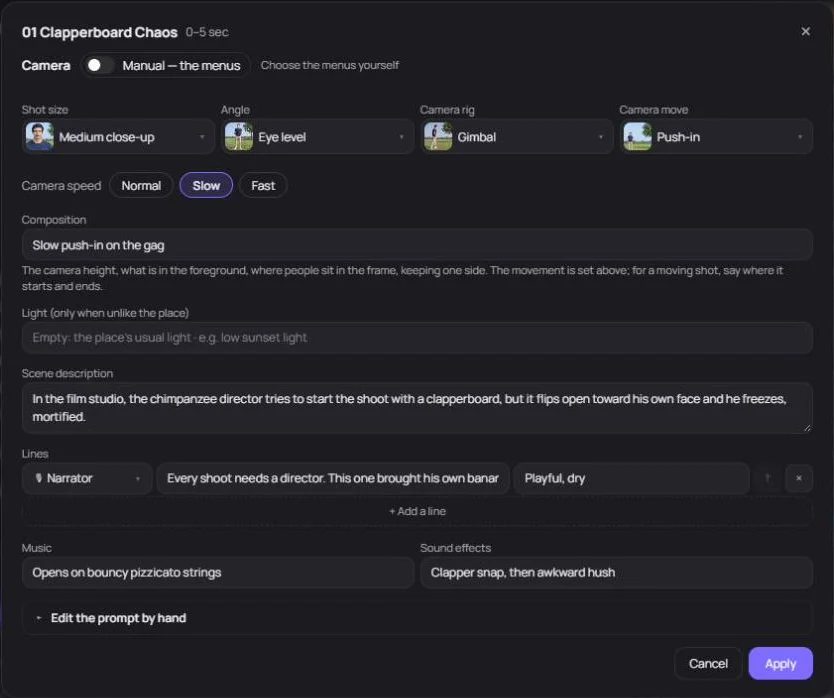
| Field | What to change |
|---|---|
| Camera | Auto lets the Director set the camera from one sentence in Composition. Switch to Manual to choose the shot size (for example medium close-up), angle (eye level, low angle), camera rig (tripod, gimbal, handheld), camera move (push-in, pan) and camera speed yourself. |
| Composition | Camera height, what’s in the foreground and where people sit in the frame. For a moving shot, say where it starts and ends. |
| Light | Only when it differs from the place’s usual light, for example “low sunset light”. |
| Scene description | What happens in the scene. |
| Lines | Who speaks (a character or the narrator), what they say and how. Use + Add a line for more, up to 4 per scene. |
| On-screen text | Text shown on screen in this scene. It appears as captions on the finished video. |
| Music and sound effects | The sound in this scene, for example “clapper snap, then awkward hush”. |
Press Apply to save. Values you pick from a menu are saved as they are. Text you type is rewritten by the Director so it fits the rest of the scene; only the scenes you changed are rewritten. If you change your mind, use Revert to the previous draft in the plan. The arrows at the sides of the editor move to the previous or next scene.
Want full control? Choose Edit the prompt by hand to write the scene’s prompt yourself. Your words are sent as they are; if you change the fields again or ask the Director to edit the scene, your text is replaced by a prompt written from the fields.
Add, remove or reorder scenes
Ask in the chat, for example:
- “Add a scene after scene 3 where she opens the box.”
- “Remove the beach scene.”
- “Move the logo scene to the end.”
- “Split scene 5 into two shorter scenes.”
Adding or removing a scene changes the total length of the work by that scene’s length. Clips whose scenes didn’t change are usually kept. If the scenes are regrouped into clips differently, the Clips tab shows which clips changed, which are new and which were dropped.
Change the length, style or model
- Length — ask, for example “make it 90 seconds”. The Director adjusts the scenes. Works can be up to 2 minutes.
- Style — open the style settings in the plan, or ask in the chat. Clips already made need to be made again to match the new style.
- Video model — change it in Review settings and cost. Clips already made stay as they are.
- Aspect ratio — fixed once the first clip starts. For another ratio, start a new conversation.
After you change a scene
Clips whose scenes changed are marked Modified. Remake them from the clip card, then join the clips again to update the finished video. See Make the video and its clips.