
Choose a voice and generate the narration
In step 3 your script is read aloud. The cuts and captions are then timed to the actual speech, so the pictures change exactly when the narration moves on.
Pick a voice
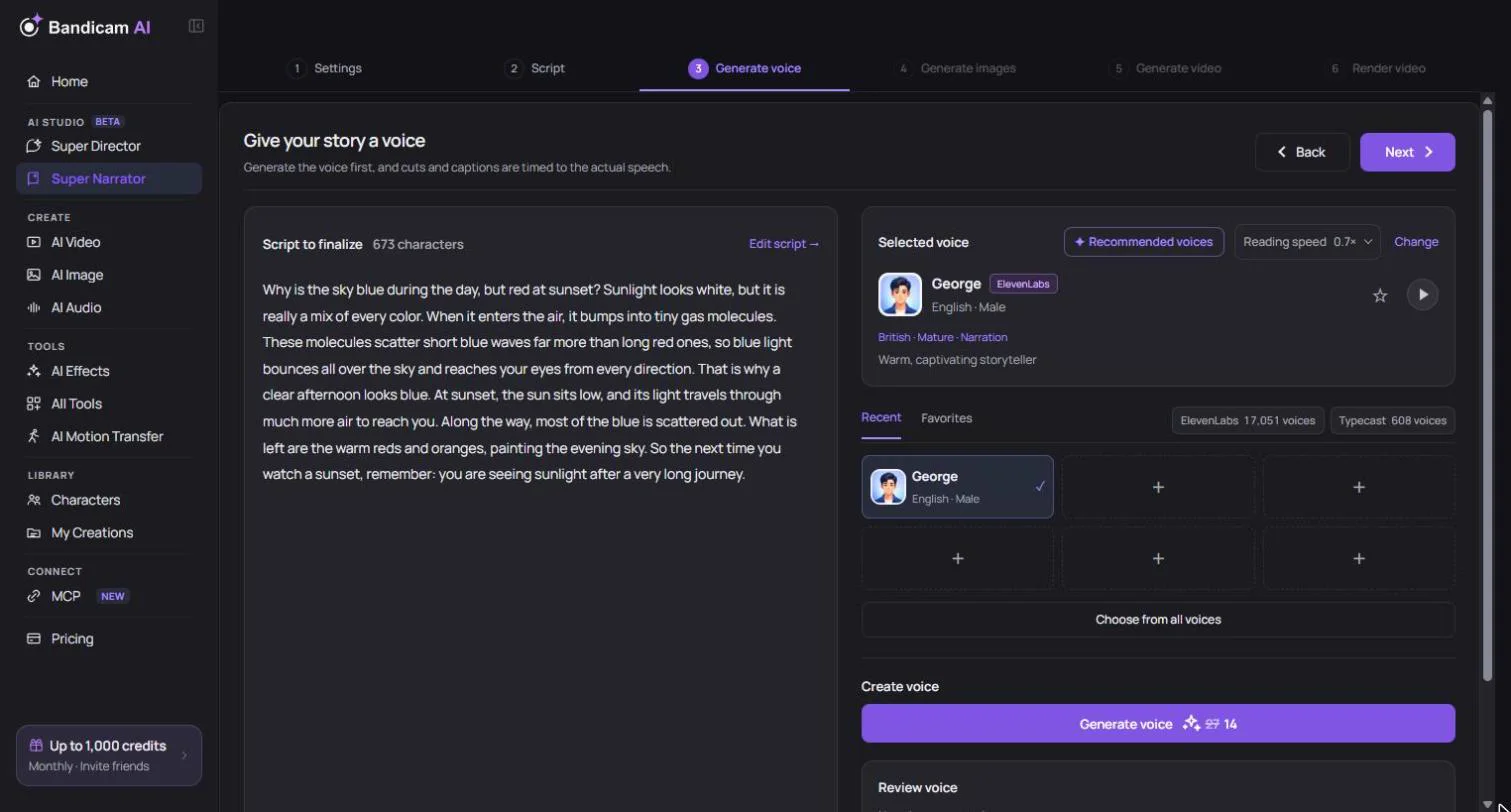
- Recommended voices — voices that suit this story and its language, with a best fit at the top.
- Recent and Favorites — voices you used before or saved with Add to favorites.
- Choose from all voices — browse the full list by provider (ElevenLabs and Typecast) and language.
Press Play sample to hear a voice. Use Reading speed to make it read faster or slower; the available range depends on the voice.
Generate the voice
Press Generate voice. The price, based on the length of the script, is shown on the button and confirmed before you’re charged. A long script can take a few minutes. If generation fails, the credits are refunded and you can try again.
Don’t want narration? Choose Continue without voice. The cut timing is then estimated from the script instead of the speech.
Fix one part
If one sentence is mispronounced or sounds off, you don’t have to regenerate the whole narration. Select the cut and choose Regenerate voice for this part. Only that cut is read again, and the cuts after it are retimed automatically.
Pauses between cuts
Open Pauses between cuts to give the video room to breathe:
| Setting | What it does |
|---|---|
| Pause between cuts | Silence where a sentence ends and the picture changes |
| Pause between sentences | Silence wherever a sentence ends |
| Start margin | Silence before the narration begins (1 second by default) |
| End margin | Silence after the narration ends (3 seconds by default) |
Each can be set from 0 to 10 seconds. Pauses are only added where speech actually ends, never in the middle of a word. Use Check spots to see where they go and how the total length changes.
If you change the script later
Editing the script after the voice is made means the voice has to be generated again. Your pictures and clips are kept, and cuts that may no longer match are marked Needs review. Captions you edited by hand are replaced by the new script’s captions.
Before you can render, open each marked cut, check its picture and length, and choose Mark this cut as reviewed.
Common messages
“Part of the script was flagged by the voice safety check…”
The voice provider rejected some wording. Reword that part and generate again. Credits for the failed attempt are refunded.
“The original voice has expired.”
The voice file was deleted under the file retention policy. Generate the voice again, or choose Export MP4 without voice; the captions and cut timing are kept.
“Generate a voice or choose one from your library.”
The next step needs narration timing. Generate a voice, import one, or continue without voice.