
AI Image Upscaler
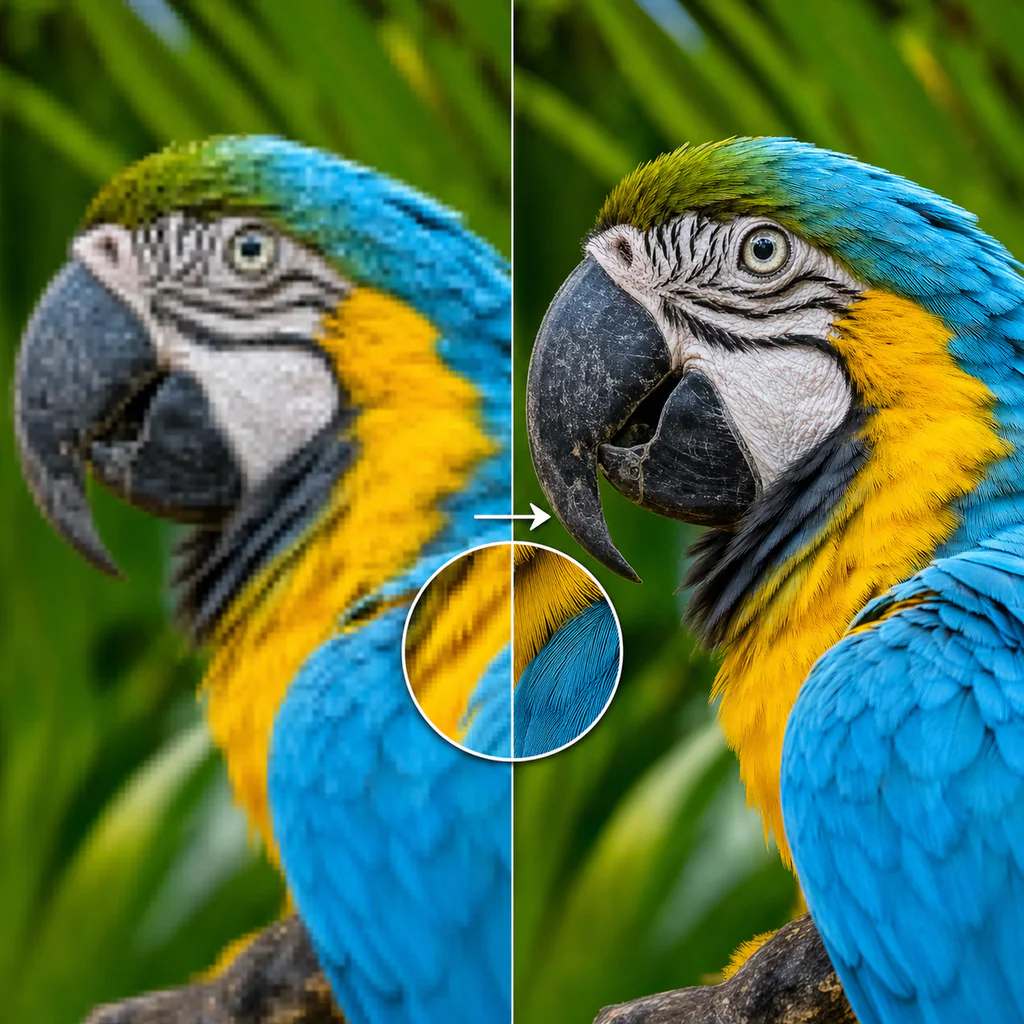
AI Image Upscaler makes an image larger and sharper. Use it for small web images, AI images you want to print, or old photos that need their detail back.
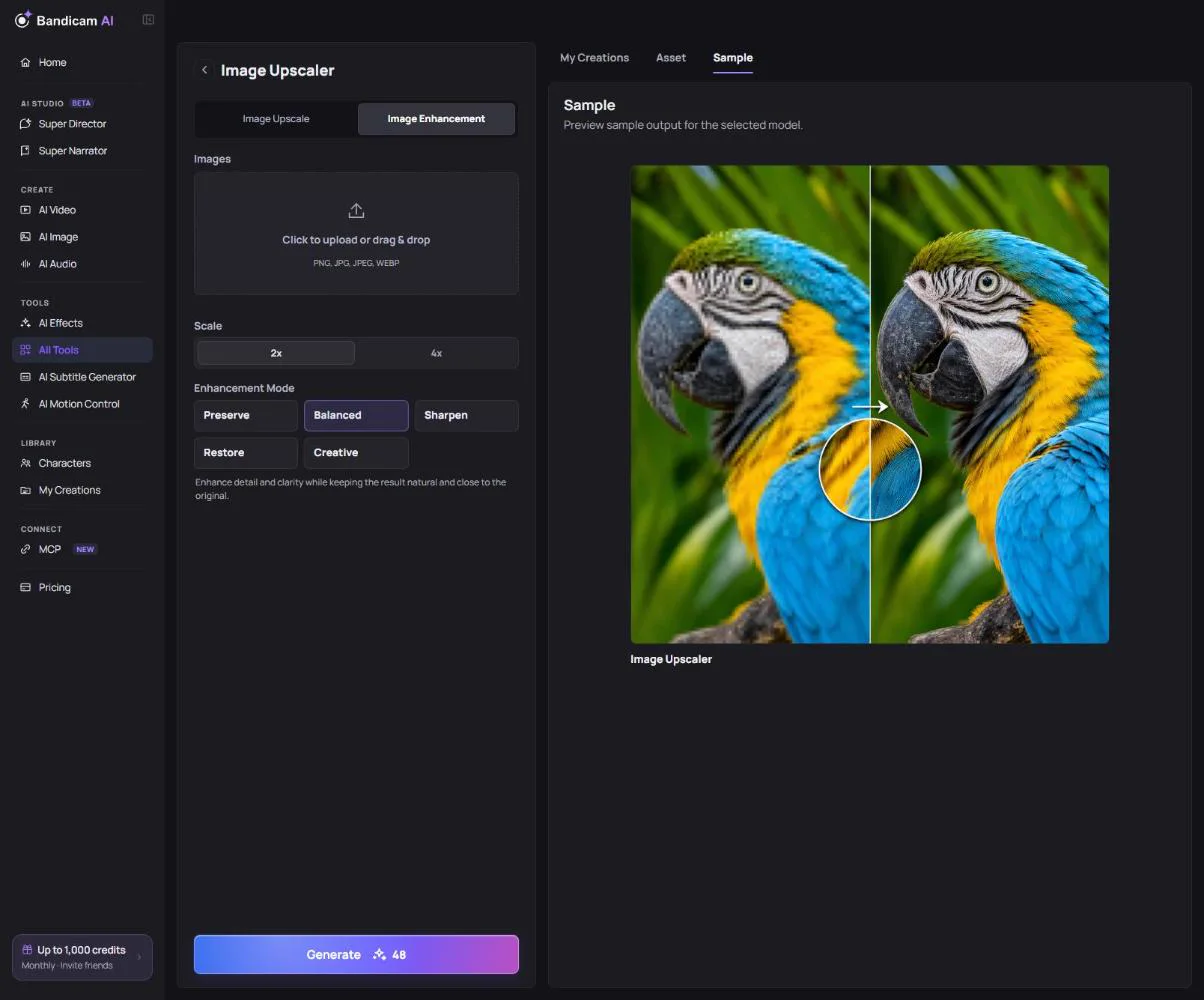
Two ways to upscale
| Tab | What it does | Scale |
|---|---|---|
| Image Upscale | Enlarges the image and keeps it faithful to the original. | 4× |
| Image Enhancement | Enlarges and adds or restores detail, in the mode you choose. | 2× or 4× |
Enhancement modes
- Preserve — increases resolution while keeping the subject as it is.
- Balanced — the default: a clean result for most images.
- Sharpen — crisper edges and textures.
- Restore — recovers faded detail and reduces artifacts in old, blurry or damaged photos.
- Creative — adds new detail freely; the result may differ from the original.
Image limits
Use PNG, JPG or WebP, up to 20 MB and between 64 and 8,192 pixels on each side. The total number of pixels must also fit the selected mode:
- Image Upscale — up to 3 megapixels of input at the fixed 4× scale. Resize larger images before uploading.
- Image Enhancement — up to 12 megapixels at 2×, or 3 megapixels at 4×, so the output stays within 48 megapixels. Choose 2× or resize the input if 4× would exceed the limit.
What it costs
Charged per image. Image Enhancement costs more for larger input images. The price is on the button.