
Describe your idea and review the plan
Everything in Super Director starts with a chat. The clearer your idea, the fewer questions the Director needs to ask, and the closer the plan will be to what you have in mind. Planning is free with the default writing models. Paid writing models and generated reference or storyboard images use credits separately. Video generation starts only after you confirm its cost.
Write your request
Say what the video is for and what should happen in it. You don’t need film terms; plain sentences work best. Helpful things to mention:
- What it is — an ad, a short story, a vlog, an explainer, a music video.
- Who or what is in it — a character, your product, a pet, a place.
- How long and where it will be shown — for example “30 seconds for Instagram Reels”.
- The mood or look — funny, calm, cinematic, anime, like a TV commercial.
- Anything that must appear — a line of dialogue, the brand name on screen, an ending shot.
Example: “A 30-second vertical ad for our ceramic mug. A tired office worker drinks coffee from it at dawn and the city slowly wakes up. Warm, calm mood, live action, end with the mug on the desk and the text ‘Start slow’.”
If you want to skip the questions, say so, for example “Skip the questions and go straight to the scenes.” The Director will fill in the gaps itself.
Add references
Use Add references to attach images, videos or audio, or choose a Character from your library. Tell the Director what each file is, or let it work it out. A reference can be used as a:
| Role | Use it for |
|---|---|
| Character | A person, animal or mascot that should look the same in every scene |
| Background | The place where the scenes happen |
| Product / Prop | Your product, or an object that appears in the story |
| Motion | A video whose movement or camera work should be followed |
| Style | An image whose look, colors or mood should be copied |
| Sound | Audio such as music or a voice to use in the video |
The cast can have up to 6 people, 2 places and 2 products. If a cast member has no picture yet, Auto-generate can make a reference image for it (charged as an image generation).
Photos of real people: Video models may reject photos or videos that show real people’s faces. Use a Character, or an image you made with AI Image, instead.
Answer the Director’s questions
When something important is unclear, the Director asks a short list of questions with ready-made answers. You can pick one, type your own, or choose Undecided — please suggest. It may also ask you to choose the aspect ratio: vertical 9:16 for Shorts, Reels and TikTok, landscape 16:9 for YouTube, square and portrait sizes for feeds, or wide formats. The choices depend on the video model.
Read the plan
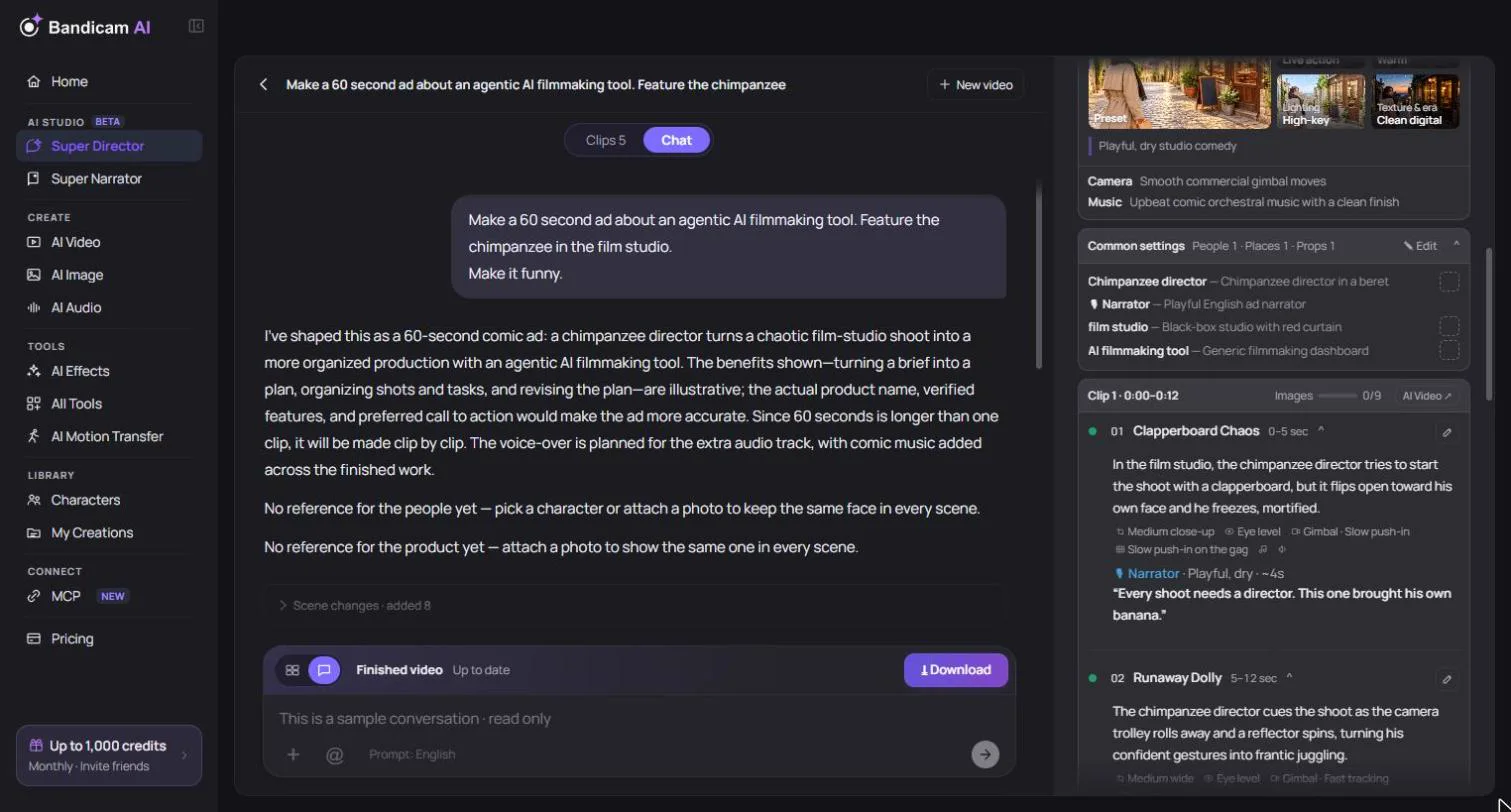
While you chat, the plan builds up on the right. For longer works the Director first outlines the scenes, then writes the details of each one; you’ll see the progress as it goes. The plan includes:
- Scene plan — each scene with its timing, camera, action and lines.
- Cast, setting and product — who and what appears, with their reference pictures.
- Style — the look of the whole video (see below).
- Whole length — from a few seconds up to 2 minutes. To change it, just ask, for example “make it 1 minute”.
- Review settings and cost — the video model, resolution and the estimated price.
You can also open View generation prompt to see exactly what will be sent to the video model, or Edit in AI Video to continue with the same prompt and settings in AI Video.
Video style
The style sets the look of every scene. Start from a preset such as Cinematic film, TV commercial, Documentary, Vlog, Music video, Fashion editorial, News interview or Home video, or set the parts yourself:
- Medium — live action, 3D animation, 2D animation, anime, claymation, watercolor or pixel art.
- Palette, lighting, and texture & era — pick from the lists, for example Warm, Golden hour or 80s VHS. Add anything else in More description.
Changing the style after clips have been made means those clips need to be made again to match.
Preview the storyboard
Before spending credits on video, you can see the scenes as still pictures. Choose Preview storyboard when the Director offers it. Generating the storyboard uses credits as an image generation. You can also upload your own storyboard image. A work that starts from a storyboard keeps using that storyboard for all its scenes.
Choose a writing model
The writing model is the AI that chats with you and writes the plan. The default models are free. Stronger models are also available; they charge credits based on how much they write, and you’re asked to confirm before the first use. The credits used are shown after each reply.