
Characters
Characters is a library of ready-made characters, each with a reference sheet, scenes and a voice. Use one to keep the same face and look across many images and videos, without uploading photos of real people.
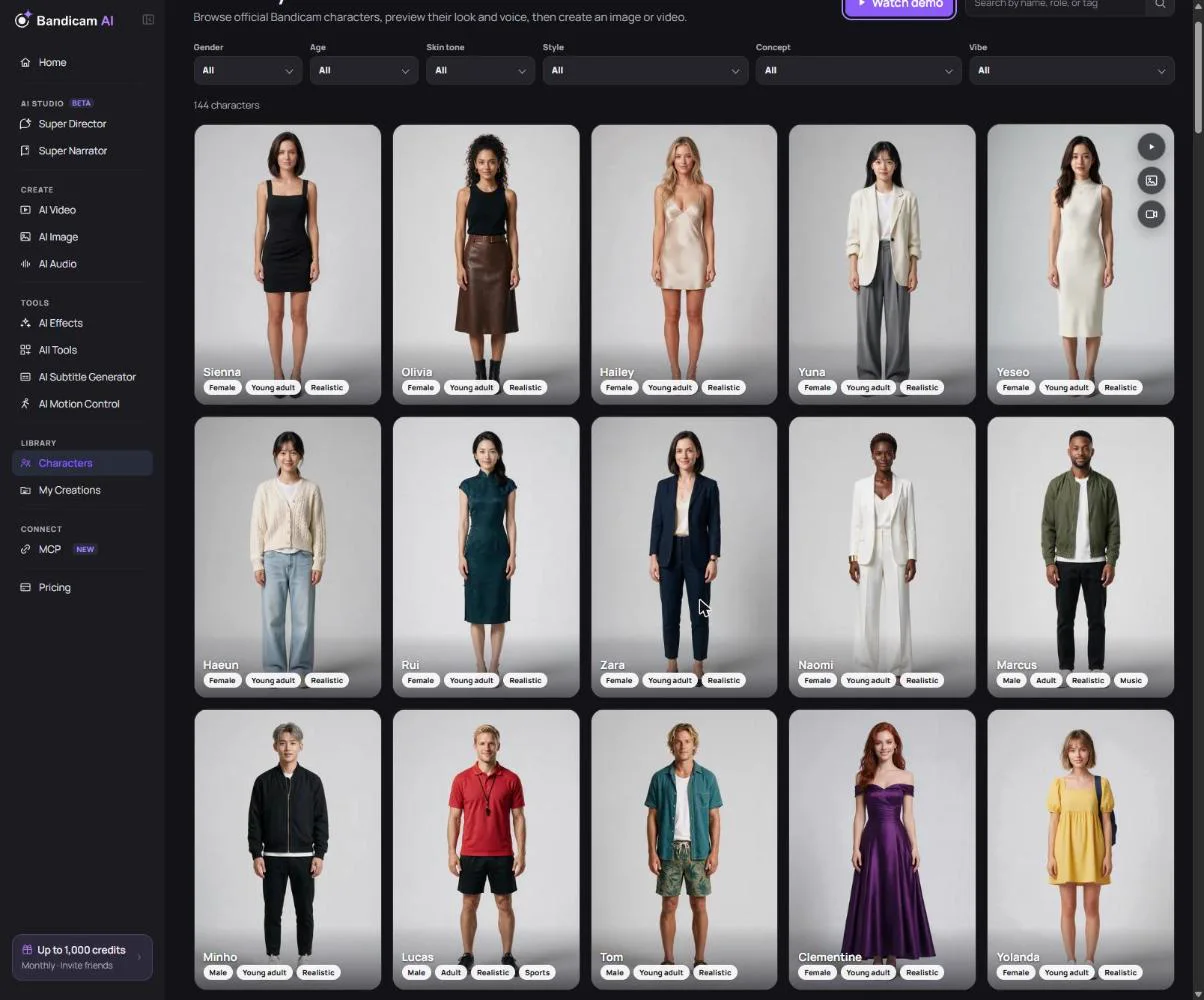
Find a character
Search by name, role or tag, or filter by gender, age, style, concept, vibe and skin tone. Open a character to see the cover, reference sheet, sample scenes, a short profile and a Voice preview you can play.
Create with a character
- Create a scene — opens AI Image with the character ready as a reference. Describe where they are and what they’re doing.
- Create a video — opens AI Video with the character added to Generate Video.
- Add characters — inside AI Image (Image to Image) and AI Video (Generate Video), add one or more characters to what you’re making. Their reference images are added before your own uploads.
Character voices
On video models that accept audio references, turn on the character’s voice reference so they speak with their own voice. The character card shows what’s being sent, for example “Uses Image 1 + Audio 1”.
Limits
- Characters work in Image to Image and in Generate Video. They can’t be used in Frame to Video, with text-only models, or with MiniMax H3 Max.
- A character’s images and voice count toward the model’s reference limit. If you reach it, remove a reference or choose a model that accepts more.
- Some models accept only one character at a time.