
AI Subtitle Generator
AI Subtitle Generator listens to a video or audio file and writes timed subtitles. You can check and edit them, translate them, and download them as a subtitle file.
Make subtitles
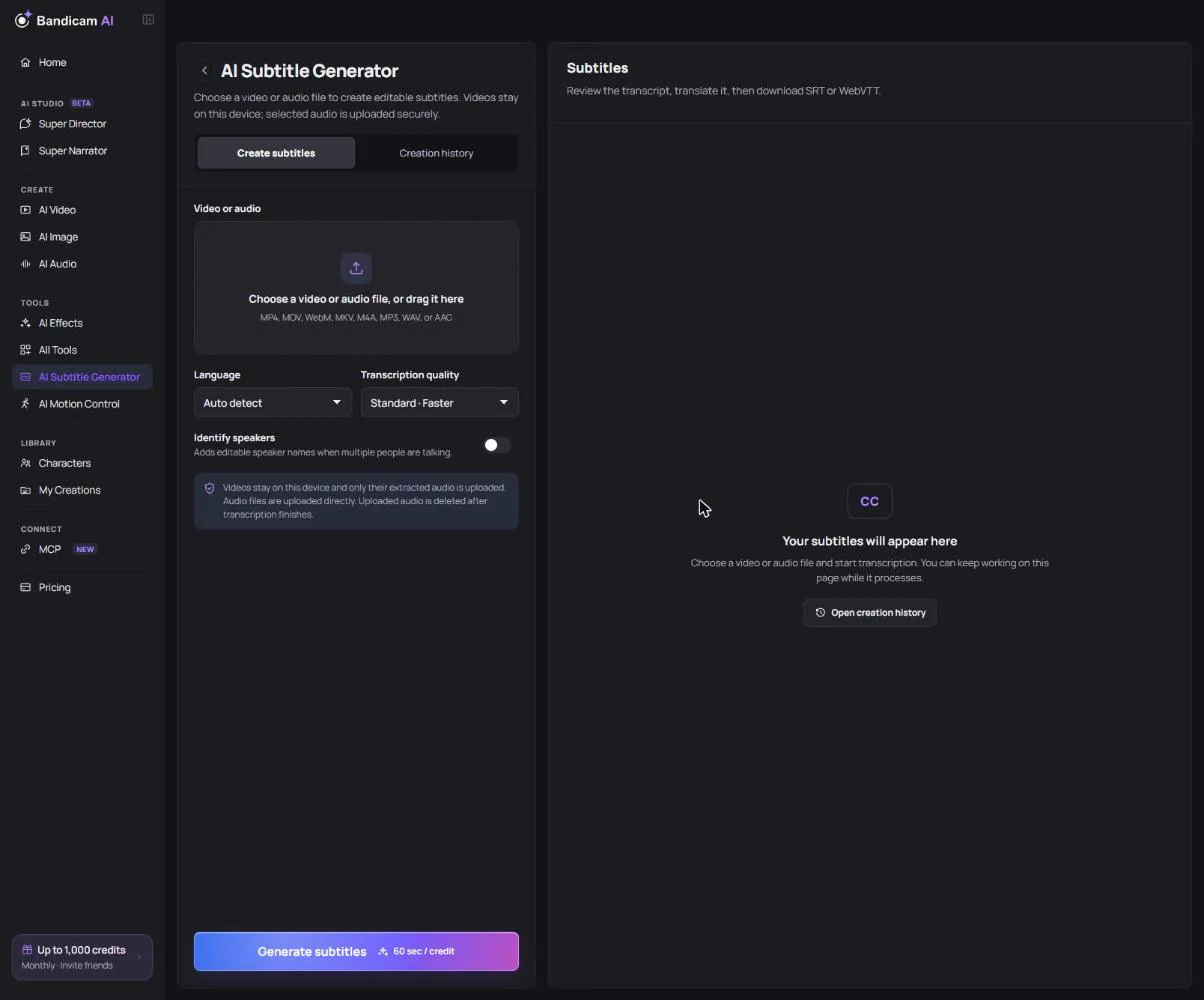
- Add a file: MP4, MOV, WebM, MKV, M4A, MP3, WAV or AAC. A video stays on your device; only its audio is uploaded, and the uploaded audio is deleted once transcription finishes.
- Choose the language, or leave it on Auto detect. Korean, English, Japanese, Chinese, German, Spanish, French, Italian and Portuguese are supported.
- Choose the quality: Standard is faster; Best is more accurate for noisy recordings, fast speech or technical terms.
- Identify speakers if more than one person talks; each line is labeled with its speaker.
- Press Generate subtitles. The estimated cost is shown first.
Check and edit
When the transcript is ready, read it next to the media. Use Find & replace to fix a name or term everywhere at once. Review sensitivity highlights lines the AI was unsure about (low, medium or high); mark a line Looks correct when you have checked it.
Translate
Translate the finished subtitles into English, Korean, Japanese, Chinese (Simplified or Traditional), Spanish, French, German, Italian, Portuguese, Vietnamese, Thai, Indonesian, Hindi or Arabic. Translation is priced separately, and the price is shown before you start.
Download
Download the subtitles as SRT (most video editors and YouTube), WebVTT (web players) or TXT (plain transcript). Saved subtitles are listed in the tool’s own Creation history and are deleted after the retention period (7 days unless you have an active credit plan). Translations are always kept for 7 days.
What it costs
Charged by the length of the media. The estimate is shown before you start.
“This file does not contain an audio track.”
The video has no sound. Check the file plays with audio, or upload the audio separately.
“Transcription is still processing.”
Long files take a while. Check Creation history again shortly.