
Add music and narration, then join the clips
A long work is made as several clips. To finish it, you can add background music and narration that run across all the clips, style the captions, and then join everything into one finished video. These steps are in the Clips tab.
Add music and narration
Under Add music and narration, choose Make. You can add this as soon as the clips have started; you don’t have to wait for all of them.
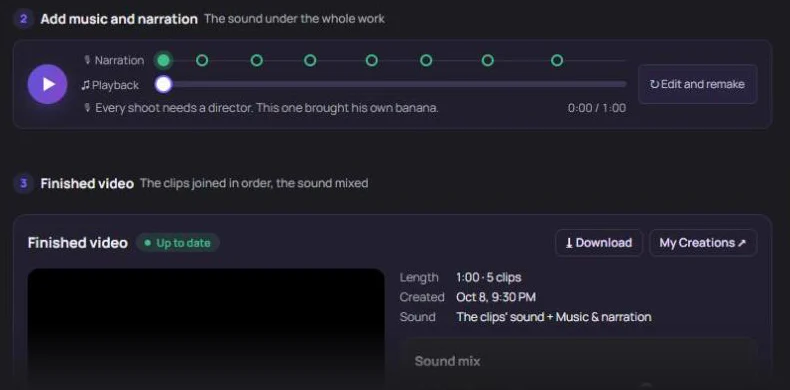
- Background music — the Director writes a music description from your plan. Change it in your own words, or choose Rewrite.
- Narration — the Director writes a narration script that fits the scenes. Edit it, choose Rewrite, or set a tone such as Warmly or Calmly.
- Voice — pick one of the suggested voices or describe the voice you want.
- Language — narration is currently available in English, Korean and Japanese.
- No narration while characters speak — keeps the narration out of scenes with dialogue so the voices don’t overlap.
Music and narration are made together as one soundtrack and are charged when you make them. The price is shown on the button.
Style the captions
Narration can be shown as captions on the finished video. Choose a caption style such as Cinema, Variety show or Mood, and adjust the font, color and size. On-screen text you set in the scenes is shown as well.
Set the sound mix
The mix decides how loud the music, narration and the clips’ own sound are against each other:
| Mix | Best for |
|---|---|
| Clear narration | Explainers and ads where every word should be heard |
| Balanced | Most videos |
| Ambience | Mood pieces, vlogs and travel videos where the scene sound matters |
While speaking sets how much the music and narration step back when a character speaks. Use Preview the mix to listen before joining.
Join the clips
When every clip is made, choose Join all clips. The price depends on the length of the work and is shown on the button. Joining mixes the sound, joins the clips and saves the finished video; it usually takes a few minutes.
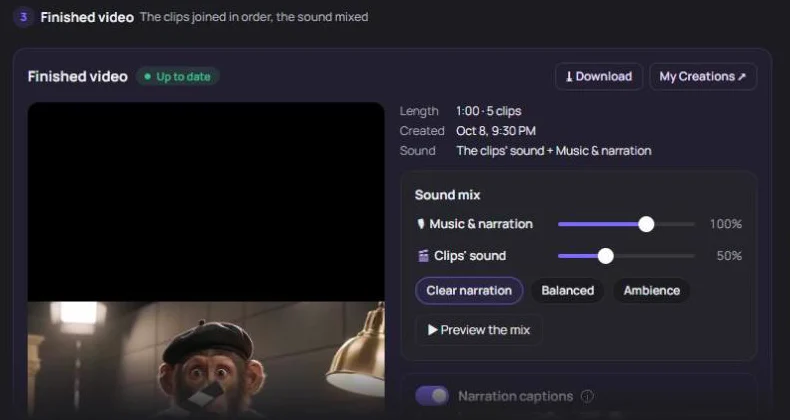
The finished video is saved to My Creations, and you can download it right away. If you change scenes, remake clips or change the music afterward, choose Join again. The new finished video is added; the previous one stays in My Creations.
“Some clips are not made yet”: Joining needs every clip. Make or remake the missing clips in the Clips tab, then join.