
Start a project and write the script
The first two steps of a Super Narrator project decide what your video will look like and what it will say. Both are free with the free writing models.
Step 1: Settings
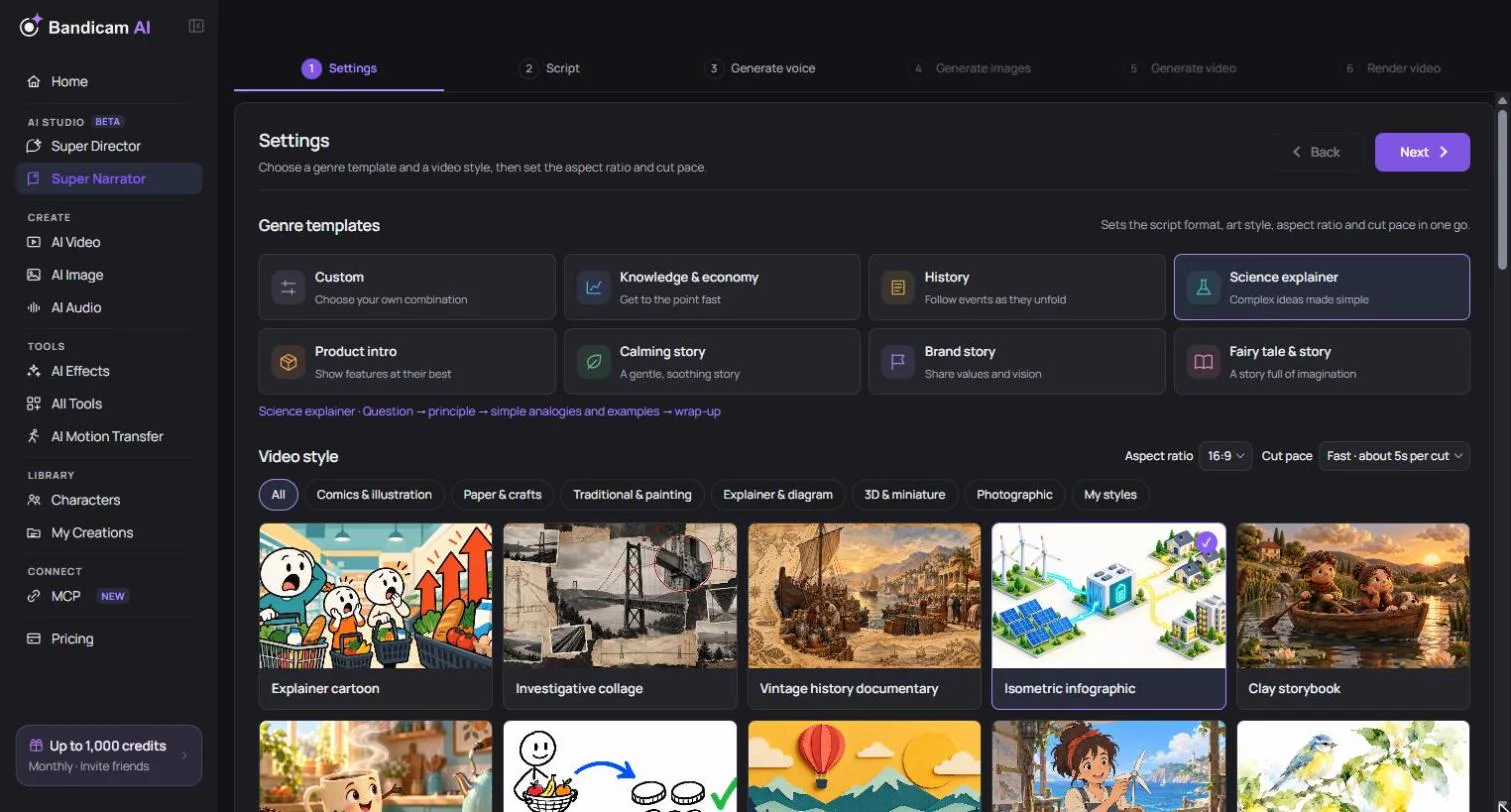
Genre templates
A genre template sets the script format, art style, aspect ratio and cut pace in one go. You can still change each of them afterward.
| Genre | Script format |
|---|---|
| Knowledge & economy | Question → key explanation → example → summary |
| History | The event → historical background → how it unfolded → outcome and meaning |
| Science explainer | Question → principle → simple analogies and examples → wrap-up |
| Product intro | The user’s pain point → the product → its benefits → call to action |
| Calming story | Soft opening → quiet story → a small step to take → lingering close |
| Brand story | Beginning → challenge → change → values and vision |
| Fairy tale & story | Characters → incident → adventure → resolution |
| Custom | Free structure; choose your own combination |
Video style
Choose from dozens of art styles in groups such as comics and illustration, explainer and diagram, 3D and miniature, traditional painting, paper and crafts, and photographic — for example explainer cartoon, isometric infographic, watercolor, clay storybook, webtoon, ukiyo-e print or documentary photo.
To use your own look, choose Create my style. Give it a name and describe the look, add up to 9 reference images (20 MB each), or both.
Aspect ratio and cut pace
- Aspect ratio — 16:9 landscape (YouTube), 9:16 portrait (Shorts, Reels, TikTok), 1:1 square or 3:4 portrait.
- Cut pace — how often the picture changes: Fast (about every 5 seconds), Normal (about 15) or Slow (about 30). Faster pacing keeps viewers’ attention but needs more pictures, which costs more.
Step 2: Script
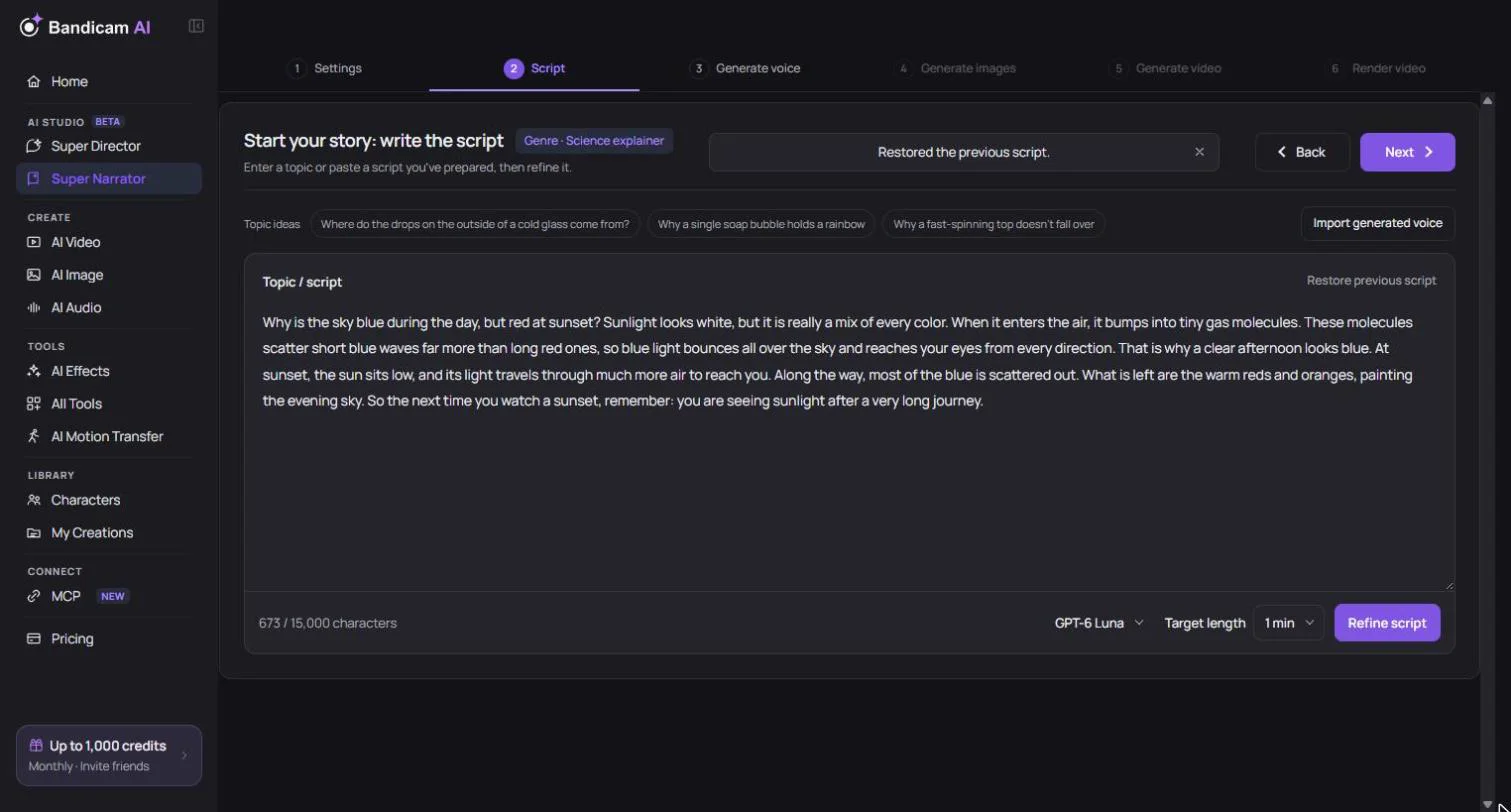
Write from a topic
- Type your topic in the Topic / script box. One line is enough, for example “Why the Roman Empire fell”. Need an idea? Open Topic ideas.
- Choose a Target length: 30 seconds, 1, 3, 5, 10, 20 or 30 minutes. The length is a guide; the finished video will be about that long.
- Choose the AI writing model. Free models are marked; stronger models charge credits by usage and ask you to confirm first.
- Press Refine script. The AI writes a script of about that length from your topic, in the format of your genre. It takes from a few seconds to a minute. Then read the script through.
Use your own script
Paste a script of up to 30,000 characters into the same box. If you don’t refine it, it’s used exactly as written. Any language works; the voice list later shows the voices that support it.
Check the facts
When the AI writes from a short topic, it has to assume some details. These are listed under Details to check. Correct anything that’s wrong. Other parts may also need checking, especially names, dates and numbers in history or science videos.
Refine the script
The same Refine script button also polishes a script you wrote or pasted: it completes it for the target length and smooths the sentences for narration. If you prefer the earlier version, choose Restore previous script. If you press Next without refining, you’ll be asked once whether to refine it or Continue as is, which keeps your script exactly as written.
Start from a voice you already made
Made a voiceover in AI Voice Generator already? Choose Import generated voice and pick a voice that has captions. Its captions become the script and the voice is used as the narration, so you can skip the voice step.