How to Install ZunShot
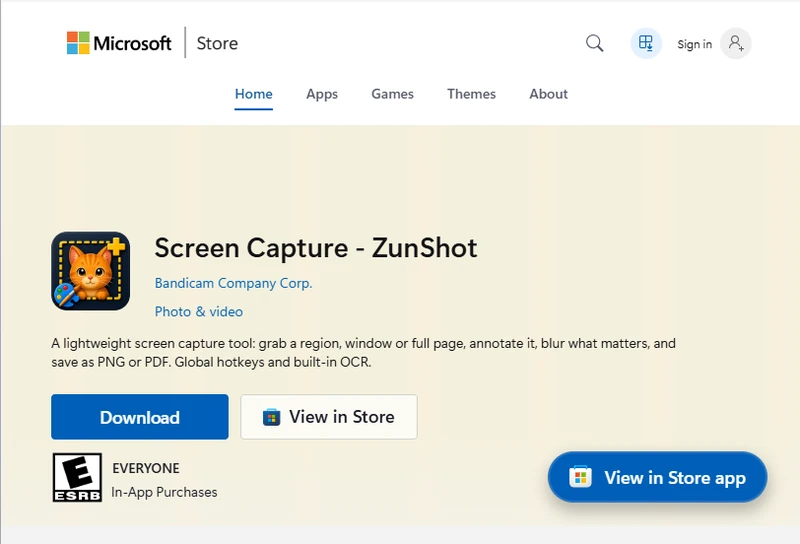
ZunShot is distributed through the Microsoft Store. A classic setup file is also available for PCs that cannot use the Store.
How to
- Open the Store page. Click Get ZunShot from the Microsoft Store or search for ZunShot in the Store app.
- Click Get. Windows downloads and installs the app. No administrator password is required.
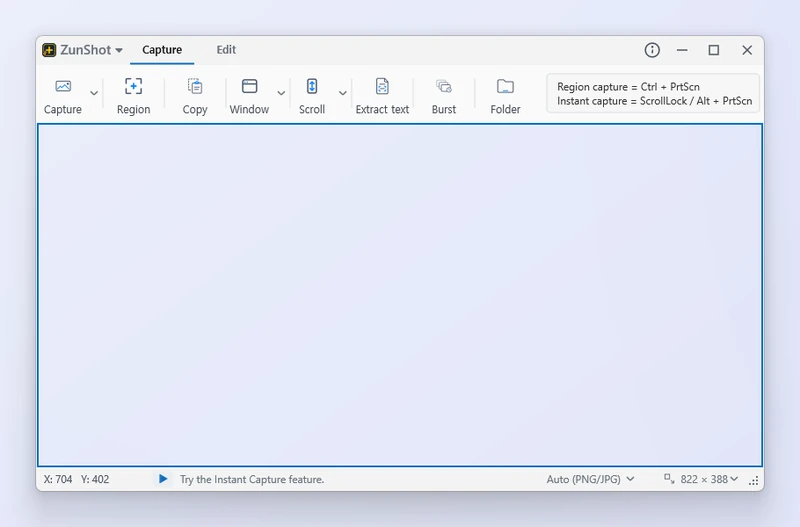
- Launch ZunShot. Start it from the Start menu. The Capture tab and a tray icon appear.
- Optional: keep it ready. Turn on Enable screen capture when Windows starts in Settings > General so the hotkeys work right after sign-in.
Tips
- System requirements: Windows 10 64-bit (build 10240) or later. Windows 10 version 1809 or Windows 11 is recommended.
- Setup file: if you received
zunshot-setup-*.exe, run it and follow the wizard. Both versions share the same features. - Store and setup-file versions update differently. See Updates.
Frequently asked questions
Is ZunShot free?
Capturing is free. See Free vs Pro for what ZunShot Pro adds.
Does ZunShot record video?
No. ZunShot captures still images only. For screen recording use Bandicam.