ZunShot settings - General
Open Settings from the ZunShot menu (top-left logo) or from the tray icon menu. The General tab controls how ZunShot starts and how its windows behave.
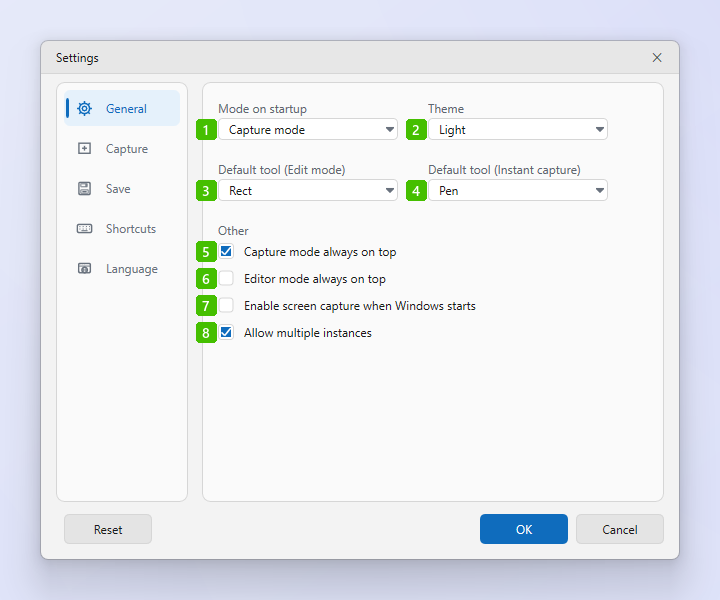
- Mode on startup: The window ZunShot opens with. Capture mode shows the capture frame, Editor mode opens the editor, and Tray mode starts hidden in the notification area with the hotkeys active.
- Theme: Follow system setting, Light or Dark. Applies to every ZunShot window.
- Default tool (Edit mode): The drawing tool that is selected when a capture opens in the editor.
- Default tool (Instant capture): The tool that is active when the Instant Capture toolbar opens.
- Capture mode always on top: Keeps the capture window above other windows so the capture frame stays visible while you arrange what to capture.
- Editor mode always on top: The same for the editor window.
- Enable screen capture when Windows starts: Registers ZunShot to start at sign-in and keeps it running in the tray when you close the main window. Turn it off to have the close button exit ZunShot completely.
- Allow multiple instances: Lets you open more than one ZunShot window. Takes effect the next time ZunShot starts.
Buttons at the bottom
- OK saves the changes on every tab. Cancel closes the window without saving.
- Reset returns all settings to their defaults and restarts ZunShot.
- In the installed version a File associations section appears below these options. Its button opens the Windows default apps settings so you can make ZunShot the default viewer for image files.
Frequently asked questions
The start-with-Windows option is greyed out.
Windows blocked auto-start for the app. Enable it in Windows Settings > Apps > Startup, then return here.
ZunShot keeps running after I close it.
That is the tray behaviour of option 7. Right-click the tray icon and choose Exit, or turn the option off.