Add a Watermark
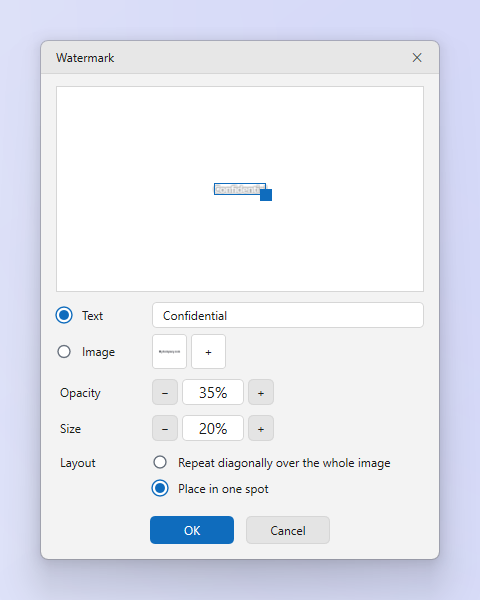
A watermark stamps your logo or a line of text onto the capture at save time. Set it up once under Watermark settings and choose Save with Watermark whenever you need it.
How to
- Open Watermark settings. From the editor's More menu.
- Choose image or text. Pick a PNG logo with transparency, or type the text and choose its font and color.
- Position and opacity. Choose a corner or the center, the margin, the size and the opacity.
- Apply. Use Save with Watermark, or copy with the watermark. The original tab stays untouched.
Tips
- Keep the logo small and semi-transparent so it does not compete with the content.
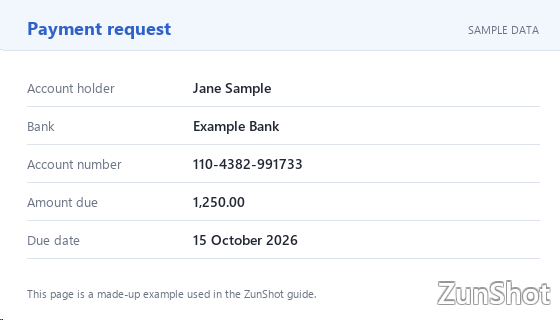
- The free version adds a ZunShot watermark to edited images. ZunShot Pro removes it and lets you use your own.
Frequently asked questions
Can the watermark be applied automatically to every save?
Yes, when the always-apply option is on in Watermark settings.