Extract Text (OCR) and Translate
ZunShot uses the OCR engine built into Windows. Recognition runs on your PC, nothing is uploaded. Translation is optional and sends only the recognized text.
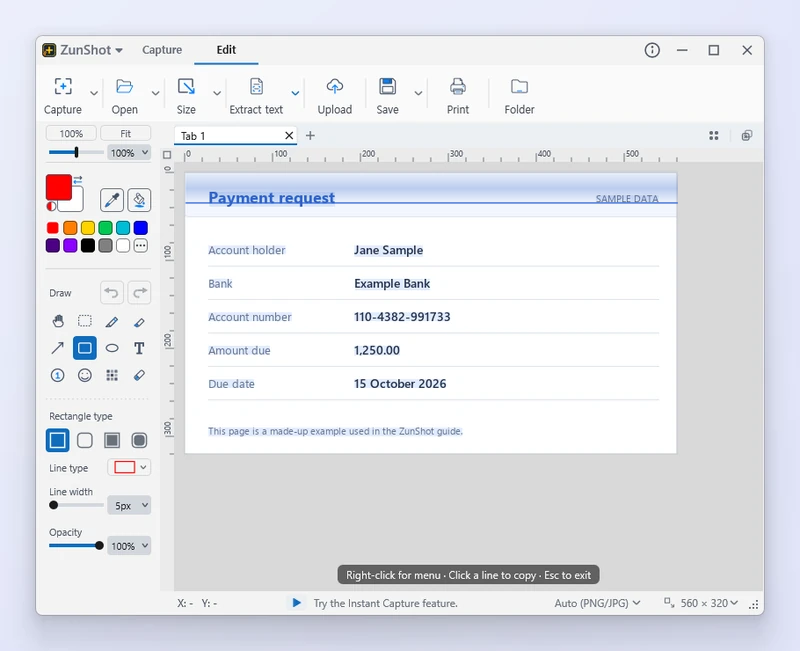
How to
- Open the capture in the editor. Or select an area in Instant Capture and click Extract text.
- Choose Extract text (OCR). Select the region that contains text, or use the whole image.
- Copy or save. Copy the text to the clipboard or save it as a text file. Edit it first if a character was misread.
- Translate an image. Choose Translate image and pick the target language. Each recognised line is sent for translation and the result is drawn over the original text, so a long page takes a few seconds. Press Esc to cancel, or pick the original language again to put the original text back.
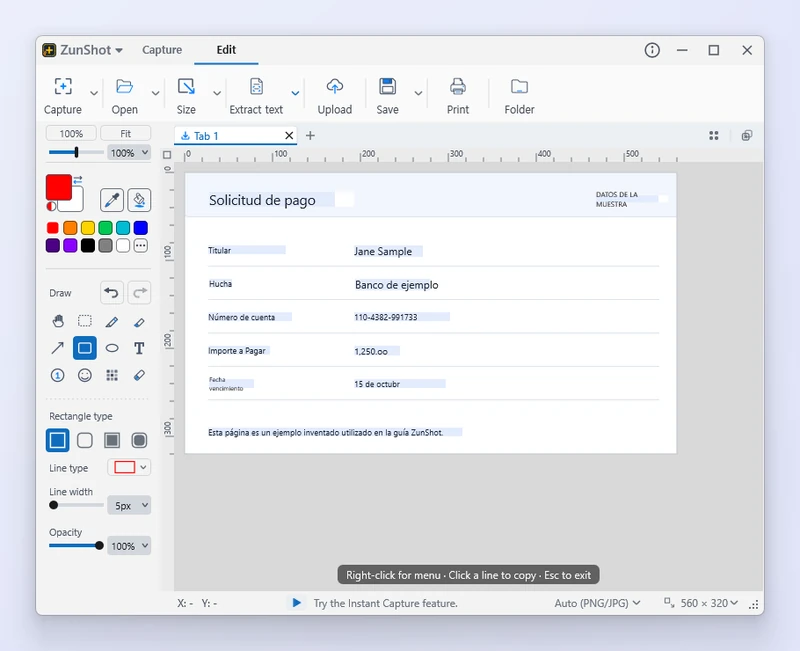
Tips
- Install recognition languages under Settings > Language > Install OCR languages…. Windows needs the language and its typing features, not only the display language.
- Accuracy improves with a sharp source and the right language. Crop away unrelated parts and avoid heavily compressed images.
- Translation uses the MyMemory service. An optional email address raises the daily quota and is sent only if you enter one.
Frequently asked questions
OCR produced garbage characters.
The selected language does not match the text. Choose the right language, or install it first.
Is my image uploaded for OCR?
No. OCR is performed by Windows on your PC. Only Translate sends the recognized text.