Crop, Rotate and Resize
Size and orientation tools live under Size and Rotate / Flip. Canvas size adds or removes space around the picture. Image size changes the picture itself.
How to
- Crop. Select the area to keep, then choose Crop. Or crop to a fixed ratio from the crop options.
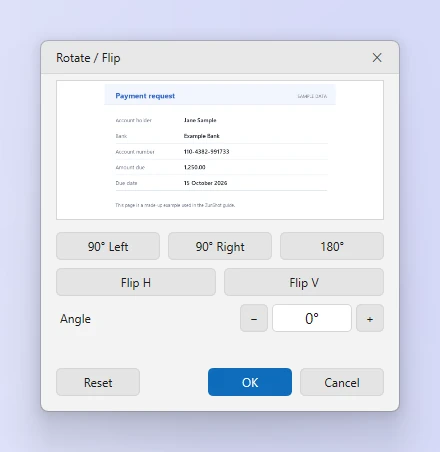
- Rotate or flip. Open Rotate / Flip. Use 90° Left, 90° Right, Flip H, Flip V, or drag the Angle slider to straighten a tilted photo. Reset returns to the original.
- Change the canvas size. Open Size > Canvas size. Enter the new size and choose where the existing picture is anchored. New space is filled with the background color.
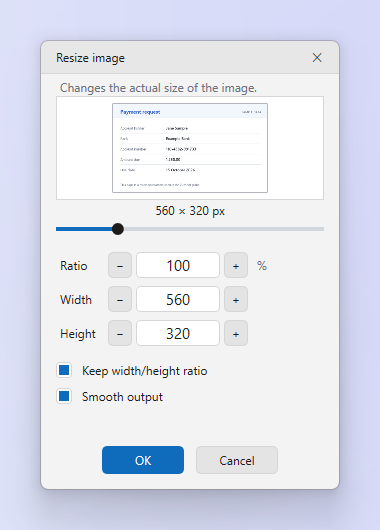
- Change the image size. Open Size > Image size. Enter pixels or a percentage. Keep the ratio locked unless you want to stretch the picture.
Tips
- Downscaling uses the same high-quality resampling as Windows Photos, so text stays crisp.
- Straightening by angle crops the corners. Add canvas first if you need to keep everything.
Frequently asked questions
Can I undo a crop?
Yes. Ctrl+Z restores the previous state until you close the tab.
Why is my resized image blurry?
Enlarging cannot add detail. Capture at a larger size, or use a display scale of 100% before capturing.