Screenshot Editor for Windows

Turn a raw capture into an explanation. Add arrows, numbered steps, text and highlights, blur out anything private, crop and straighten, then save, print or share. The editor opens the moment you capture, and it also opens any PNG, JPG or WebP file.

Included in ZunShot for Windows 10 and 11. ZunShot Pro saves edited images without the watermark.

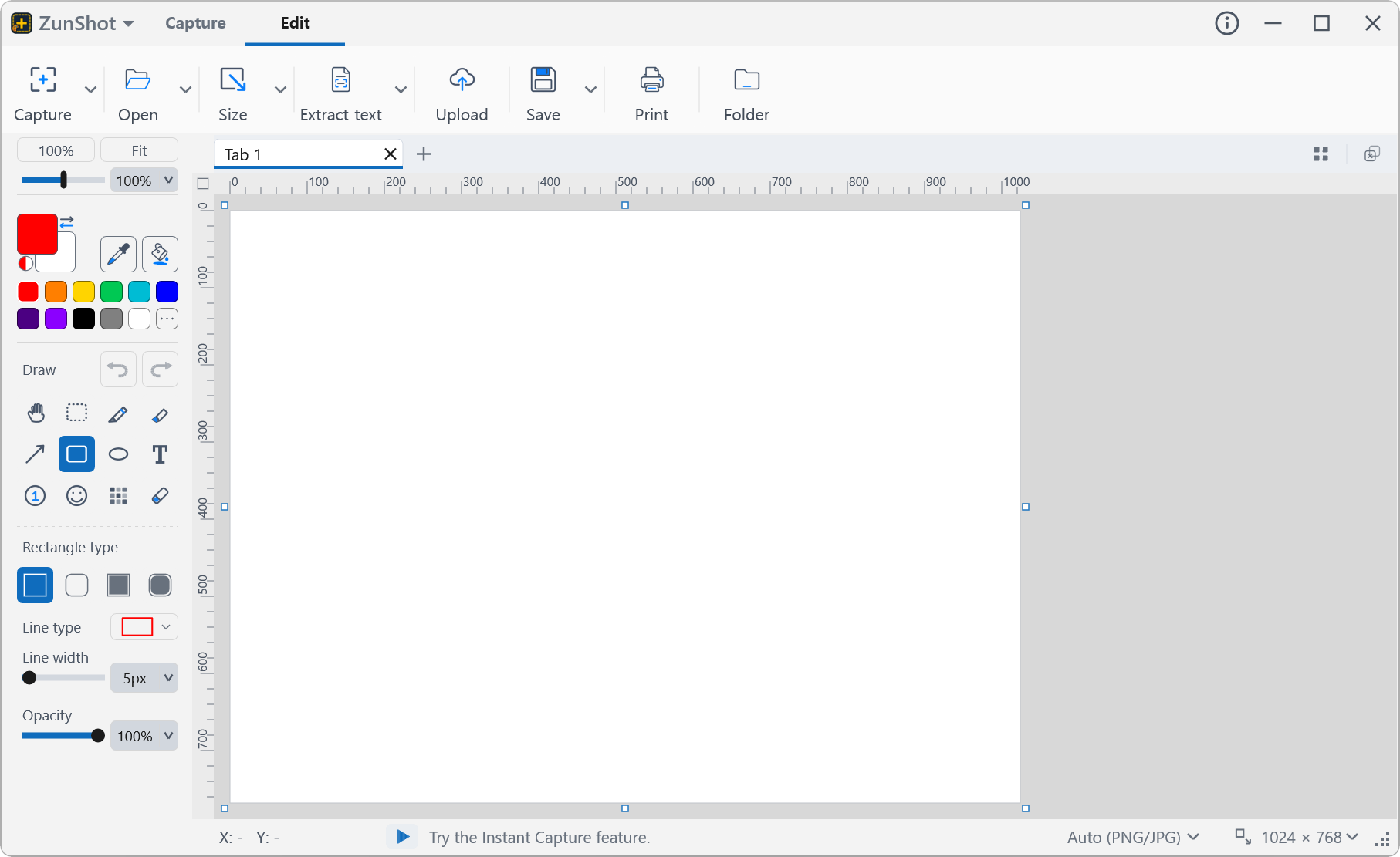
ZunShot screenshot editor with drawing tools, canvas and tabs

Everything a screenshot needs before you send it

A good screenshot points at the thing that matters and hides the things that do not. ZunShot's editor puts arrows, numbers, shapes, text and a highlighter one click away, keeps a mosaic and blur tool next to them for account numbers and faces, handles the crop, rotate and resize that usually means opening a second program, and can erase a background to transparency and save the result as a transparent PNG or WebP. Several captures stay open as tabs so you can finish a whole set and save them at once.

Edit screenshots faster

Annotate with arrows, numbers, text and highlights

Pen, highlighter, arrows in several styles, rectangles and ellipses, text with font size and color, emoji stamps, and number badges that count up by themselves for step-by-step instructions.
Drawing and annotation tools »

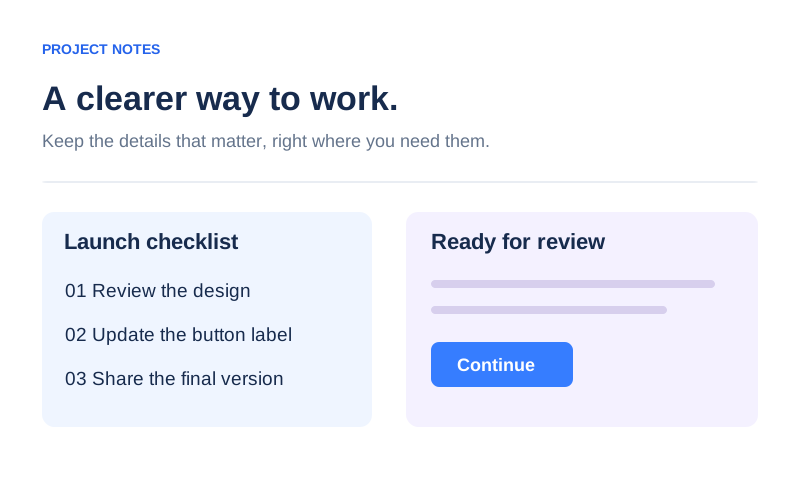
Annotated screenshot with arrows and numbered steps

Blur or pixelate sensitive information

Drag the Mosaic tool over names, account numbers, faces or passwords. Choose mosaic, blur or hatch and set the strength. Check the result at full zoom before you share.
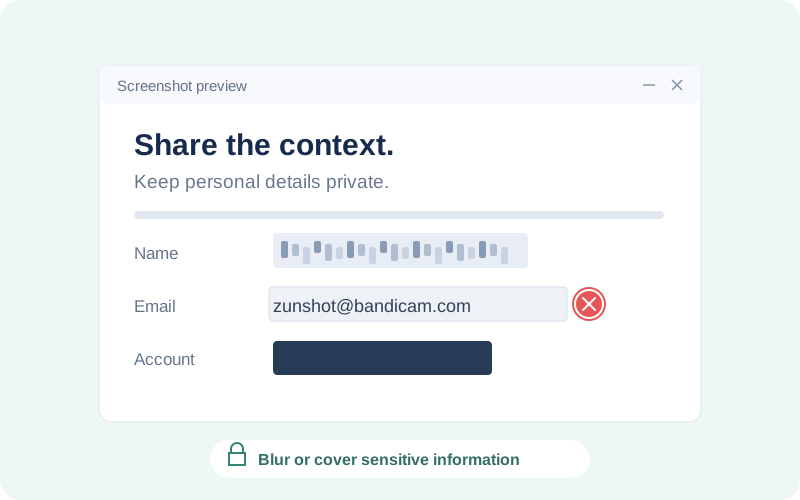
How to hide sensitive data »

Account number covered with mosaic

Crop, rotate, straighten and resize

Crop to a selection, rotate by 90 degrees or any angle, flip, and change the canvas or image size. Downscaling uses the same high-quality resampling as Windows Photos, so text stays sharp.
Crop, Rotate and Resize »

Crop and rotate dialog

Work on a whole set with tabs and batch save

Every capture becomes a tab. Lock the ones you are done with, reorder them, then export the set with one naming rule, or merge them into a single PDF.
Batch Save »

Editor tabs and batch save dialog

Print layouts that do not shrink your work to nothing

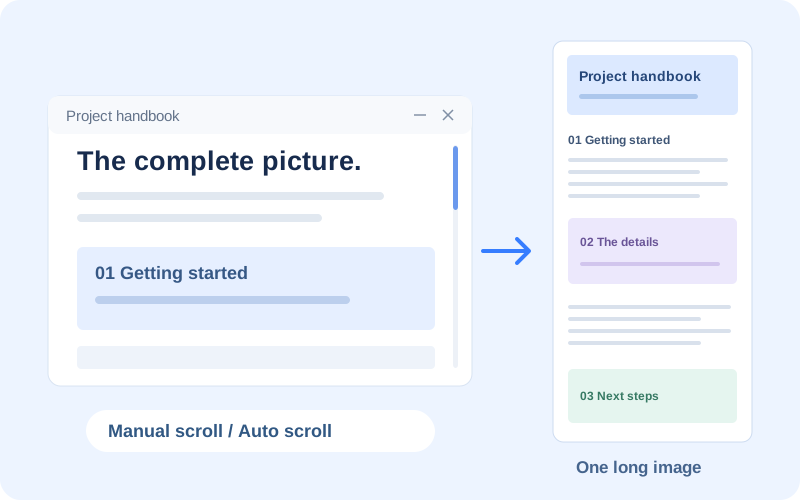
Put several captures on one sheet, or split a tall scrolling capture across pages with a live preview.
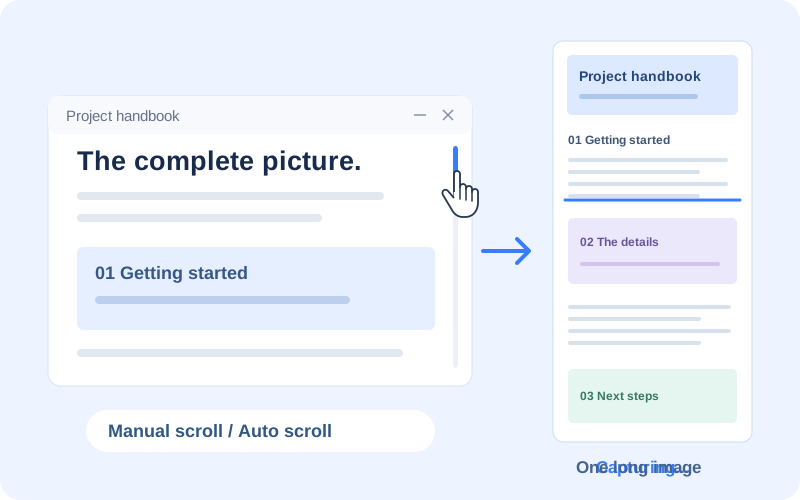
Print »

Print preview with a grid layout

Extract and translate text in the same window

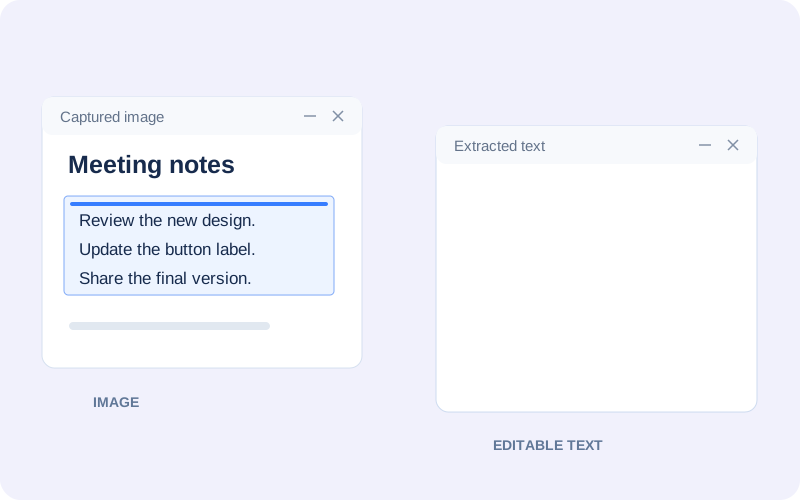
Copy the text out of a screenshot, or translate an image in place. Recognition runs on your PC.
Extract Text (OCR) »

Text extracted from an image

Make the background transparent and save as PNG or WebP

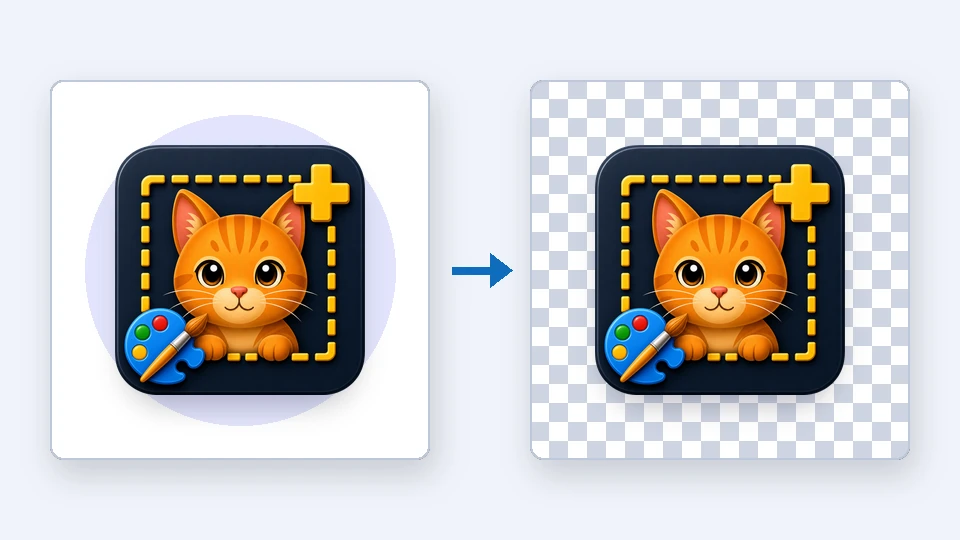
Click a plain background with the Magic Wand and press Ctrl+Delete, or paint with the eraser in Transparent mode, and that area becomes see-through. Save as PNG or WebP and the transparency is kept, so a logo, an icon or a captured window drops cleanly onto a slide, a document or a web page. Copying works too: the clipboard carries a PNG, so apps such as PowerPoint paste it without a white box. Windows 11 windows captured with ZunShot already arrive with transparent rounded corners.
Select & Erase »

An image on a white background next to the same image with a transparent background, ready to save as PNG or WebP


More editing tools

Magic wand selection

Magic Wand and selections

Select connected colors or rectangular, rounded, circular and free-form areas. Ctrl+Delete makes the selection transparent.

Eraser modes

Three eraser modes

Erase drawings only, paint the background color, or erase to transparency.

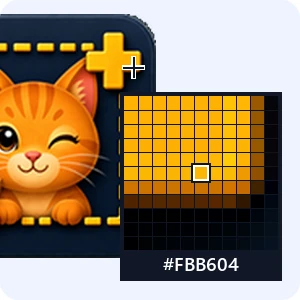
ZunShot color picker magnifier showing the pixel under the pointer and its HEX value

Color picker

Pick any pixel on screen and use it as the drawing or background color.

Watermark settings

Watermark

Stamp your own logo or text on captures when you save or copy.

Pinned screenshot

Pin to screen

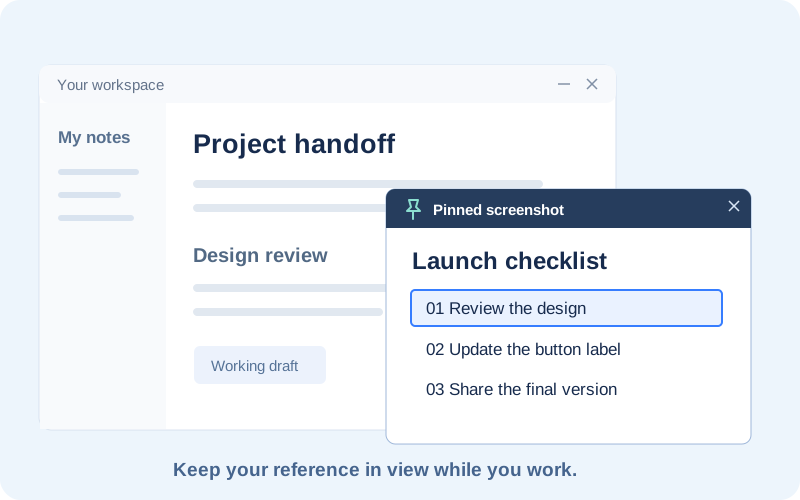
Keep the finished image floating on top while you write about it.

Cloud upload

Upload and share

Send the result to Google Drive, Dropbox or OneDrive and copy the link.

Frequently Asked Questions

Is the screenshot editor free?

The editor is part of ZunShot and every tool can be used in the free version. Images you edit are saved with a small ZunShot watermark. ZunShot Pro, a monthly or yearly subscription through the Microsoft Store, removes it. Captures that you do not edit never carry a watermark.

Can I edit an existing image, not only new captures?

Yes. Open PNG, JPG, GIF, BMP or WebP files from the editor, or drag them onto the window. Each file opens as a tab.

Does the blur really hide the information?

Mosaic with a block size larger than a character, and the hatch style, cannot be reversed. A light blur can be. ZunShot applies the effect to the pixels when you save, and the guide explains how to check the result.

Which formats can I save?

PNG (lossless or 256-color), JPG, WebP and PDF, plus a merged PDF of all open tabs from Batch Save. PNG and WebP keep transparency.

Can I save an image with a transparent background?

Yes. Select the background with the Magic Wand and press Ctrl+Delete, or use the eraser in Transparent mode, then save as PNG or WebP. JPG and PDF have no transparency and show white instead. Select & Erase.

Can I undo?

Yes. Ctrl+Z steps back through your edits until you close the tab. The original capture stays untouched until you save over it.