Draw and Annotate
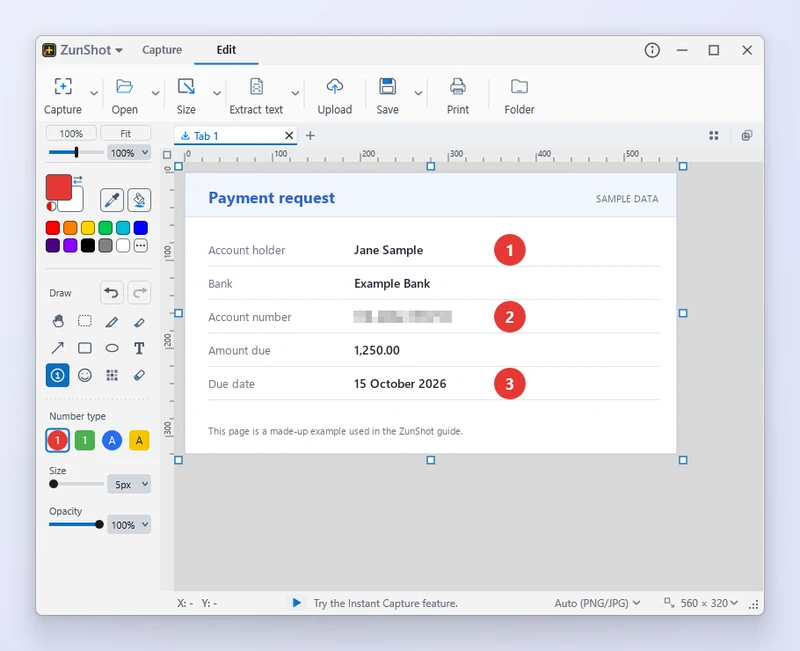
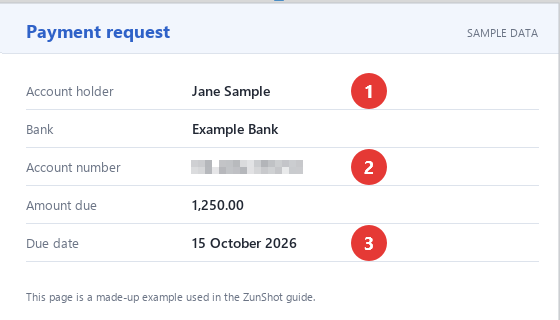
The Edit tab has everything needed to explain a screenshot: arrows that point, numbers that order the steps, and a highlighter that keeps the text underneath readable.
How to
- Pick a tool. Pen, Highlighter, Arrow, Rect, Ellipse, Text, Number or Emoji from the left panel.
- Set color and width. Left-click a palette color for the drawing color, right-click for the background color. Width and Size are in the options bar.
- Draw on the canvas. Drag for shapes and arrows, click to place a number or an emoji, click and type for text. Number badges advance automatically.
- Adjust afterwards. Select an object to move or resize it. Ctrl+Z undoes the last step.
Tips
- Arrow styles include plain lines, double-ended arrows, circle-start arrows and right-angle arrows.
- Shape styles: Outline, Outline + Fill, Rounded Outline, Circle and Ellipse variants.
- Number styles: circle or square, digits or letters. Emoji are grouped into Faces & hands, Marks & emphasis, Shapes & arrows, Devices & misc.
- The same tools are available on the Instant Capture toolbar.
Frequently asked questions
Can I change the text after typing it?
Yes. Double-click the text object to edit it, or select it and change the font size and color.
How do I restart numbering at 1?
Select the Number tool and set the next number in the options bar.