Capture a Specific Window
Window capture finds the window or control under your pointer and captures only that object. No manual framing, no stray pixels from neighbouring windows.
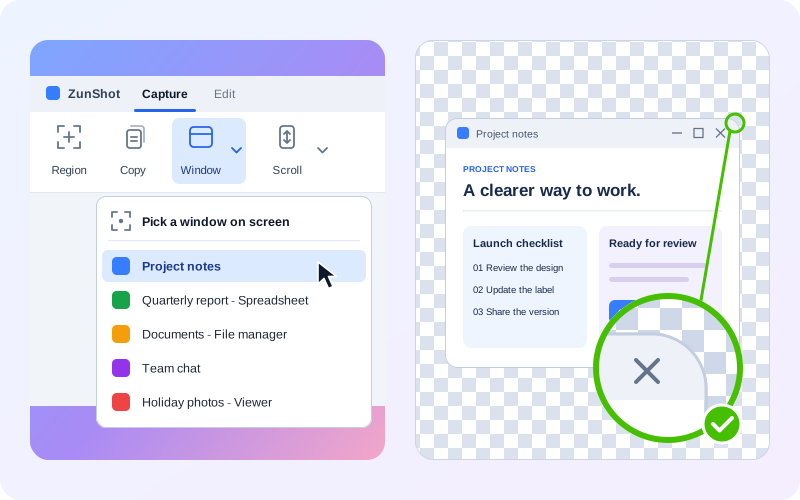
How to
- Choose Window on the Capture tab. Or press Shift+PrtScn, the default hotkey for the window under the cursor.
- Point at the window. Move the pointer over the window or the control you want. The highlighted boundary shows what will be captured.
- Click to capture. Press Esc to cancel.
- Or choose the window by name. Click the arrow next to Window to list the open windows and pick one. Pick a window on screen at the top of the list is the same as clicking the button.
Transparent rounded corners
Windows 11 windows have rounded corners. A rectangle capture keeps whatever was behind the window in those four corners: wallpaper, another window, a dark shadow. ZunShot knows the shape of the window it captures and makes the corners transparent, so the image can be placed on any background.
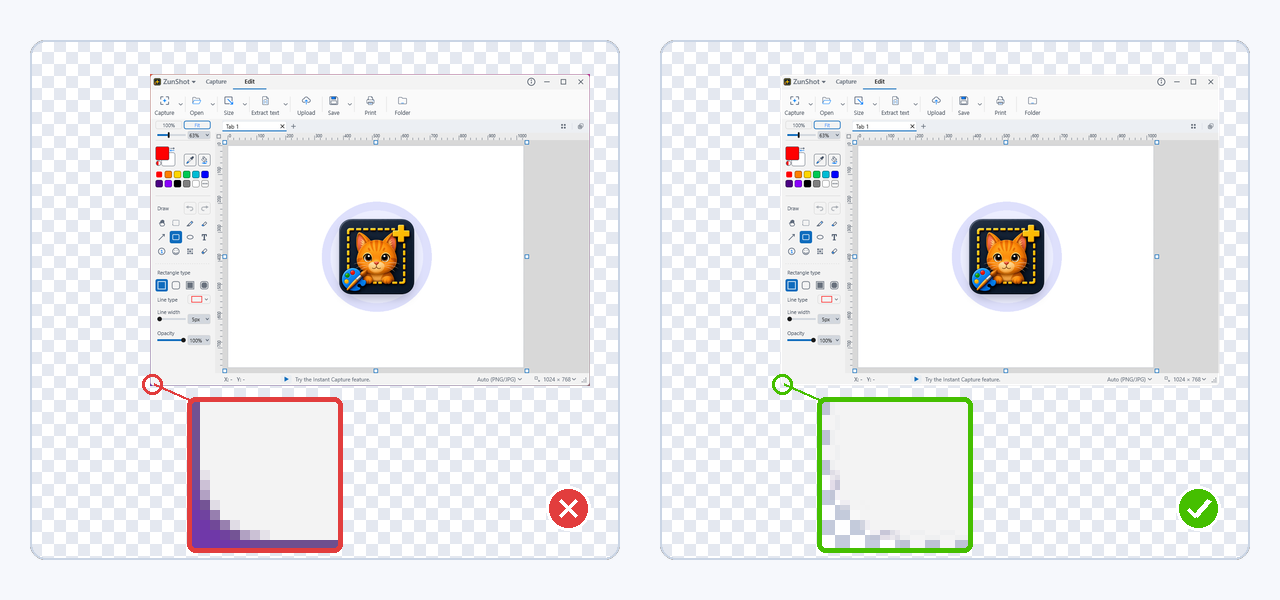
- It works for the Window button, the Shift+PrtScn hotkey, and a window clicked in Instant Capture.
- Capturing part of a window, such as a toolbar along the top edge, rounds only the corners that belong to the window.
- Save as PNG or WebP to keep the transparency. JPG has none and fills the corners with white.
- The option is on by default. Change the radius or turn it off under Settings > Capture > Capture Windows 11 rounded corners.
Tips
- Controls inside a window, such as a toolbar or a list, can be captured on their own by pointing at them.
- For a window that only appears while a key is held, use Instant Capture instead.
Frequently asked questions
The highlight jumps between the window and a control inside it.
Move the pointer to the title bar to select the whole window.
The corners turn white when I paste the capture.
The target app took the bitmap version of the clipboard, which has no transparency. Save as PNG and insert the file instead.
Can I capture a window that is partly off-screen?
Only the visible part is captured. Move the window fully on screen first.