Upload and Share a Link
Upload sends the selected capture to your own cloud account and gives you a link to paste. ZunShot never stores your files on its servers.
How to
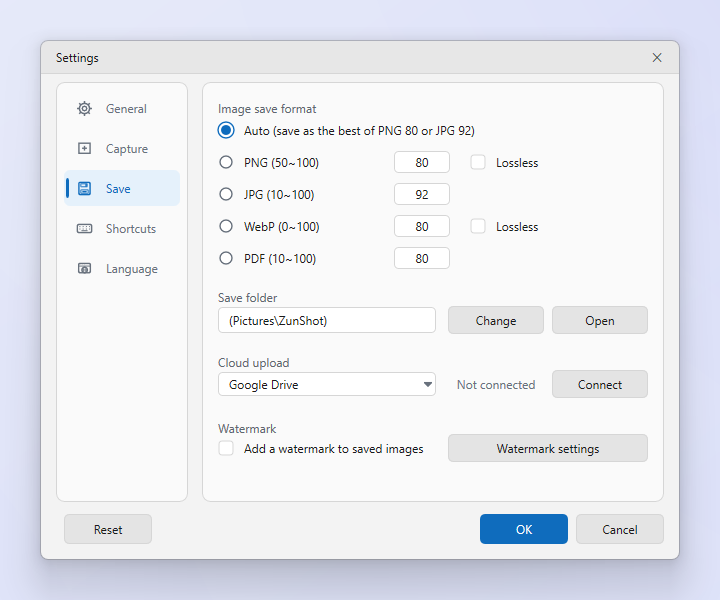
- Connect an account. Settings > Cloud upload > Connect next to Google Drive, Dropbox or OneDrive. Sign in in the browser window that opens.
- Upload. Click Upload on the ribbon and choose the service.
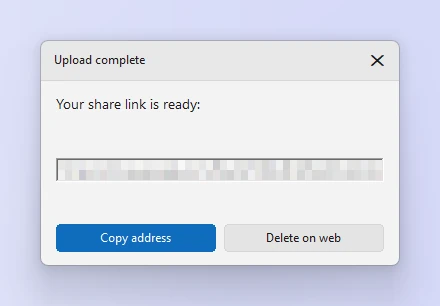
- Share. When the upload finishes, the share link appears in the window. Click Copy address and paste it into chat or mail.
Tips
- Uploads go to a ZunShot folder inside your account. Manage sharing permissions there.
- Disconnect in the same settings page removes the stored token from this PC.
- Review the capture for private information first. See Blur and Hide Sensitive Information.
Frequently asked questions
Upload failed.
Check the internet connection, then Disconnect and Connect the service again.
Which file is uploaded?
The current tab, as saved. Save first if you edited it.