Take a Scrolling Screenshot
Scroll capture turns a long page into a single image. Let ZunShot scroll for you, or scroll by hand when the page needs a careful pace.

How to
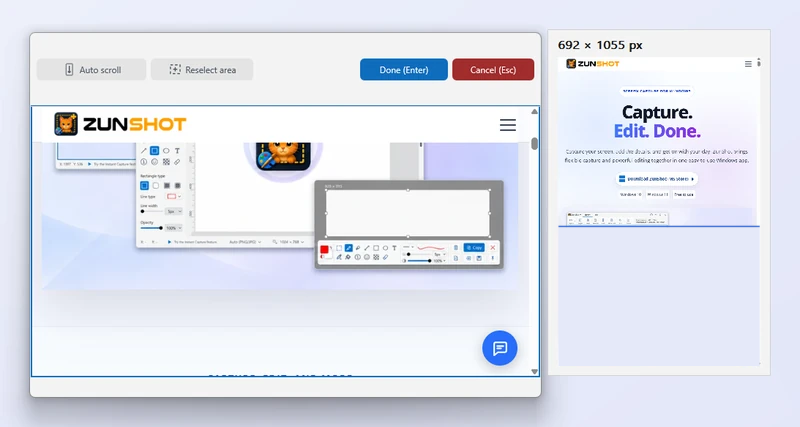
- Choose Scroll on the Capture tab. Or start it from the Instant Capture toolbar.
- Select the scrollable area. Click inside the page, list or chat that scrolls. Use Reselect area if the highlight is wrong.
- Scroll. Click Auto scroll and wait, or turn the mouse wheel yourself. The arrow keys and PgUp/PgDn also work. Press Stop auto or Esc to interrupt.
- Click Done. ZunShot stitches the frames and opens the result in the editor.
Tips
- Fixed headers, sticky toolbars and floating chat buttons are detected and removed from repeated frames.
- Manual scrolling is best for pages that load content as you go. Pause when a spinner appears, then continue.
- For a web page, Web Page Capture renders the full document in ZunShot's built-in browser and avoids stitching altogether.
Frequently asked questions
The result has a repeated band or a missing strip.
Scroll more slowly, or use Auto scroll. Pages with animations while scrolling can confuse the stitcher.
The first wheel turn did not scroll.
Some browsers need the page to receive focus first. Click inside the page once and continue.