Print Captures
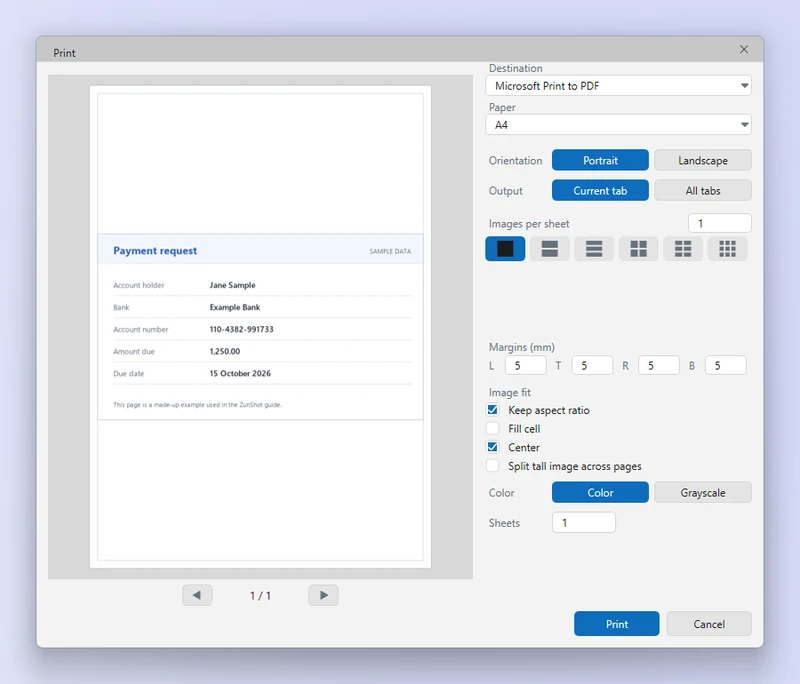
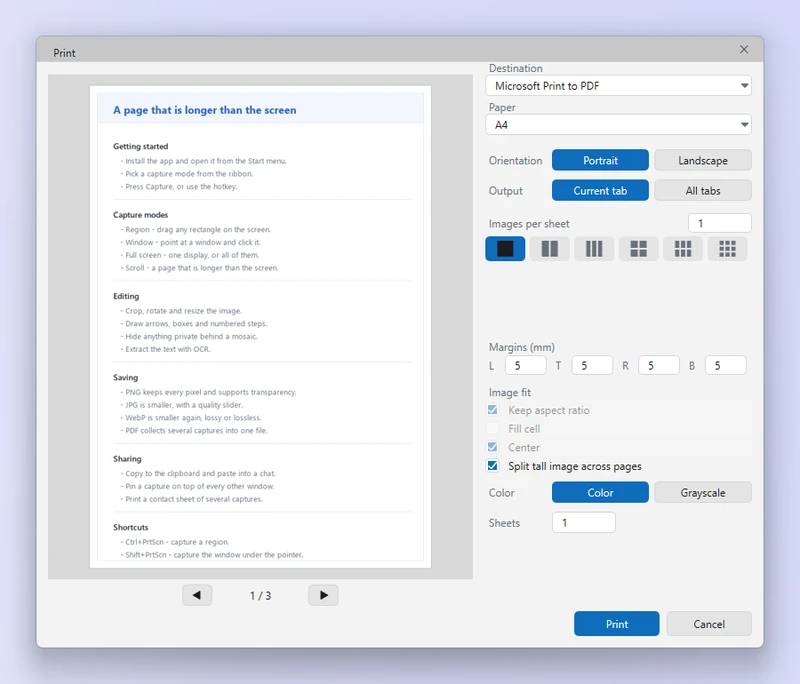
The Print dialog previews the paper before you commit. Put several captures on one sheet to save paper, or split a long capture so nothing is shrunk to illegibility.
How to
- Click Print. On the ribbon, or Ctrl+P.
- Choose the tabs. Tabs to print: the current tab, or several.
- Choose the layout. One per page, or a grid of 2, 4 or more per sheet. Set orientation and margins.
- Long captures. Turn on the long-image option to split a tall capture into readable pages instead of shrinking it.
- Print. Or print to PDF with the Microsoft Print to PDF printer.
Tips
- Preview updates live as you change the layout.
- For a document, Save As PDF gives a file without a printer driver.
Frequently asked questions
Captures come out tiny.
Use fewer captures per sheet, or the long-image split.