Capture a Region of Your Screen
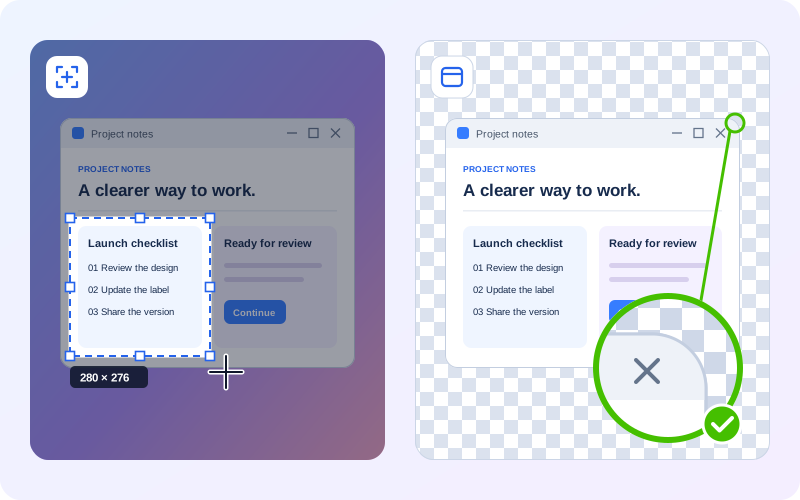
Drag over the area you want, or click the window you want, and it is captured. Click a Windows 11 window with rounded corners and the corners come out transparent.
How to
- Choose Region on the Capture tab. Or press Ctrl+PrtScn, the default region hotkey. The screen freezes so menus and tooltips stay as they were.
- Drag to select an area. The size is shown next to the selection while you drag. Release the mouse button to capture.
- Or click a window. Move the pointer and ZunShot highlights the window or control under it. Click to capture exactly that object. Hold Shift to always pick the whole window, or Ctrl to always pick the control under the pointer.
- Rounded corners come out transparent. When you click a Windows 11 window, its four rounded corners are made transparent instead of keeping the desktop behind them. See Capture a Window.
- The capture opens in the editor. Press Esc at any time to cancel. Press Enter to capture the area of the capture frame instead of selecting a new one.
Capture the same area again
In Capture mode a frame stays on the desktop and marks a fixed area. Drag its edges or corners to resize it, then press Capture whenever you need another shot with exactly the same size and position. What happens after each capture is set under Settings > Capture > After capture.

Tips
- Copy on the ribbon captures the frame straight to the clipboard without opening the editor.
- Delay: use the 3-second delay when you need to open a menu or tooltip first.
- Include cursor: turn on Settings > Capture > Include cursor in capture when the pointer position matters.
Frequently asked questions
The frame covers what I want to capture. Can I move it out of the way?
Yes. Drag the frame by its edge, or switch to Window capture so you never have to draw the area by hand.
Can I type an exact size?
Yes. Click the size label on the frame and enter width and height in pixels.