Pin a Capture to the Screen
A pinned capture is a small always-on-top window. Use it to keep a reference, compare two screens, or copy values from one app into another.
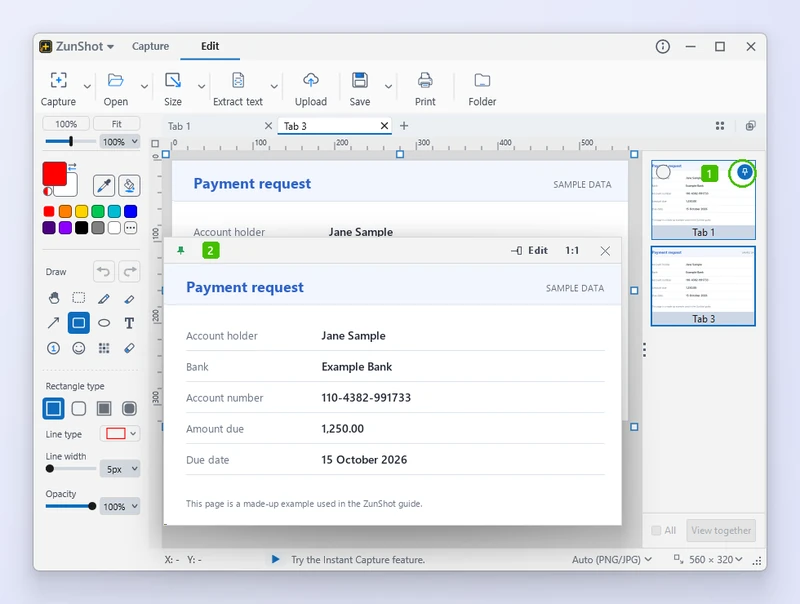
- The pushpin on a tab's card in the tab list. It appears when you point at the card.
- The pinned window it makes - always on top, with Edit, a zoom indicator and a close button on its bar.
How to
- Pin from the editor. Press Ctrl+T for the tab list, then click the pushpin on a tab's card. Right-clicking the tab and choosing Pin to screen does the same, as does dragging the tab out of the window.
- Pin from Instant Capture. Select the area and click Pin to screen on the toolbar, or press Shift+T.
- Move and resize. Drag the pinned window anywhere, including another monitor. Drag its edge to resize.
- Use the menu. Right-click the pinned window for Copy, Save, Send to editor and Close.
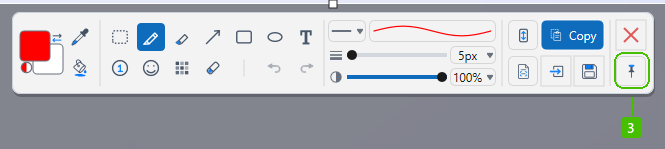
- Pin to screen on the Instant Capture toolbar - the same pushpin, at the end of the row of buttons.
Tips
- Several captures can be pinned at once. ZunShot tells you when the limit is reached.
- A pinned window can be sent back to the editor as a new tab at any time.
Frequently asked questions
Does a pinned window appear in my next capture?
Yes, if it is inside the captured area. Move or close it first.
Can I make the pinned window transparent?
Not in this version.