Screen capture for Windows

Capture.
Edit. Done.

Capture your screen, add the details, and get on with your day. ZunShot brings flexible capture and powerful editing together in one easy-to-use Windows app.

Download ZunShot (MS Store)
Windows 10 Windows 11 Free to use
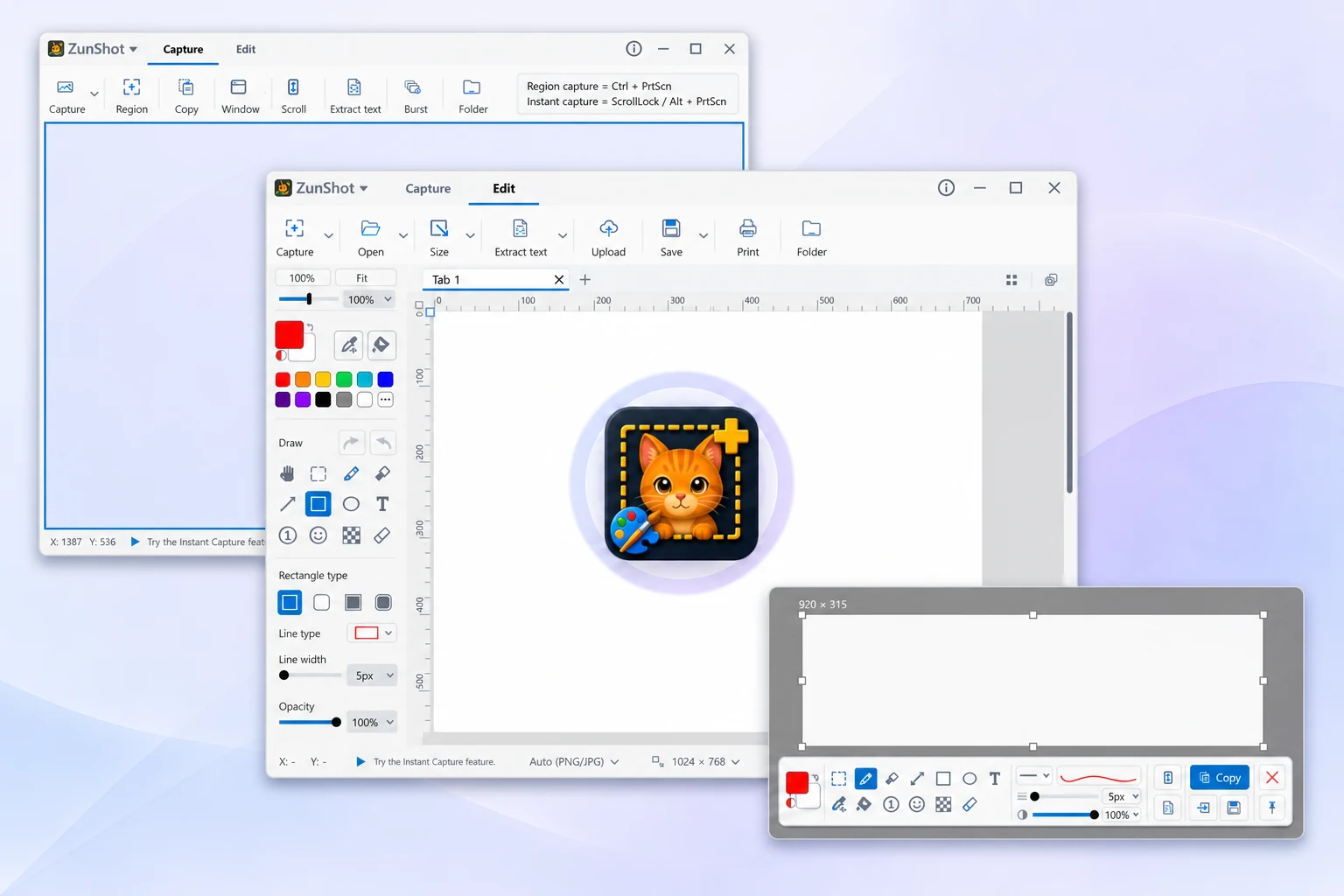
ZunShot Capture, Edit, and Instant Capture modes

Capture, edit, and more

More than a screenshot.

From a quick screen capture to a detailed visual explanation,
ZunShot puts the tools you need in one place.

01 / CAPTURE

Capture your screen,
your way.

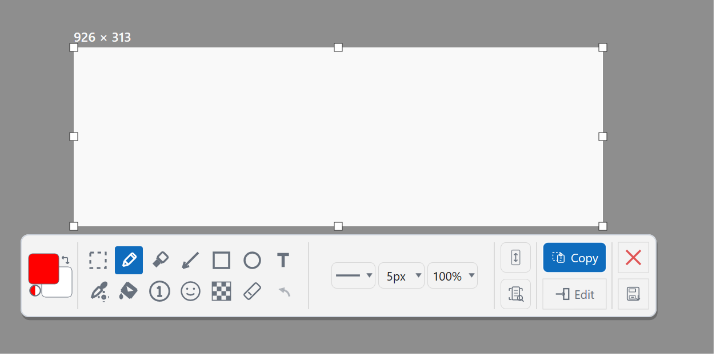
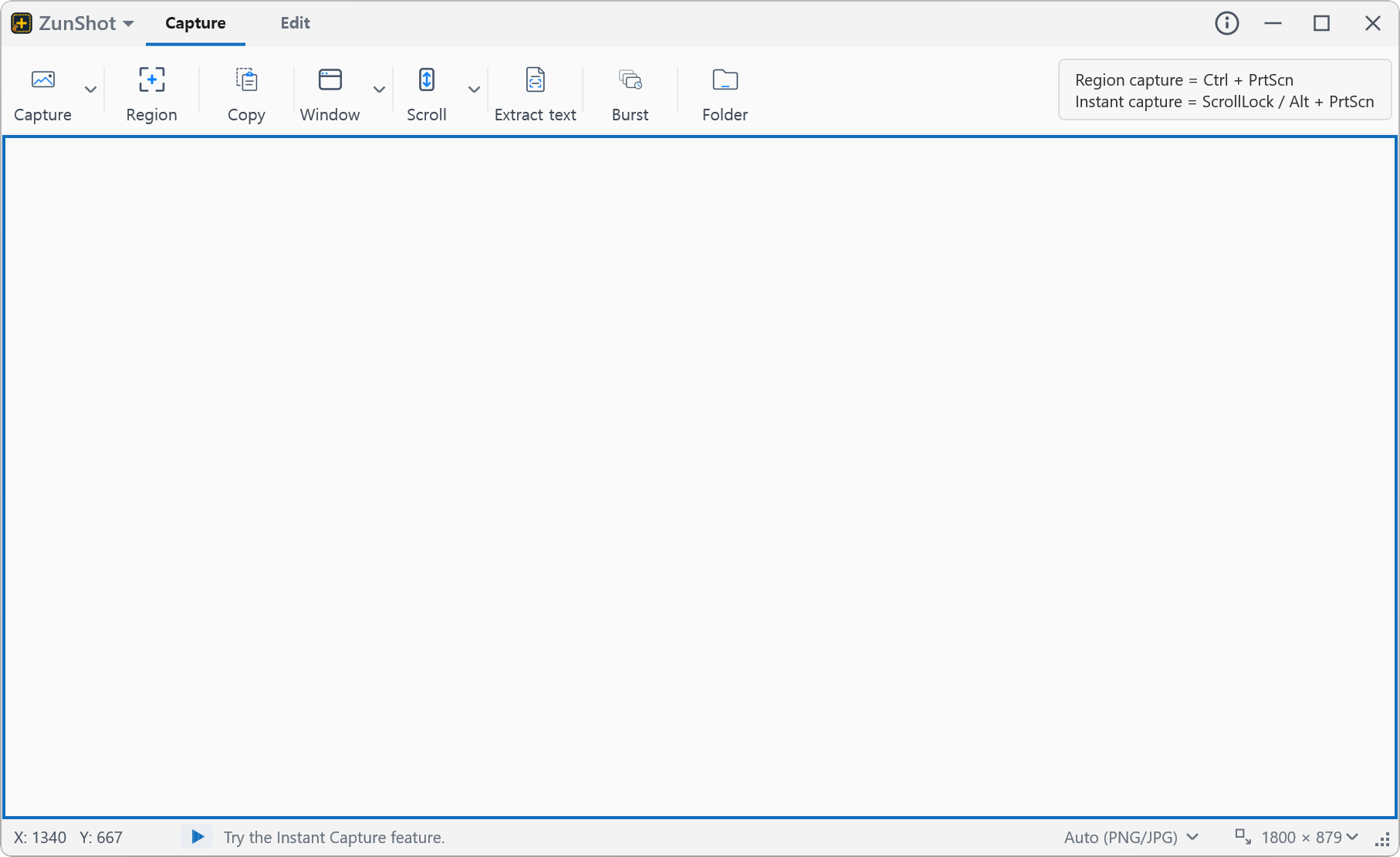
Position a transparent capture window over exactly what you need, or freeze the screen and snip a region at your own pace. From a small detail to a larger area, choose the capture method that fits the moment. Capture a single Windows 11 window and its rounded corners come out clean and transparent, with no leftover desktop in the corners.

Capture window · Frozen-screen snip · Transparent rounded corners
A capture window or a quick snip. Your choice.
02 / SCROLLING CAPTURE

Go beyond
what fits on screen.

Capture long web pages and documents as one continuous image. Scroll manually for more control, or use automatic scrolling to capture the content without collecting separate screenshots.

Manual scrolling · Automatic scrolling

Animation of a hand scrolling down a page while a long screenshot is captured on the right
The whole page, in one image.
03 / EDIT & ANNOTATE

Make your point
with a few simple edits.

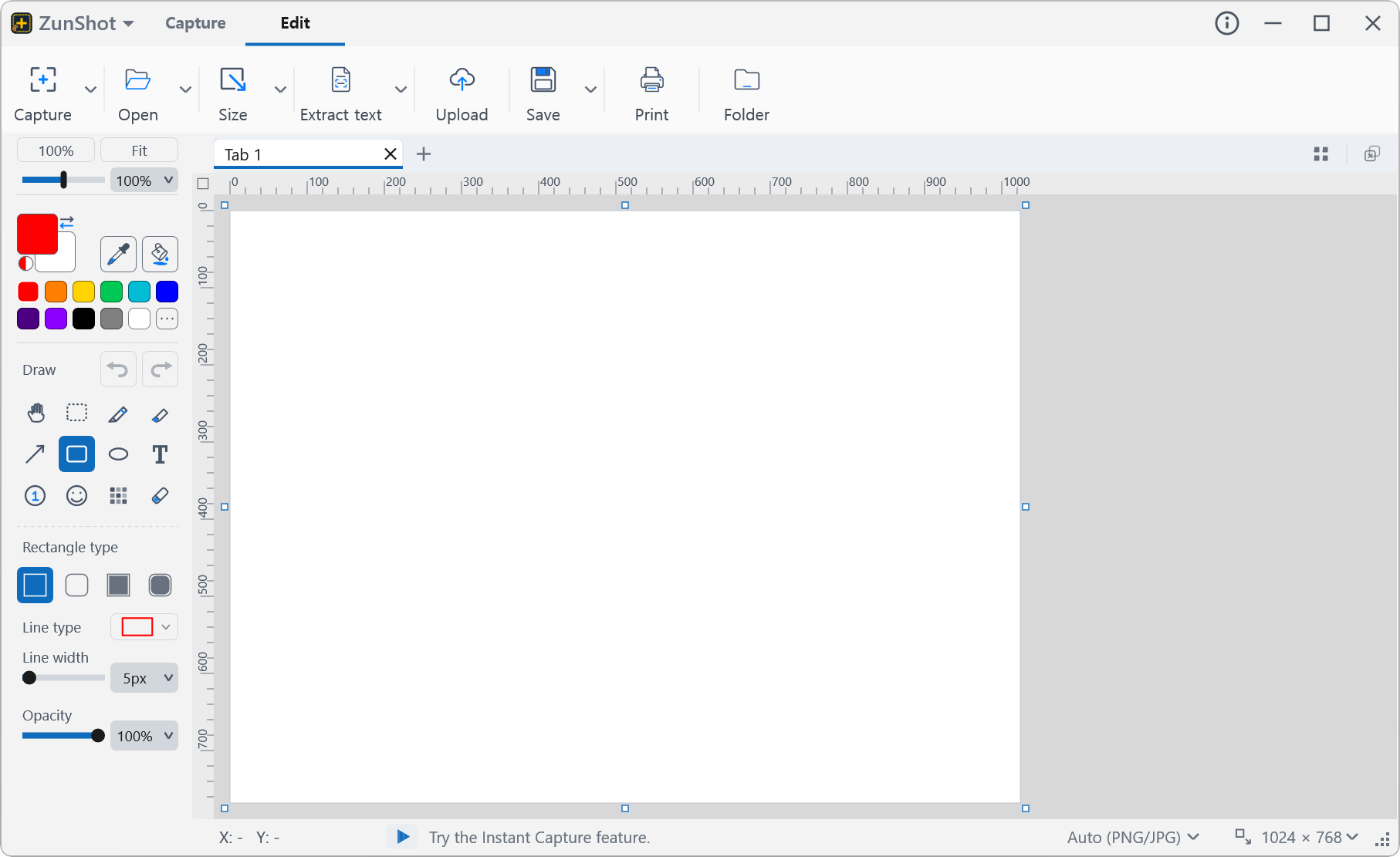
Turn a screenshot into clear feedback or an easy-to-follow guide. Crop the image, add text and arrows, draw shapes, and highlight the details that deserve attention, all in the built-in editor.

Crop · Text & arrows · Shapes & highlights

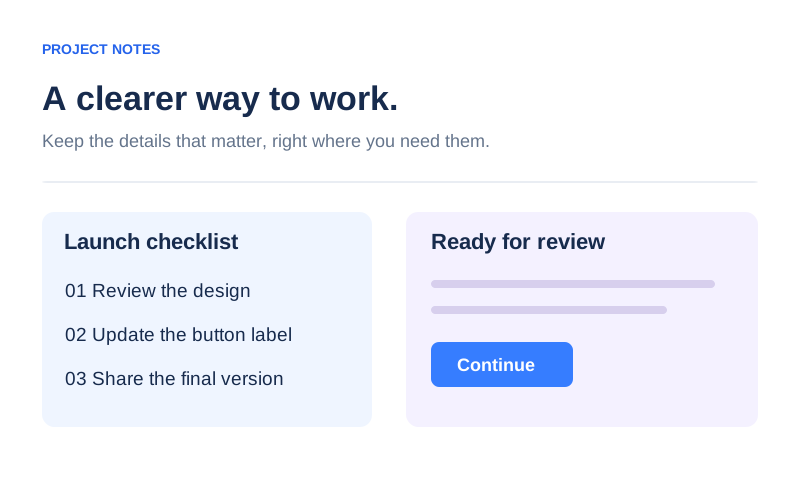
Capture the detail. Add the context.
04 / PRIVACY TOOLS

Show what matters.
Hide what's private.

Keep the useful context while hiding sensitive details. Blur or cover names, email addresses, account numbers, and other private information before you share a screenshot or add it to a document.

Blur sensitive details · Cover private information

Animation of an email address being blurred, then restored after the close button is selected
A little privacy before you share.
05 / TEXT RECOGNITION

It's an image.
Now it's usable text.

Extract text from screenshots and images with OCR. Copy a passage, reuse a set of instructions, or move captured notes into your document without typing everything again.

Extract text from images · Copy and reuse

Animation of notes in an image becoming editable text with OCR
From captured pixels to text you can reuse.
06 / PIN TO SCREEN

Keep your reference
right in view.

Pin a captured image on top of other windows so it stays visible while you work. Follow instructions, compare designs, or keep important details close at hand without switching back and forth.

Always in view · Easy reference while you work

Animation of a captured checklist pinned above a document while the user works
Your screenshot stays on top. Your work keeps moving.

Ready for your next step

Finish it your way.

Save an image, copy it into your work, or print a reference. Choose the output that fits your next step.

Learn more

Get more out of ZunShot.

Find the right tool for the job, follow a step-by-step guide, or get a quick answer.

Solutions

See how ZunShot fits the way you work.

  • Free Screenshot ToolRegion, window, full-screen and scrolling capture with OCR on Windows 10 and 11.
  • Screenshot EditorArrows, numbers, text, blur, crop and resize in a built-in editor.

Screenshot work, simplified.

From a quick screen clipping to a polished visual explanation, ZunShot brings essential capture and editing tools together in one lightweight Windows app.

Support: zunshot@bandicam.com · Contact support