A hotkey does not work
Hotkeys are registered by the running ZunShot instance. If another program owns the key, or ZunShot is not running, nothing happens.
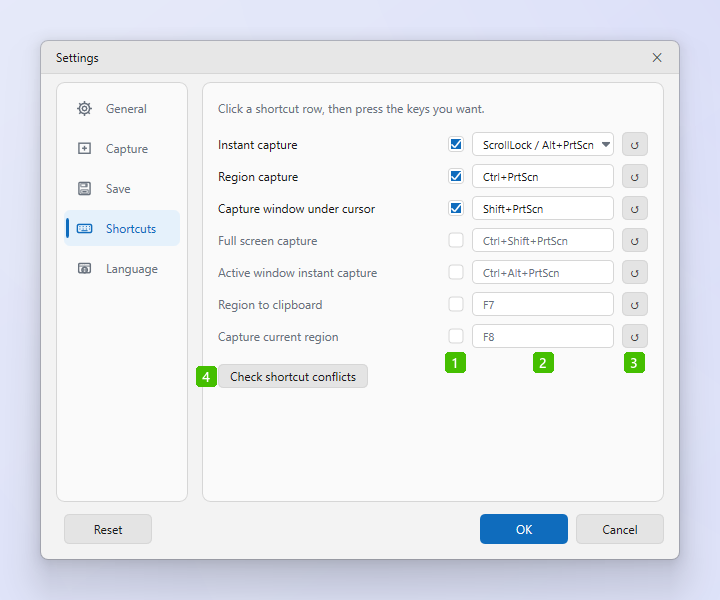
1. Is ZunShot running?
Look for the tray icon. Closing the main window keeps ZunShot in the tray, but Exit stops the hotkeys. Turn on Enable screen capture when Windows starts in Settings > General to have it ready after sign-in.
2. Another program owns the key
Only one program can register a global hotkey. Change the key in Settings > Hotkeys, or close the other program. A second ZunShot instance also counts.
3. My keyboard has no Scroll Lock
Many laptops need Fn+Scroll Lock or have no key at all. Use Alt+PrtScn, which is also assigned to Instant Capture by default, or assign any other key.
4. PrtScn opens the Windows Snipping Tool
Windows can reserve PrtScn for its own Snipping Tool. When you assign PrtScn in ZunShot's settings, ZunShot asks for permission to turn that Windows option off and turns it back on when you stop using PrtScn. In the Microsoft Store version turn it off yourself: Windows Settings > Accessibility > Keyboard > Use the Print screen key to open screen capture.
5. The key works in some apps but not in games
Games running as administrator do not receive hotkeys from a normal process. Run ZunShot as administrator for that session, or use windowed mode.
Default keys are listed in the guide under Settings - Shortcuts.
Quick answers
- Why does my ZunShot hotkey not work?
- ZunShot is not running, or another program registered the same key. Check the tray icon and Settings > Hotkeys.
- My keyboard has no Scroll Lock. How do I start Instant Capture?
- Use Alt+PrtScn, or assign another key in Settings > Hotkeys.
- PrtScn opens the Windows Snipping Tool instead of ZunShot.
- Turn off the Windows option that reserves PrtScn for screen capture, or let ZunShot do it when you assign the key.
Related FAQs
- [Black] My capture is black or empty
- [Clipboard] Copy fails or the paste has a white background
- [Scrolling] Scrolling capture stops early or looks misaligned
- [OCR] Extract text returns wrong characters or nothing
- [Window] The ZunShot window disappeared
- [Update] How do I update ZunShot?
- [Uninstall] How do I uninstall ZunShot and remove its data?
- [Support] How do I contact ZunShot support?