Free Screenshot Tool for Windows

ZunShot captures any part of your screen in one keystroke: a region, a window, the full screen or a whole scrolling page. Captures are saved without a watermark, and text inside an image can be extracted as text. Free for Windows 10 and 11.

Windows 10 and Windows 11 (64-bit). Installs from the Microsoft Store in seconds.

What is free, without limits:
  • Region, window, full screen, scrolling, web page and burst capture
  • Copy to clipboard, save as PNG, JPG, WebP or PDF, print, upload
  • Extract text (OCR) from any capture, on your PC
  • Instant capture hotkeys, pin to screen, 18 languages
The screenshot editor is included too. Edited images carry a small ZunShot watermark unless you have ZunShot Pro.
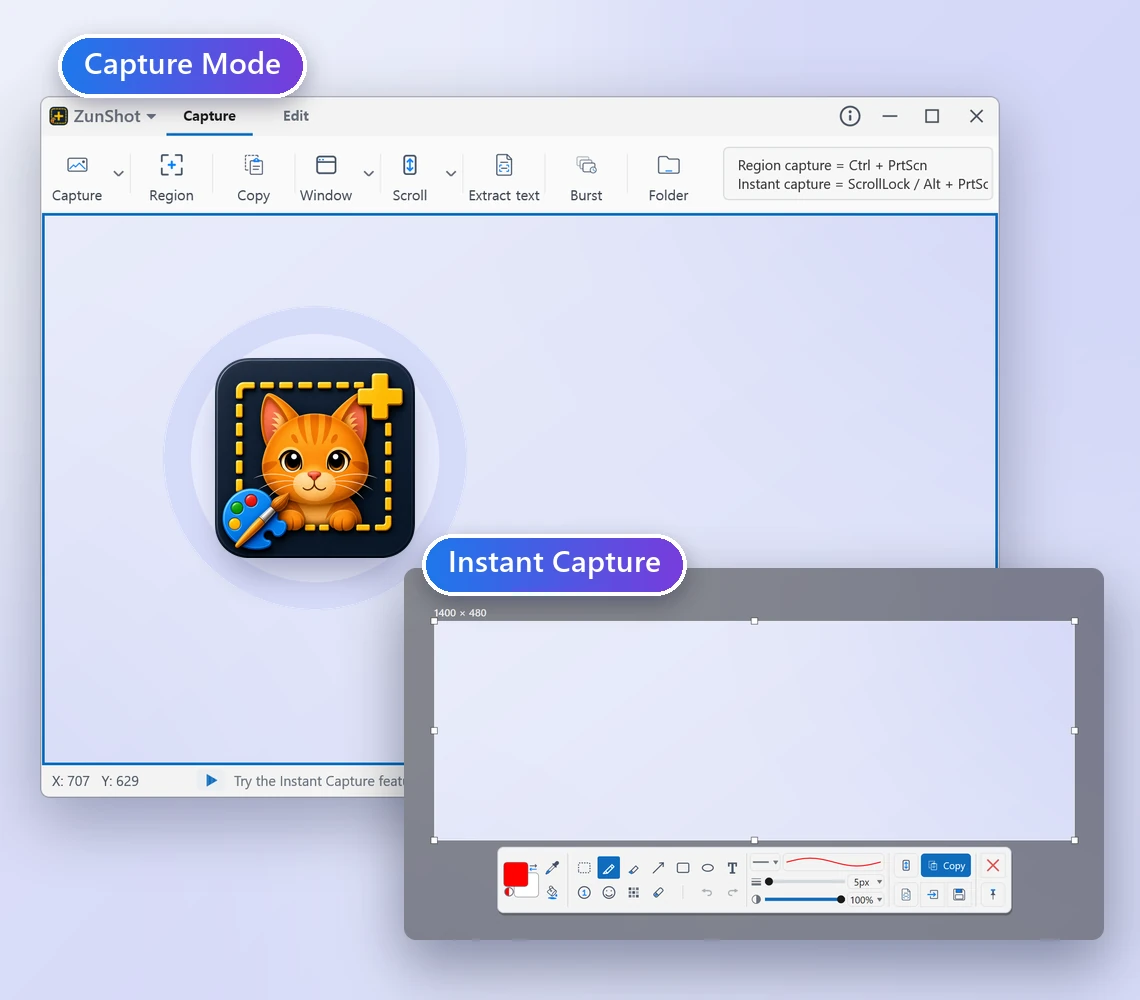
ZunShot Capture Mode window with its capture frame, and the Instant Capture selection with its compact toolbar

A screenshot tool that goes further than the Print Screen key

The Windows Snipping Tool covers the basics. ZunShot adds the things you reach for next: scrolling screenshots of long pages, capture of a single Windows 11 window with clean, transparent rounded corners instead of leftover desktop pixels, a frame that stays in place so every shot has the same size, text extraction from any image, and a pin-to-screen window for keeping a reference on top while you work. Everything runs locally on your PC.

Take screenshots on Windows for free

Freeze the screen and snip exactly what you need

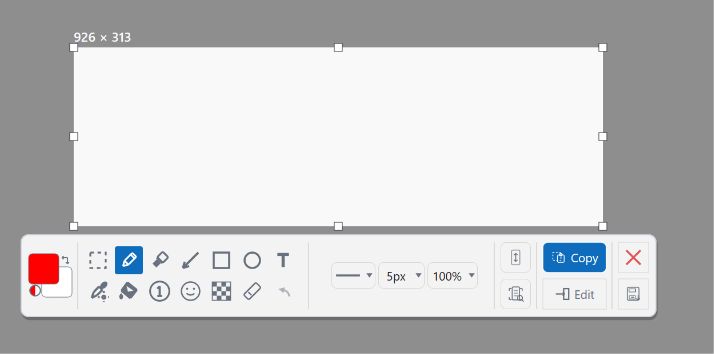
Press Scroll Lock or Alt+PrtScn. The screen freezes with menus and tooltips exactly as they were, you drag the area, and a compact toolbar lets you copy, save, annotate or pin the capture without opening the main window.
How Instant Capture works »

ZunShot Instant Capture with a selected area and compact toolbar

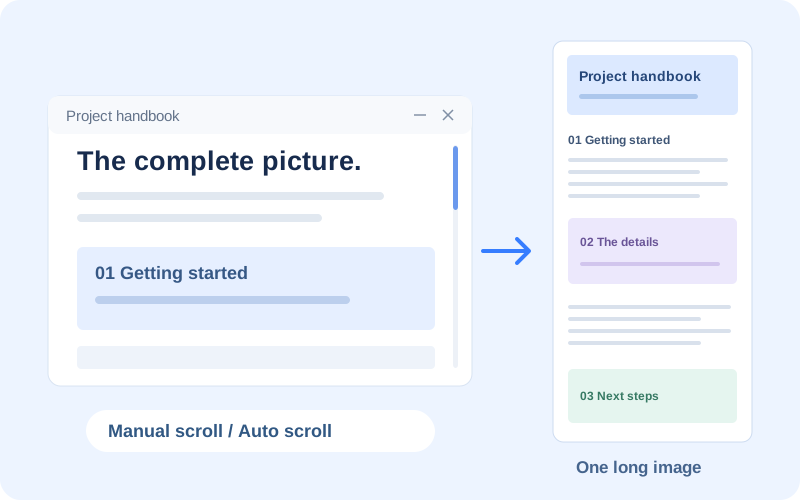
Capture a whole scrolling page as one image

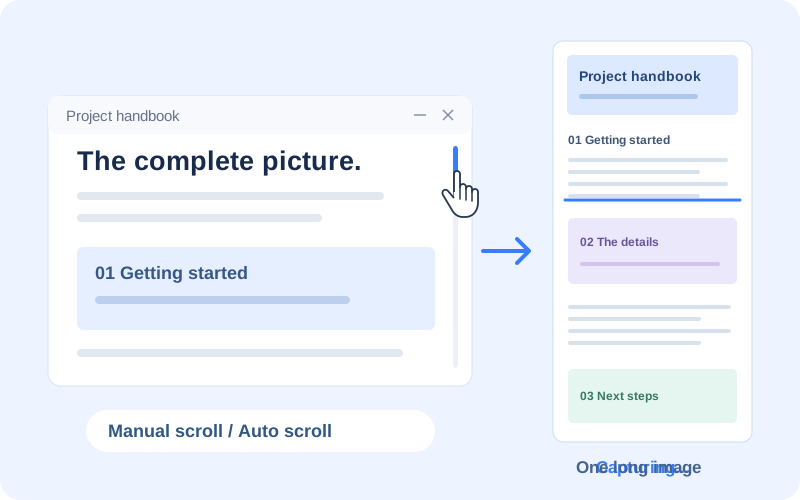
Chat histories, long articles, spreadsheets and settings pages rarely fit on one screen. Scroll capture stitches the whole thing into a single tall image. Let ZunShot scroll automatically or turn the wheel yourself.
How to take a scrolling screenshot »

Scrolling screenshot of a long web page

Capture a window with clean, transparent rounded corners

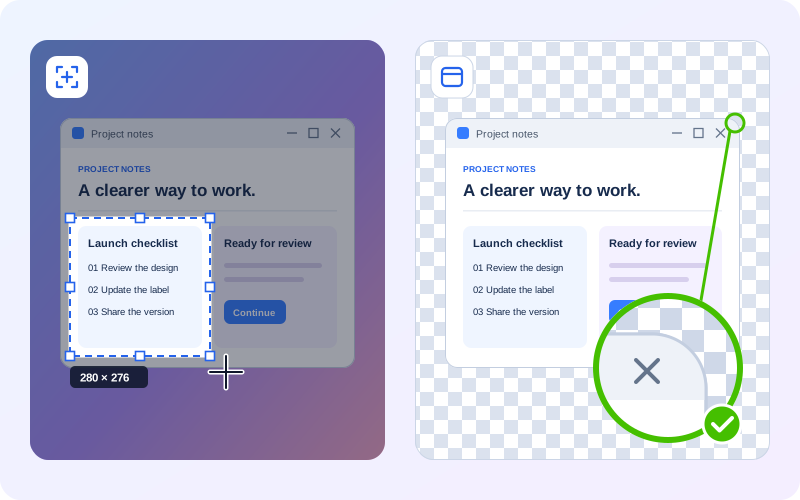
Windows 11 windows have rounded corners, and most screenshot tools capture the rectangle around them, so bits of wallpaper are left in all four corners. Point at a window or a control and ZunShot captures only that object and makes the corners transparent, ready to drop onto a slide, a document or a web page. In Capture mode the frame stays where you left it, so a series of screenshots comes out the same size every time.
How window capture works »

Region capture with a dragged selection, next to a window capture whose Windows 11 rounded corners are transparent

Extract text from any screenshot

Select the text area and copy it as editable text. Recognition uses the OCR engine built into Windows, so nothing leaves your PC. Optional image translation draws the translated text over the original.
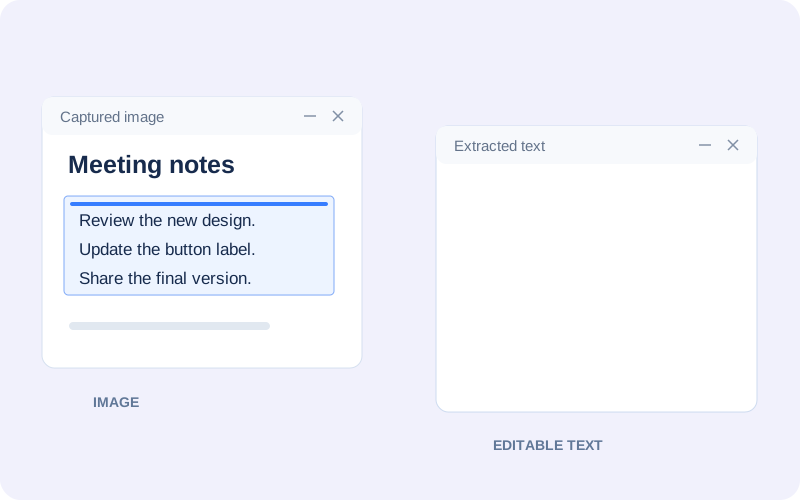
How to extract text with OCR »

Text extracted from an image with OCR

Pin a capture on top of every window

Keep a reference image floating above your work: a code snippet, a chart, a design you are copying from. Move it to any monitor, resize it, copy or save it from its own menu.
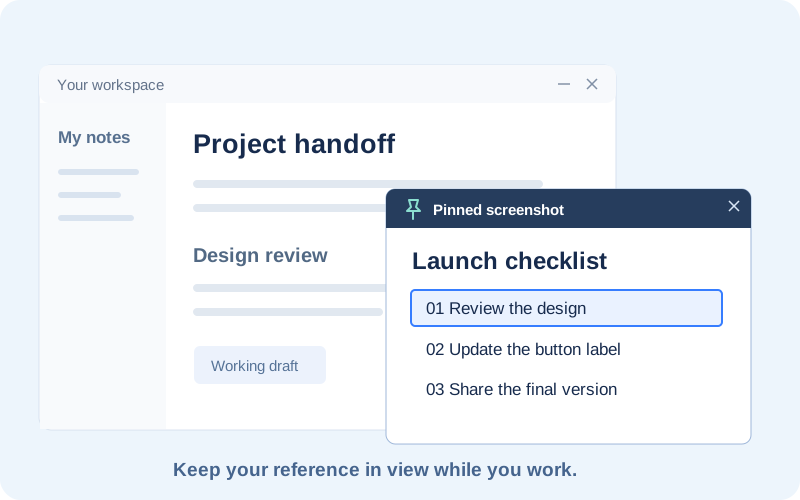
Pin to Screen »

A pinned screenshot floating over other windows

Capture automatically on a timer

Burst capture takes a screenshot every few seconds while you present, test or watch a dashboard. Skip frames when nothing changed, auto-delete old files, and stop with a hotkey.
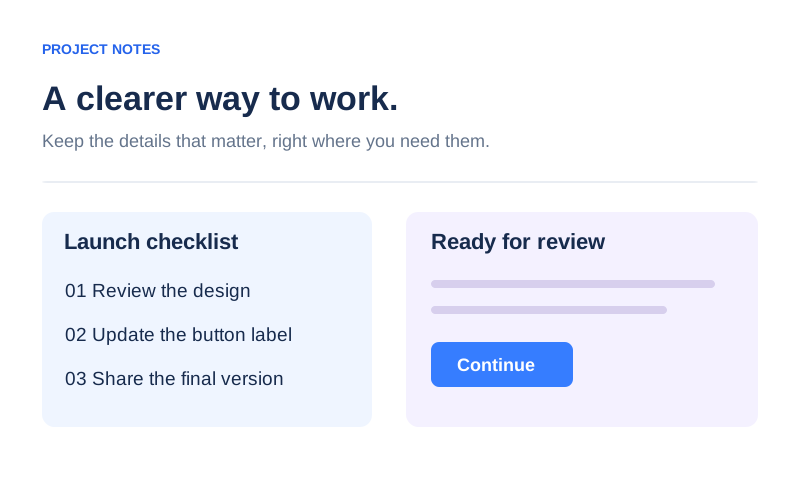
Burst Capture »

Burst capture progress


More screenshot features, all free

Full web page capture

Full web page capture

Open a page in the built-in browser and capture the entire document in one go.

Save formats

Save as PNG, JPG, WebP or PDF

Lossless PNG, compact PNG-256, JPG and WebP quality control, or a PDF.

Print layout

Print several per sheet

Arrange captures on one page or split a long capture across pages.

Cloud upload

Upload and share a link

Send a capture to your Google Drive, Dropbox or OneDrive and copy the link.

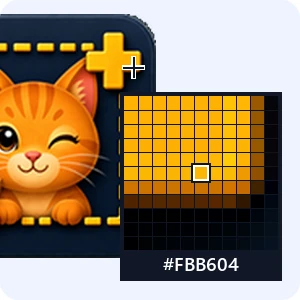
ZunShot color picker magnifier showing the pixel under the pointer and its HEX value

Color picker

Read any pixel on screen as HEX, RGB, HSL or HSV.

Hotkeys

Your hotkeys, including PrtScn

Assign PrtScn or any key. ZunShot asks before taking the key from Windows and gives it back.

Frequently Asked Questions

Is ZunShot really free?

Yes. Every capture feature listed on this page is free, with no time limit and no watermark on captures. ZunShot Pro is an optional subscription that removes the watermark from images you edit in the built-in editor.

Does the free version add a watermark?

Not to captures. Copy, save, print and upload your screenshots exactly as taken. Only images edited with the drawing and blur tools are saved with a small ZunShot mark in the free version.

How do I take a scrolling screenshot on Windows?

Choose Scroll on the Capture tab, click inside the page that scrolls, then click Auto scroll or turn the mouse wheel. Click Done and the stitched image opens in the editor. Step-by-step guide.

Why do my window screenshots have bits of wallpaper in the corners?

Windows 11 windows have rounded corners, but most tools capture the rectangle around the window, so the desktop shows in the corners. ZunShot window capture makes those corners transparent. Save as PNG or WebP to keep the transparency. Capture a window.

Can I copy text from a screenshot?

Yes. Choose Extract text, select the text area, and copy the result. Recognition runs on your PC with the Windows OCR engine. Install additional recognition languages from ZunShot's settings.

Does ZunShot record video?

No. ZunShot is a screenshot tool. For screen recording, use Bandicam from the same company.

Which Windows versions are supported?

Windows 10 (64-bit) build 10240 or later and Windows 11. See the system requirements.