Capture a Full Web Page
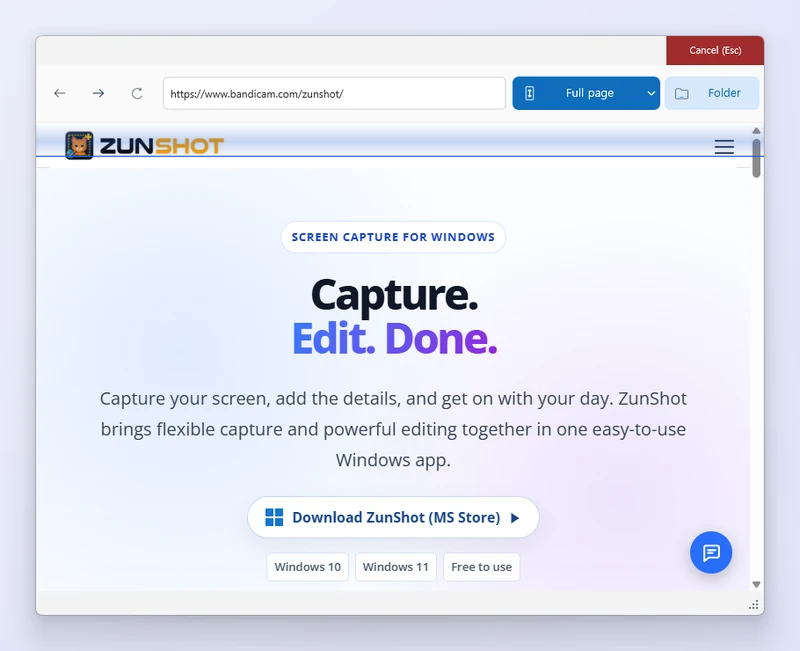
Web capture uses a built-in browser based on Microsoft Edge. Because ZunShot renders the page itself, it can capture the complete document without stitching.
How to
- Choose Web on the Capture tab. The built-in browser opens.
- Enter the address. Sign in to the site if the page requires it. Cookies stay inside ZunShot's browser profile.
- Choose how to capture. Full page captures the entire document at once. Full page capture (scroll) scrolls through the page for sites that load content on demand. Capture by scrolling from here starts at the current position.
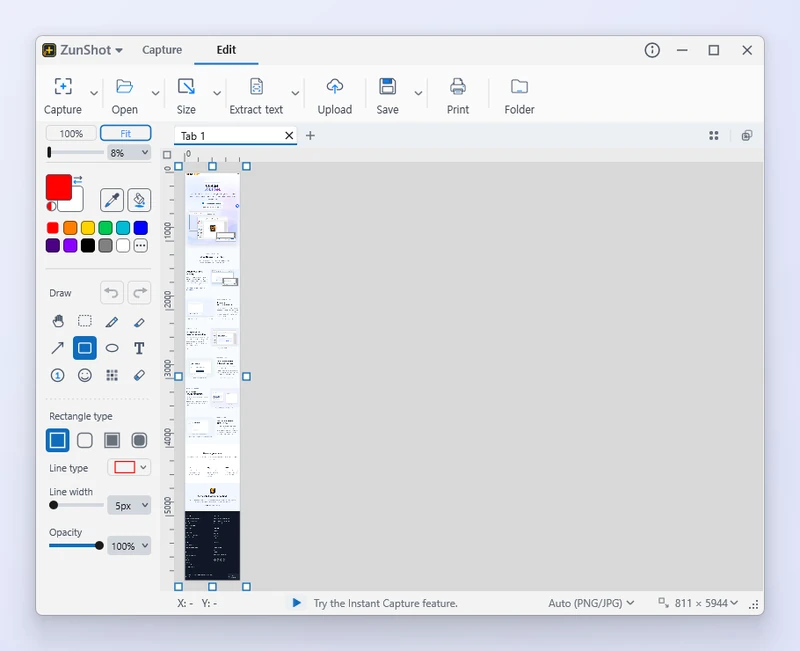
- Open in editor. Click Capture complete → Open in editor when the capture finishes.
Tips
- Very long pages become very large images. Consider capturing a section with scrolling capture if you only need part of the page.
- Clear browser data… in the Web tab removes the cookies and cache stored by the built-in browser.
Frequently asked questions
The page looks different from my normal browser.
Extensions and your normal browser profile are not used. Sign in again inside ZunShot if needed.
Can I capture a page that requires a login?
Yes. Log in inside the Web tab, then capture.