Blur and Hide Sensitive Information
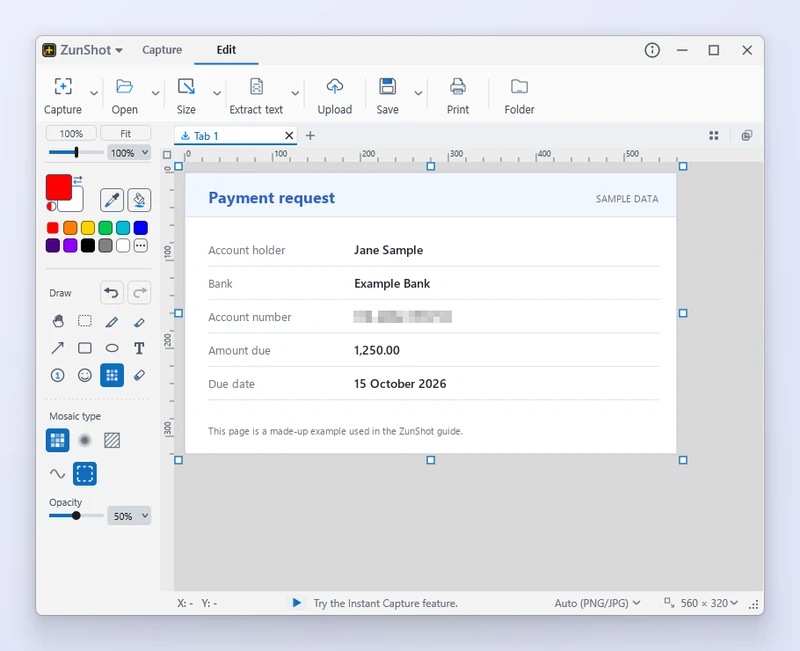
The Mosaic tool covers anything that should not leave your PC. Choose mosaic, blur or hatch, drag over the area, and check the result at full zoom before you share.
How to
- Choose Mosaic. In the editor, or on the Instant Capture toolbar.
- Pick a style. Mosaic pixelates, Blur smooths, Hatch paints diagonal lines. Set the block size or strength in the options bar.
- Cover the area. Drag a rectangle, or choose Line (follow cursor) to paint freely.
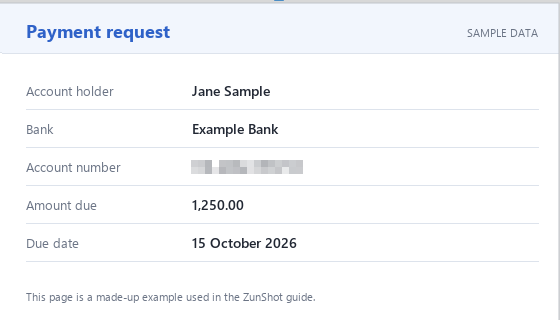
- Check before sharing. Zoom to 100% or more and confirm the original text cannot be read. Save, then open the saved file once more.
Tips
- Blur with a low strength can be reversed by image tools. Use Mosaic with a large block size, or Hatch, for text that must stay hidden.
- Mosaic is applied to the picture when you save. Ctrl+Z removes it before saving.
- Cloud upload sends only the file you choose. Review every capture first.
Frequently asked questions
Can I blur a whole face automatically?
No. Drag over each area by hand.
The mosaic looks too fine to hide small text.
Increase the block size. A block that is wider than one character is safe.