Copy and Save
Every capture can be copied for pasting into another app, or saved in the format that fits: PNG for fidelity, JPG or WebP for size, PDF for documents.
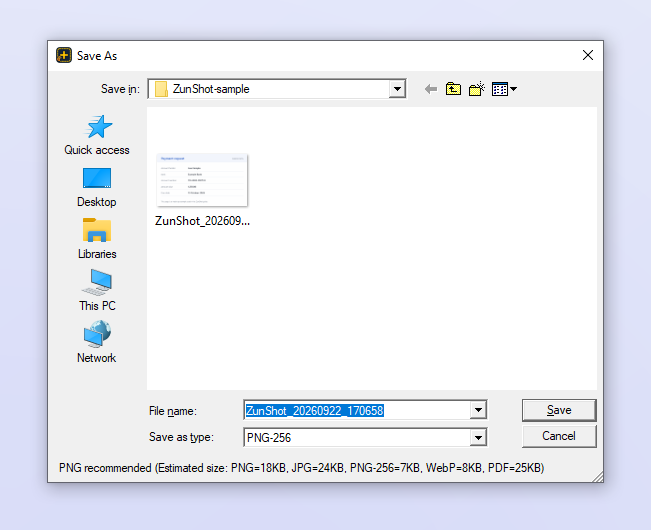
How to
- Copy. Click Copy on the Capture tab or in the editor, or use the region-to-clipboard hotkey. Paste with Ctrl+V into Word, PowerPoint, Slack, mail and image editors.
- Save. Click Save in the editor. The file goes to the save folder with the automatic name.
- Save As. Choose PNG, JPG, PNG-256, WebP or PDF, set the quality, and pick the folder.
Tips
- Window captures have transparent rounded corners. PNG and WebP keep them; JPG and PDF fill them with white.
- PNG: Lossless keeps every pixel. PNG-256 reduces the file to 256 colors with dithering, usually several times smaller for UI screenshots.
- JPG 10~100 and WebP 0~100 control the compression. WebP at 80 is about half the size of JPG at the same quality.
- Saved PNG files are additionally optimized in the background without changing a single pixel.
- Save every open tab at once with Batch Save.
Frequently asked questions
Pasting gives me a white background instead of transparency.
The target app does not accept transparent images from the clipboard. Save as PNG and insert the file instead.
Where did the file go?
Click Folder on the Capture tab, or right-click the tab and choose Open file location.