Batch Save
Batch Save exports all open tabs with one name rule. It is the fastest way to turn a capture session into a numbered set of files or one PDF.
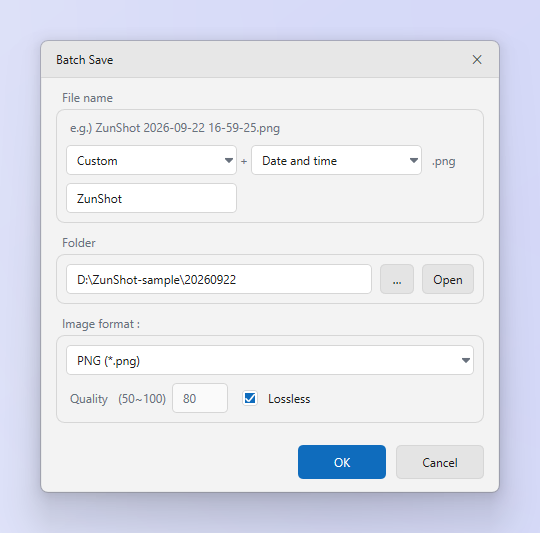
How to
- Open Batch save…. From the editor's file menu.
- Set the file name. Prefix: Custom or None. Suffix: Date and time or Sequence number. The example line shows the result.
- Choose folder and format. Image format, Quality or Lossless. For PDF choose Per-image PDF or one merged document.
- Save. Locked and unsaved tabs are included.
Tips
- Order follows the tab strip. Drag tabs to reorder before exporting.
- Merged PDF keeps each capture at its pixel size on its own page.
Frequently asked questions
Can I exclude some tabs?
Close them or move them to another window first.