ZunShot settings - Capture
The Capture tab decides what happens the moment a capture is taken: where the image goes, what is included in it, and how ZunShot tells you it is done.
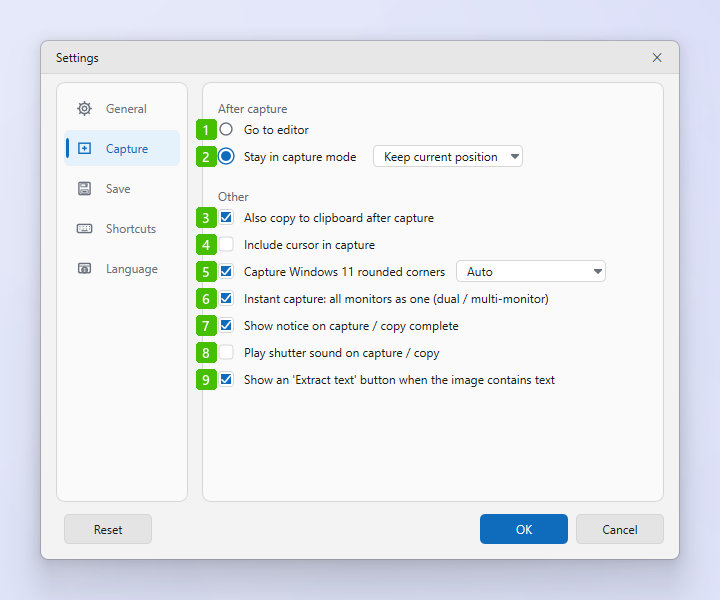
- Go to editor: After a capture the image opens as a new tab in the editor, ready to annotate or save.
- Stay in capture mode: The capture is saved and the capture window stays open for the next shot. The list next to it chooses where the frame goes afterwards: Move to captured area or Keep current position.
- Also copy to clipboard after capture: Every capture is also placed on the clipboard so you can paste it straight into a chat or document.
- Include cursor in capture: Adds the mouse pointer to region and full-screen captures.
- Capture Windows 11 rounded corners: Makes the four corners of a captured Windows 11 window transparent instead of leaving desktop pixels in them. See Capture a Window. Auto uses the system radius; pick a number of pixels to override it.
- Instant capture: all monitors as one: On a dual or multi-monitor PC, Instant Capture freezes every display as one large screen so a selection can span monitors. Turn it off to freeze only the monitor under the cursor.
- Show notice on capture / copy complete: Shows a short notification when a capture is saved or copied.
- Play shutter sound on capture / copy: Plays a camera shutter sound at the same moment.
- Show an 'Extract text' button when the image contains text: When ZunShot detects text in a capture it offers a one-click Extract text (OCR) button on the image.
Tips
- Options 1 and 2 apply to captures taken from the capture window and with hotkeys. Instant Capture has its own toolbar and is not affected.
- Hotkeys for each kind of capture are on the Shortcuts tab.