Capture the Full Screen or One Monitor
Full screen capture takes the whole display in one shot. With several monitors you choose which one, or all of them together.
How to
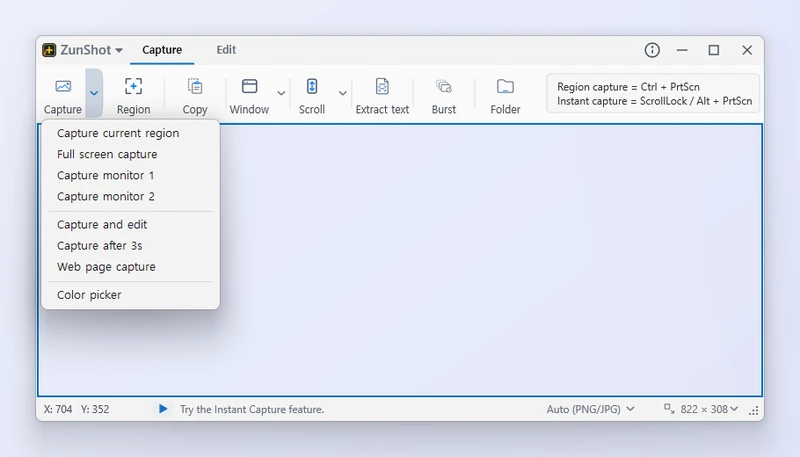
- Open the Capture menu on the Capture tab - the small arrow next to Capture - and choose Full screen capture. Or press Ctrl+Shift+PrtScn after enabling that hotkey in Settings > Hotkeys.
- Or pick one monitor. Full screen capture already takes every display at once. With more than one monitor connected the same menu also lists Capture monitor 1, Capture monitor 2 and so on, for a single display.
- Capture. The image opens in the editor or is saved according to your After capture setting.
Tips
- Full screen capture produces one wide image laid out the way Windows arranges your monitors.
- To capture a monitor repeatedly on a timer, use Burst Capture with Full screen as the source.
Frequently asked questions
The ZunShot window appears in the capture.
Close the main window to the tray first, or use the hotkey. The capture frame itself is never included.