Burst Capture
Burst capture takes a screenshot every few seconds without you touching the keyboard. Use it to document a long process, watch a dashboard, or collect frames from a presentation.
How to
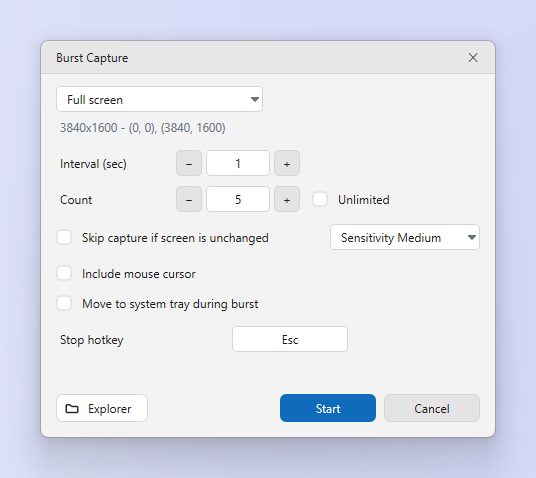
- Choose Burst on the Capture tab. The Burst Capture dialog opens.
- Set the interval and count. Interval (sec) between shots, and a Count or Unlimited.
- Choose the source. Current region uses the capture frame. Full screen captures a display or All displays.
- Set the options you need. Skip capture if screen is unchanged with a sensitivity. Include mouse cursor. Move to system tray during burst. Auto-delete old files after a number of days.
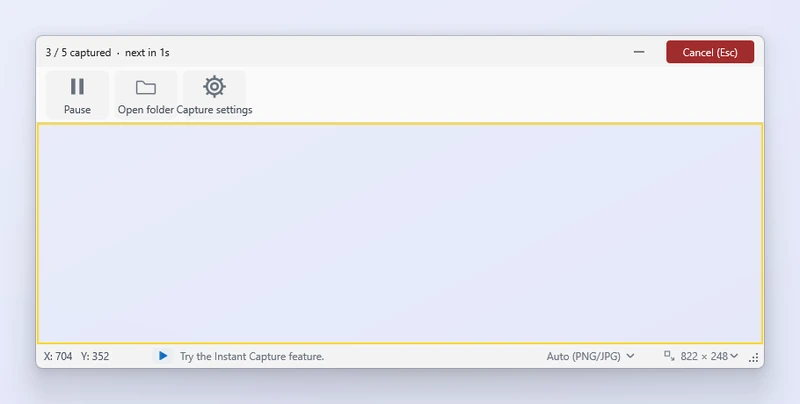
- Click Start. Use Pause, Resume, the Stop hotkey or Cancel. Open folder shows the saved files.
Tips
- Files are saved straight to the save folder with the date-time name pattern. They do not open as editor tabs.
- With Skip unchanged on, a static screen produces no files, which keeps long sessions small.
Frequently asked questions
How small can the interval be?
One second.
Does burst capture record video?
No. It saves individual images. ZunShot does not record video.