ZunShot User Interface
The main window has two tabs. Capture controls what you shoot, Edit controls what you do with it. A tray icon keeps everything one hotkey away.
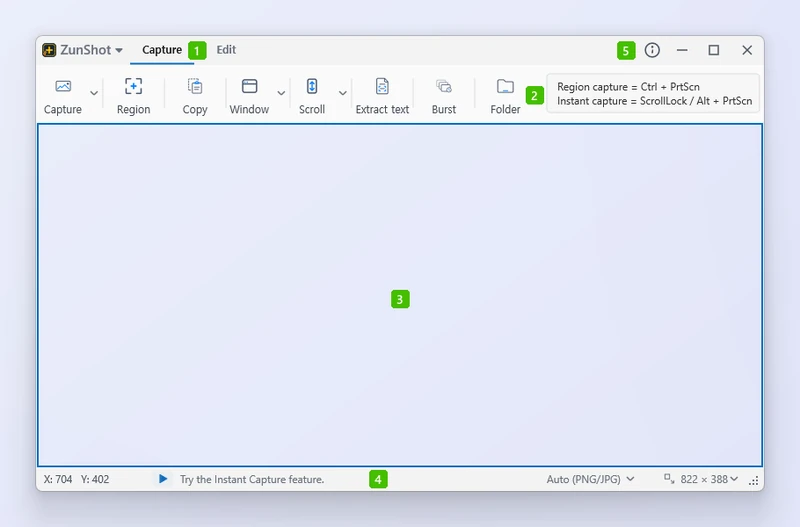
- Capture and Edit tabs: the two modes. Capture decides what you shoot, Edit opens what you shot.
- Ribbon: the capture tools - Capture, Region, Copy, Window, Scroll, Extract text, Burst and Folder. The small arrows open a list with the rest, such as Full screen and Web. The box on its right shows the hotkeys currently assigned to region and instant capture.
- Capture frame: the see-through rectangle on the desktop. Whatever shows through it is what gets captured; drag its edges to resize it.
- Status bar: pointer position, the save format, and the size of the frame. Both lists can be changed here.
- Window buttons: program information, minimise, maximise and close. Closing keeps ZunShot in the tray.
The ZunShot ▾ button at the top left opens the file menu: new tab, open, save as, batch save, print, recent captures, settings and exit.
Capture tab
The ribbon holds Capture, Region, Copy, Window, Scroll, Extract text, Burst and Folder; the arrows beside Capture, Window and Scroll open the rest, including Full screen and Web. The capture frame on the desktop shows exactly what will be captured. Drag its edges to resize or click a window to fit the frame to it.
Edit tab
Tools sit on the left, the canvas in the middle, and tool options above it. Every capture or opened file becomes a tab. Right-click a tab for Duplicate tab, Pin to screen, Save, Open file location, Lock tab and Close options.
Tray icon
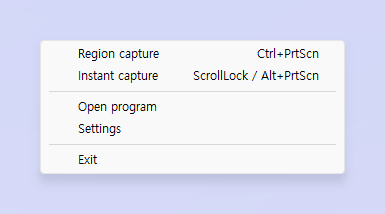
Right-click the tray icon to capture, open the editor, change settings or exit. Closing the main window keeps ZunShot in the tray so hotkeys continue to work.
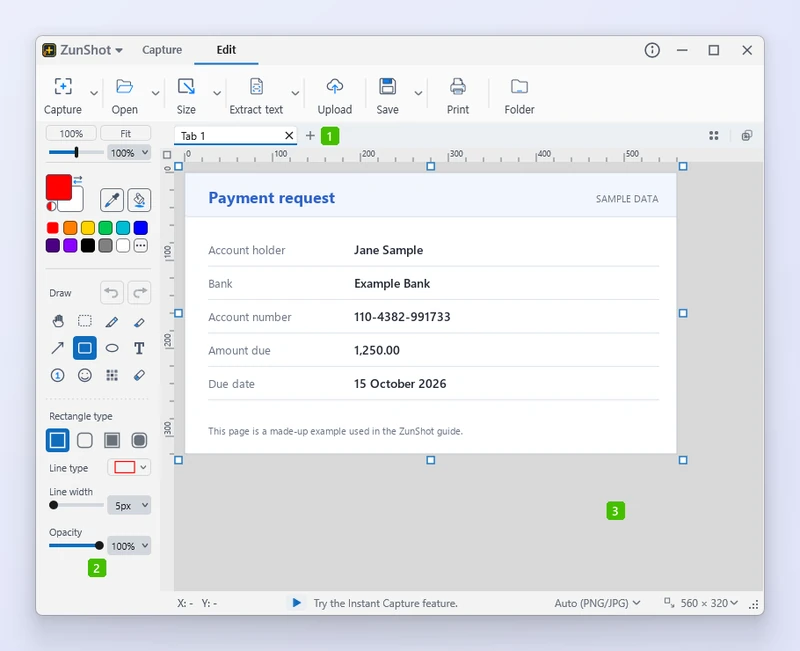
- Tab strip: every capture and opened file is a tab; the + button starts a blank one.
- Tool panel: colours at the top, then the drawing tools, then the options of whichever tool is selected.
- Canvas: the image itself, with rulers along the top and left edge and the zoom on the status bar below.
Tips
- Locked tabs are skipped by Close other tabs and Close tabs to the right.
- Drag a tab out of the window to pin it to the screen. See Pin to Screen.
Frequently asked questions
Where did my window go after I closed it?
It is in the notification area. Click the ZunShot tray icon to bring it back.
How many tabs can I keep open?
There is no fixed limit, but each tab holds a full-size image in memory. Close tabs you no longer need.