Instant Capture
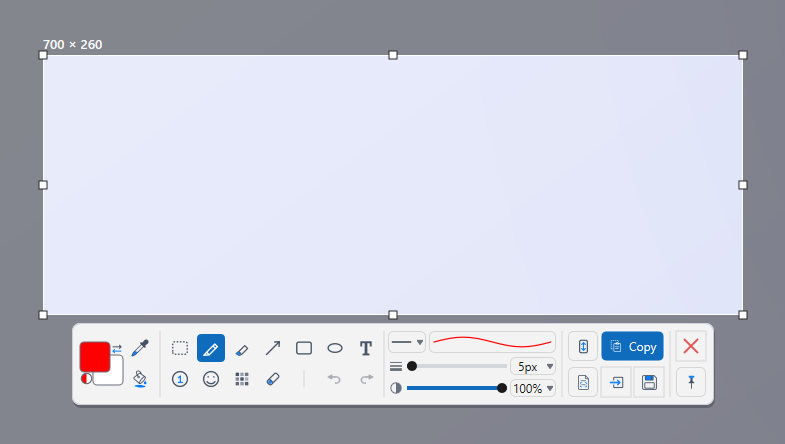
Instant Capture freezes the whole screen the moment you press the hotkey. Menus, tooltips and hover states stay exactly as they were, so you can take your time selecting the area.
How to
- Press Scroll Lock or Alt+PrtScn. The screen freezes and dims. Both keys are assigned by default.
- Drag the area you need. Click a window to select it in one step. Adjust the handles if needed.
- Use the toolbar. Draw with Pen, Arrow, Rect, Text, Number, Mosaic and the other tools. Then Copy, Save, Pin to screen or Send to editor.
- Press Esc to leave. Nothing is saved unless you choose an action.
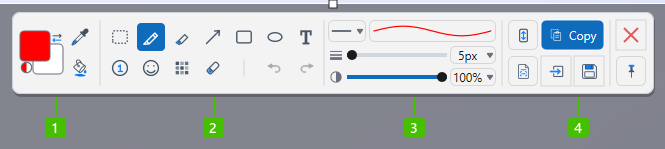
- Colour: foreground and background swatches with a swap arrow, the eyedropper that picks a colour from the frozen screen, and the fill bucket.
- Drawing tools: select, pen, highlighter, arrow, rectangle, ellipse, text, numbered step, emoji, mosaic and eraser, with undo and redo at the end.
- Tool options: line style, thickness and opacity of the tool that is selected.
- What to do with it: Copy, Save, Send to editor and Pin to screen, plus scroll capture and extract text. The red X leaves without saving anything.
Tips
- Click a window instead of dragging and the whole window is captured with clean, transparent rounded corners.
- Ctrl+Alt+PrtScn starts Instant Capture with the active window already selected. Enable it in Settings > Hotkeys.
- Choose the tool that is active when the toolbar opens under Settings > General > Default tool (Instant capture).
- Instant Capture also works from the tray when the main window is closed.
Frequently asked questions
Scroll Lock does nothing on my keyboard.
Some laptops need Fn+Scroll Lock, or have no Scroll Lock at all. Use Alt+PrtScn or assign another key in Settings > Hotkeys.
Can I scroll a page during Instant Capture?
Yes. Start a scrolling capture from the toolbar. See Scrolling Capture.