'Screen Recording' mode | Rectangle on a screen
To record a partial area of your computer screen, start Bandicam and select the 'Rectangle on a screen' menu. The 'Rectangle on a screen' recording mode allows you to record a specific area in the rectangle window.
Video tutorial of 'Screen Recording' mode
How to record a certain area of your computer screen
1. Download Bandicam Screen Recorder.
2. Start Bandicam and choose the 'Select a recording area' or 'Rectangle on a screen' menu.
* Select a recording area
To automatically detect the recording area, select "Select a recording area" and hover over the desired portion, such as a video.

* Rectangle on a screen
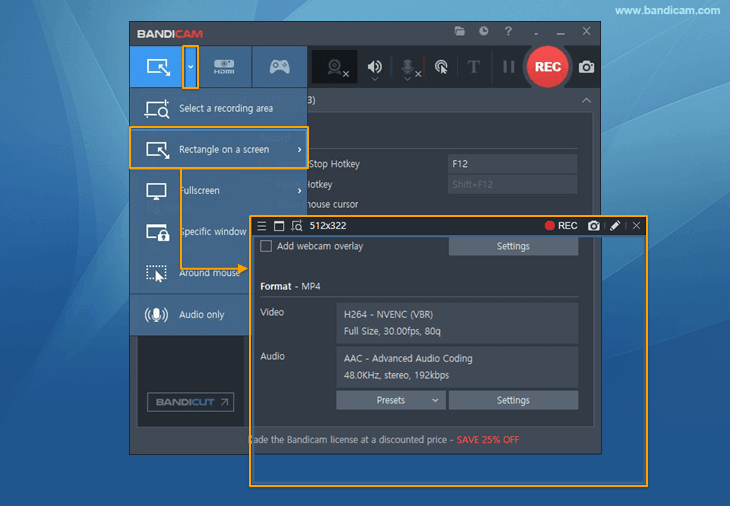
3. Click the '● REC' button or press the hotkey (F12) to start/stop the recording.
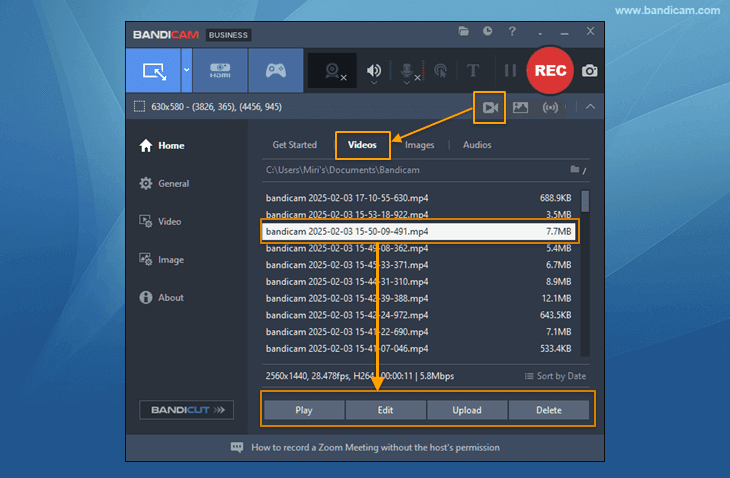
4. Click on the video icon to play, edit, or upload the captured videos.
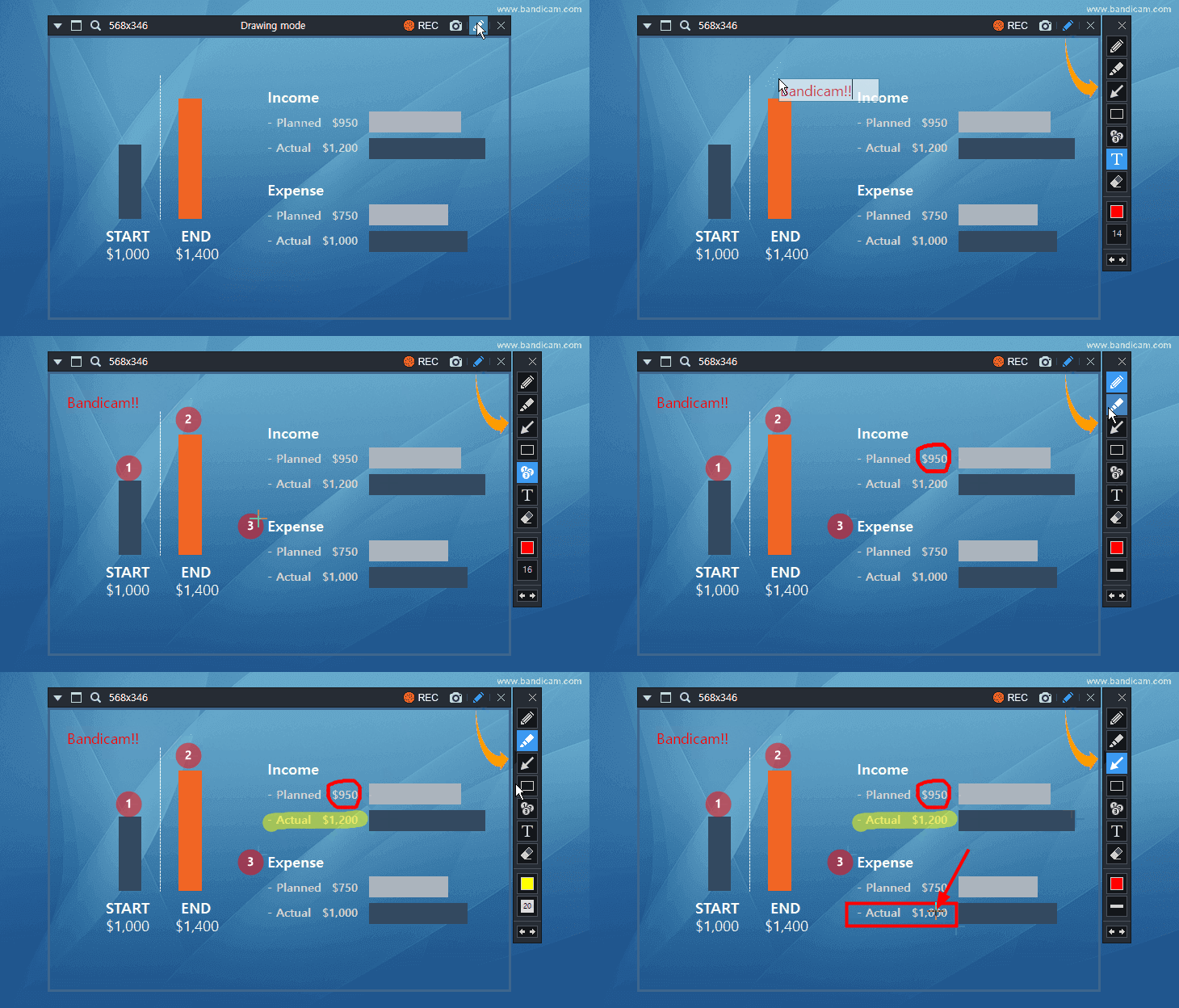
* A real-time drawing function while recording the computer screen
Users can simultaneously add arrows, boxes, numbers or highlights while recording in 'Screen Recording' mode.
What can be recorded through Bandicam Screen Recorder?
'Screen Recording' mode is used for recording certain areas of what is shown on your computer screen, such as flash games, Zoom meetings, BlueJeans, GoToMeeting, Internet streaming videos (Streaming videos on YouTube, USTREAM, CNN...), and various Windows programs (Internet Explorer, PowerPoint, Excel, etc.)
'Screen Recording' mode allows you to record everything on your computer screen and draw lines, boxes, or highlights while recording. Bandicam is one of the best screencasting software.