Try Bandicam Screen Recorder!
Download Bandicam (Free)Facecam Recorder - Put Your Face in a Video
Webcam overlay
Bandicam is the best facecam recorder that lets you add a webcam overlay to your video.
Check out this post to add a facecam for YouTube or tutorial videos.

What is a facecam? Want to record your screen with a facecam?
Thousands of YouTubers create videos with their faces displayed on the corner of their screens. Ever wonder how they do it? Well, all you have to do is record your computer screen and a facecam.
A facecam (or face cam) is a live recording of a face in an online video, such as Let's Play videos, and it usually includes audio narration.
It has become the latest trend for YouTubers to put their own faces in the corner of their gameplay or video tutorial, and share it on YouTube.

To add a face to a video, people used to record their computer screen and webcam separately and merge the recorded videos with video editing software such as Adobe Premiere or Sony Vegas.
However, with the rapid development of technology, you no longer need to merge videos through video editing software. All you need is a screen recorder with facecam, which records your computer screen and facecam at the same time.
Creating a facecam video and sharing it on YouTube is a powerful way to demonstrate your knowledge, talent, experience, and even make money.
Facecams can be added to an online lecture, tutorial, webinar, PowerPoint presentation, video resume, Let's Play videos, and more.
How to add a facecam to your gameplay or Let's Play videos
If you have a computer/laptop, webcam device, microphone, and game recording program, you can make your own Let's Play video and add your face to the video to make it more vivid and attractive. To add a facecam to your gameplay video, follow the steps below:
Install Bandicam and start.
Click the Settings icon, then go to Video > Settings > Webcam.
- Check Add webcam overlay to video.
- Click Overlay settings to choose your webcam and adjust its size, position, and shape.
- Enable Preview webcam on screen to show the webcam preview while recording.

To record game sound and your voice together, configure the sound settings.
Select (Default Output Device) under Speakers and (Default Input Device) under Microphone. You can also select your microphone device directly.

Now, select the 'Game Recording' mode and run the game.
- If Show FPS Overlay is enabled, a green FPS number appears when Bandicam detects the game.
- Click REC or press F12 to start recording.
- The FPS number turns red when recording starts.

Click Stop or press F12 to finish recording, then check the recorded video.
Go to Home > Videos to select and play your recorded video.


How to record your face and computer screen at the same time
Do you want to record both your screen and yourself at the same time?
If you have a computer, webcam device, microphone, and screen recording program, you can make your own video tutorial and add your face to one corner of your video. To add a facecam to your tutorial video, follow the steps below:

Download Bandicam Screen Recorder and launch it.
Click the webcam overlay icon and select "Add webcam overlay to video".
To choose your camera or customize the overlay, select Webcam overlay settings from the same menu.
![Webcam overlay menu]()
Select the 'Screen Recording' Mode, and press the hotkey (F12) to start/stop the recording.
Choose Rectangle on a screen and set the recording area. Use the webcam icon on the recording control bar to turn the overlay on or off. After recording, go to Home > Videos to play the file.


Move and resize your facecam
In Screen Recording mode, drag the webcam overlay to move it. Drag its edges or corners to resize it.

Toggle between small and fullscreen webcam
In Screen Recording mode, hover over the webcam overlay and click Maximize webcam screen to enlarge it. Click the same icon again to restore its original size.

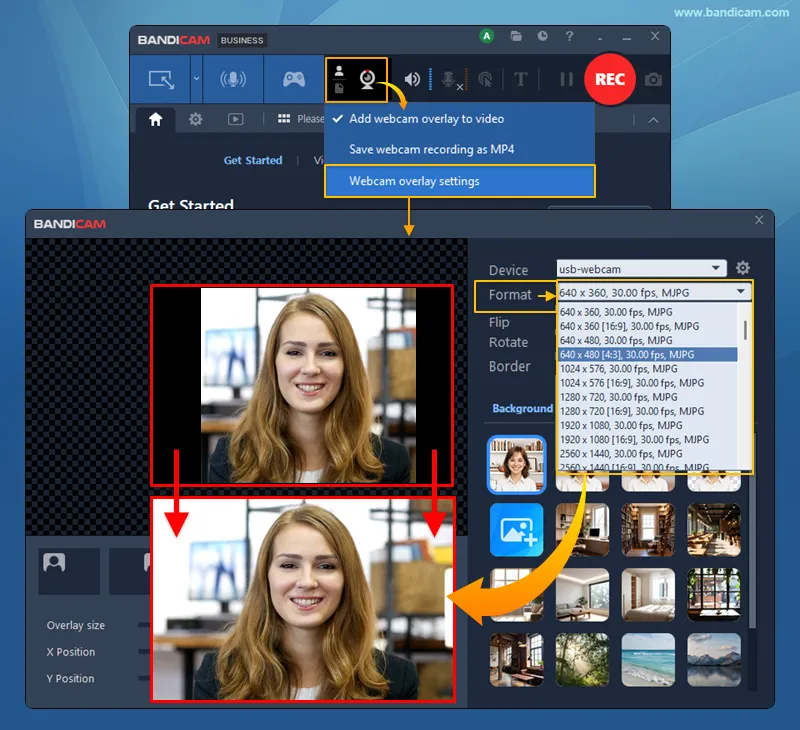
If the webcam preview does not work or a black border is visible
Open Webcam overlay settings from the webcam overlay menu.
- If the preview does not appear, try selecting a supported resolution, such as 640 × 360, under Format instead of (Auto-detect Format).
- If black bars appear when you enlarge the webcam overlay, go to Format and choose a webcam resolution with the same aspect ratio as your recording area. For example, if your recording area is 16:9, select a 16:9 webcam resolution.
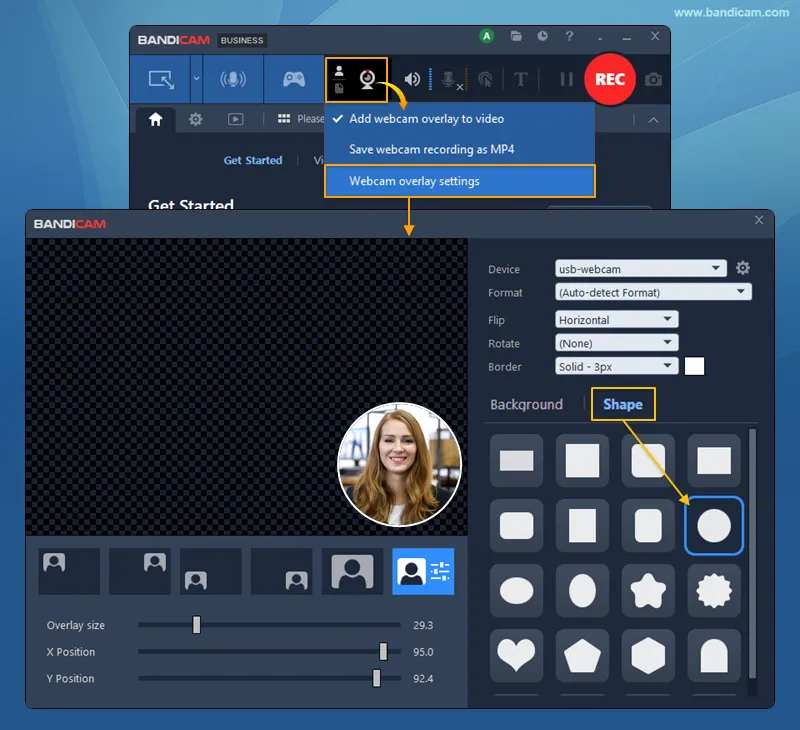
How to change your webcam shape - Add a circle facecam
By default, the webcam overlay is rectangular. Open Webcam overlay settings and select the Shape tab to choose a rectangle, square, circle, ellipse, rounded rectangle, or rounded square. Choose a circle for a circular facecam. You can also adjust the overlay size, position, and border fading.
Show or hide the webcam preview in Game Recording mode
This feature is available only in Game Recording mode. Enable Preview webcam on screen and Enable preview toggle hotkey, then press Tab while recording to show or hide the preview. The webcam overlay remains in the recorded video.
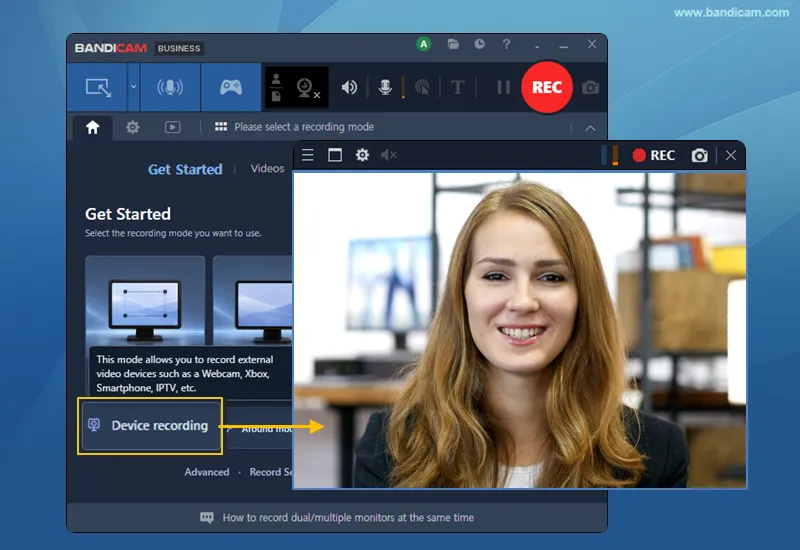
How to record your face/webcam
To record your webcam, download and install Bandicam, go to Home > Get Started, and choose Device recording. Select your webcam, then click REC to start and Stop to finish, or use F12. Select a microphone if you also want to record your voice.
Record your facecam and upload it to YouTube or Vimeo
Go to Home > Videos, select your recording, click the Upload icon, and choose Upload to YouTube or Upload to Vimeo.

Don't have a webcam (camera) device?
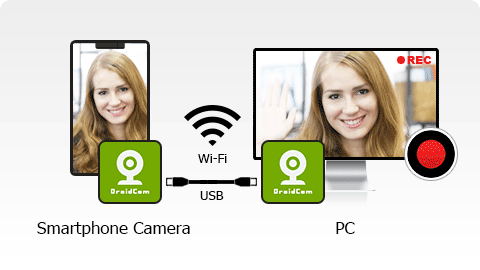
If you don’t have a webcam device, you can use your smartphone camera instead. Iriun and DroidCam are programs that can turn your smartphone into a wireless webcam and microphone for your PC.
Last Updated on