 YouTube
 Google Drive
 Vimeo
VimeoHow to Upload Videos to YouTube/Shorts from Bandicam
Bandicam lets you upload recorded videos to YouTube or YouTube Shorts without converting the file. Record your screen, webcam, or gameplay, then use the Upload button in Bandicam to share the video on YouTube.
Steps to Upload Videos to YouTube
To upload a recorded video to YouTube from Bandicam, follow these steps:
Step 1. Record your PC screen with Bandicam.
Use Screen Recording, Device Recording, or Game Recording mode to record your video.
Step 2. Go to Home > Videos, select the recorded video, click the Upload icon, and choose Upload to YouTube.

Step 3. Enter your Google account email address and password to continue.

Step 4. Click Continue to allow Bandicam to connect to your Google account.

Step 5. Check the access option and click Continue.

Step 6. The selected video will be uploaded from Bandicam to YouTube.

Step 7. Copy or open the uploaded video.
After uploading, click Copy to copy the video link. If you click Go, you can open the uploaded video on YouTube.

[Error] Request had insufficient authentication scopes
If this error message appears when uploading, check the access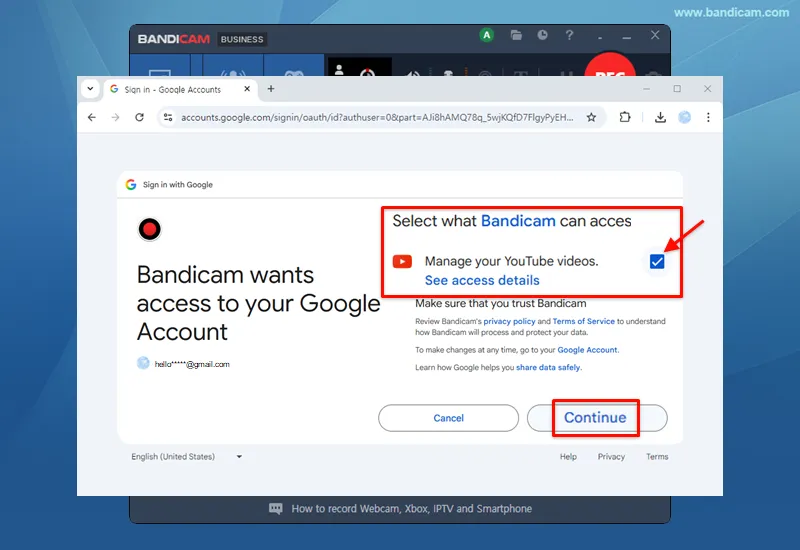 option when signing in to your Google account, and then try to upload again.

How to Make and Upload YouTube Shorts
YouTube Shorts require videos that are up to 60 seconds long and have a square or vertical aspect ratio.
Step 1. Record a short vertical video.
Select Rectangle area mode, make the recording area vertical, and record a video that is up to 60 seconds long.

Step 2. Upload the video with the #Shorts tag.
Go to Home > Videos, select the short vertical video, click the Upload icon, and choose Upload to YouTube. In the upload window, enter #Shorts in the title or description.

YouTube FAQs
1. How can I make 1080p or 720p YouTube videos with Bandicam?
To make 1080p or 720p YouTube videos with Bandicam, select the YouTube (1080p/720p) preset.
2. Why does the "Upload to YouTube.com" window close?
If the "Upload to YouTube.com" window closes after clicking the Upload button, set your computer time correctly.
3. How long can YouTube videos be?
By default, you can upload videos that are up to 15 minutes long. The maximum file size you can upload to YouTube is 64 GB.
4. What should I do if I see the Unauthorized error message?
If you see the Unauthorized error message, create a YouTube channel and try again.
5. What should I do if I see Failed to get an access token?
If you see Failed to get an access token, click the Logout button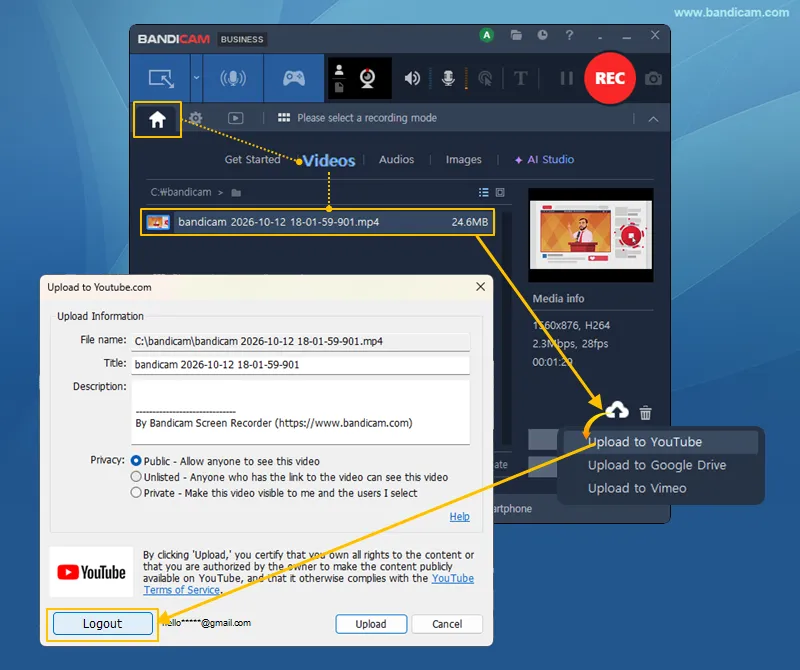 in the Upload to YouTube window and try again.
6. Where can I find YouTube upload recommendations?
See YouTube Help for recommended resolution and aspect ratios, recommended upload encoding settings, and low video quality after upload.