How to draw on your PC screen
A real-time drawing function
You can simultaneously draw lines, boxes, or highlights while recording in 'Screen Recording' mode. This function is useful for creating YouTube videos, tutorial videos, and online lectures.
The latest version, Bandicam 2025, has added a whiteboard feature in drawing tool, allowing you to draw on your computer screen even more efficiently.
How to draw on your computer screen
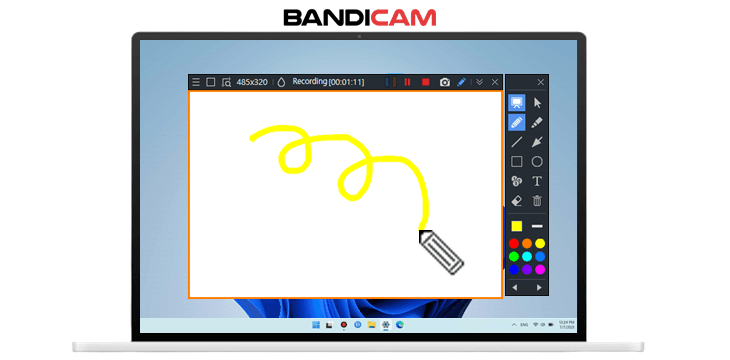
1. Download/install Bandicam and start.
2. Choose 'Rectangle on a screen mode' or 'Fullscreen Recording mode.'
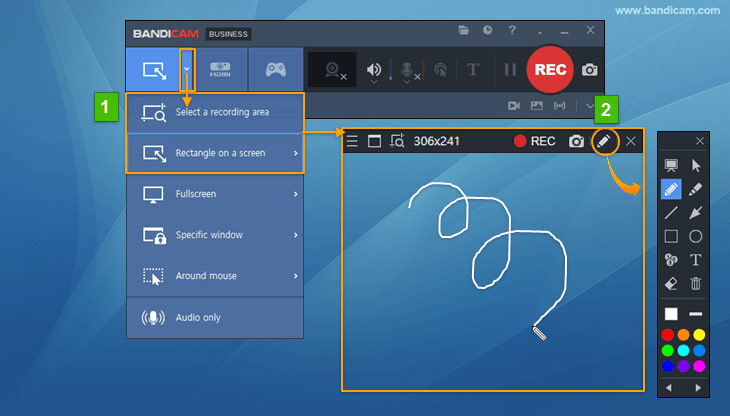
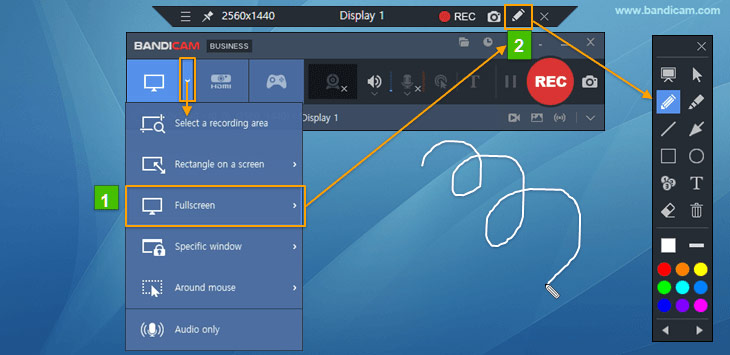
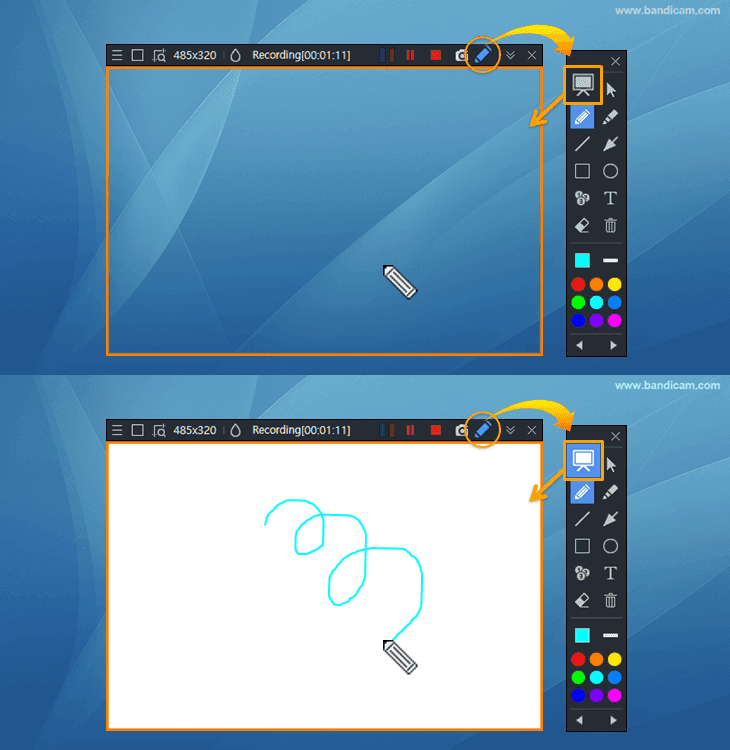
3. Click the 'Pencil' icon to use the drawing function.
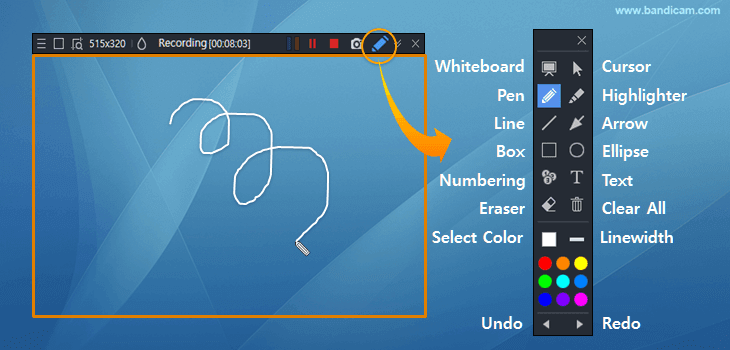
- If you click on the whiteboard icon, you can draw on a white background.
- You can delete the drawing all at once by clicking the Trash Can (Clear All) icon.
- Click 'Select Color' and 'LineWidth' to specify the color and size of the pen, highlighter, line, arrow, box, numbering, and text functions.
How to draw on a whiteboard
During screen recording, if you click the whiteboard icon, you can draw on the white background (whiteboard), and if you click the whiteboard icon again, the whiteboard will disappear.
List of Bandicam drawing shortcuts
You can check the list of shortcut keys in the Bandicam General tab -> Advanced -> Hotkeys menu, and you can change them to other shortcut keys.
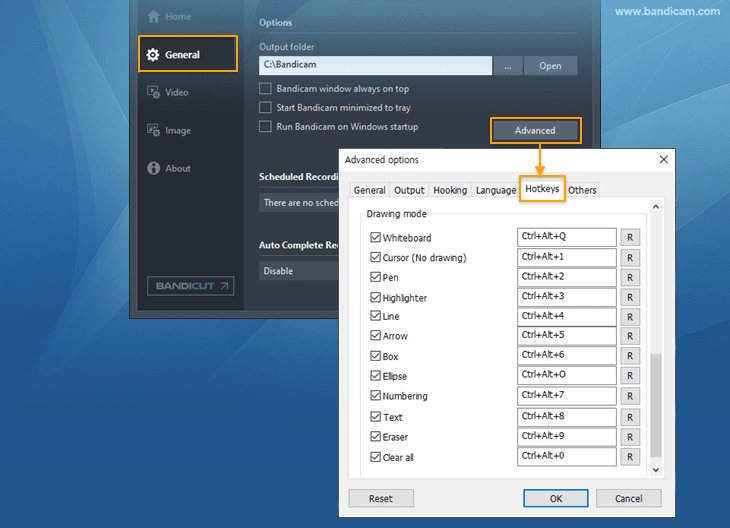
- Ctrl + Alt + D : Show/Hide the Drawing tool
- Ctrl + Alt + Q: Whiteboard
- Ctrl + Alt + 1 : Cursor mode (Move the mouse cursor without drawing. Navigate the computer screen while using the drawing tool)
- Ctrl + Alt + 2 : Pen
- Ctrl + Alt + 3 : Highlighter
- Ctrl + Alt + 4 : Line (Hold the "Shift" key if you want to draw a perfectly horizontal or vertical line.)
- Ctrl + Alt + 5 : Arrow
- Ctrl + Alt + 6 : Box (Hold the "Shift" key if you want to draw a perfect square.)
- Ctrl + Alt + O : Ellipse (Hold the "Shift" key if you want to draw a circle.)
- Ctrl + Alt + 7 : Numbering
- Ctrl + Alt + 8 : Text (Add a text to your recording.)
- Ctrl + Alt + 9 : Eraser
- Ctrl + Z : Undo
- Ctrl + Y : Redo
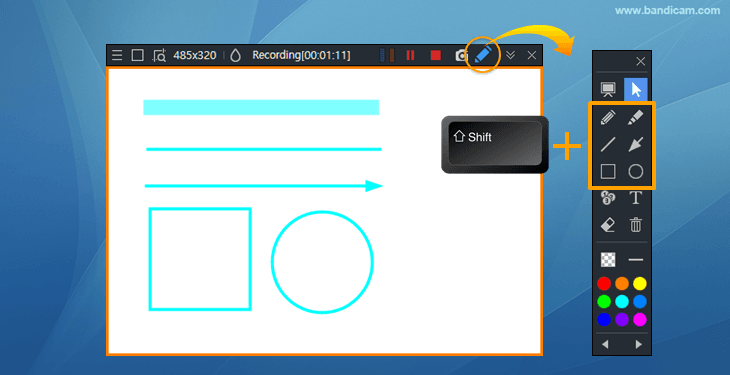
- Shift + Line/Arrow/Box : When you draw a line while holding the "Shift" key, you get a straight line.
- Ctrl + Alt + 0 : Clear all
- Delete : You can remove all of the drawing at once if you press the delete button on your keyboard or double click on the eraser button.
- ESC : You can remove the drawing and exit the drawing mode.
Additional Tips
1. Draw squares, circles, vertical and straight lines
If you hold down the Shift key while drawing, you can draw squares, circles, vertical and horizontal lines.
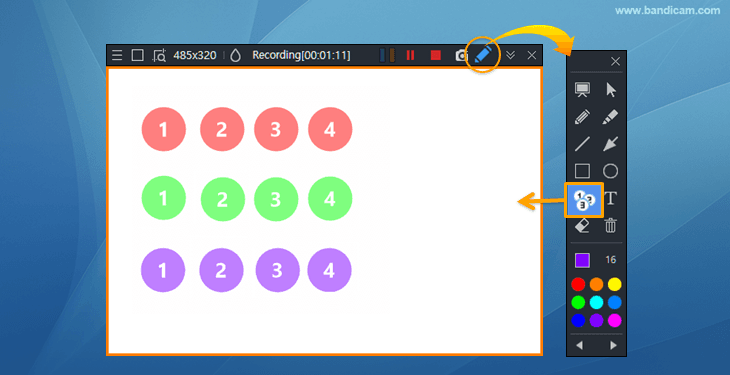
2. Reset the numbering order.
If you change the color in numbering, the number order will be reset.
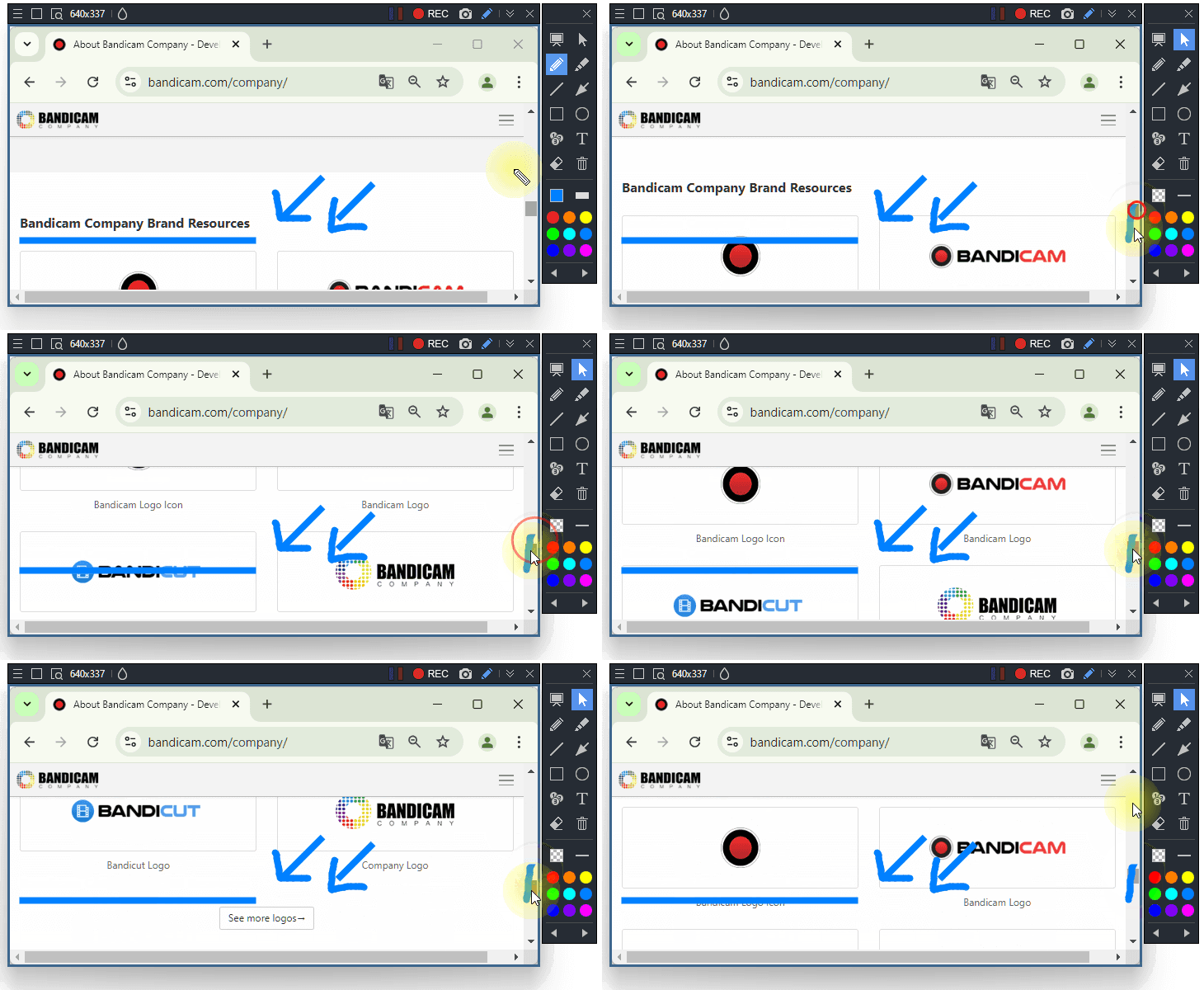
3. Click the cursor to move the recording screen while drawing.
4. How to automatically zoom in and out.
Bandicam 2027 lets you automatically zoom in and out on key areas of your recordings using the Smart Zoom feature. » How to Use Smart Zoom
Last Updated on