Screen Recording - Fullscreen
Use Bandicam's Fullscreen mode to record the entire screen of your display. You can choose a monitor, adjust recording options, and then play, edit, upload, or transcribe the recorded video in Bandicam.
How to record your entire computer screen
Step 1. Choose Fullscreen mode.
Open Bandicam, go to Home > Get Started, and click Fullscreen. Alternatively, click the drop-down arrow in the top-left corner and choose Fullscreen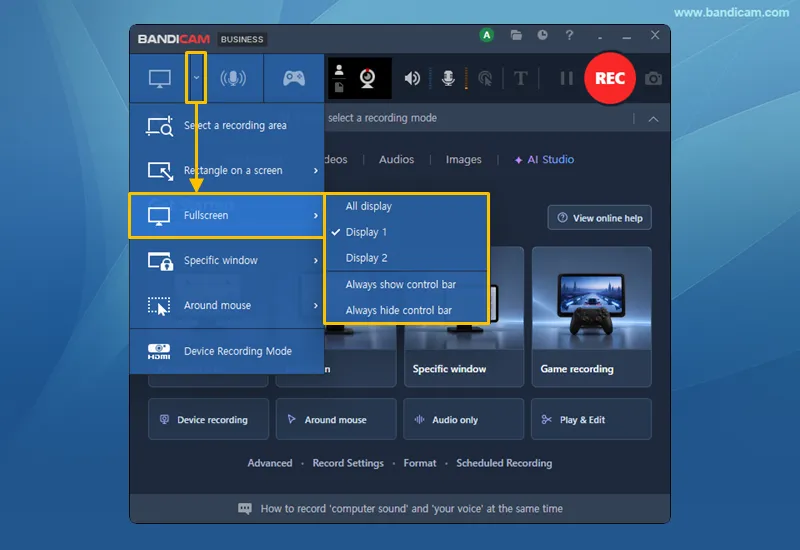 .
.
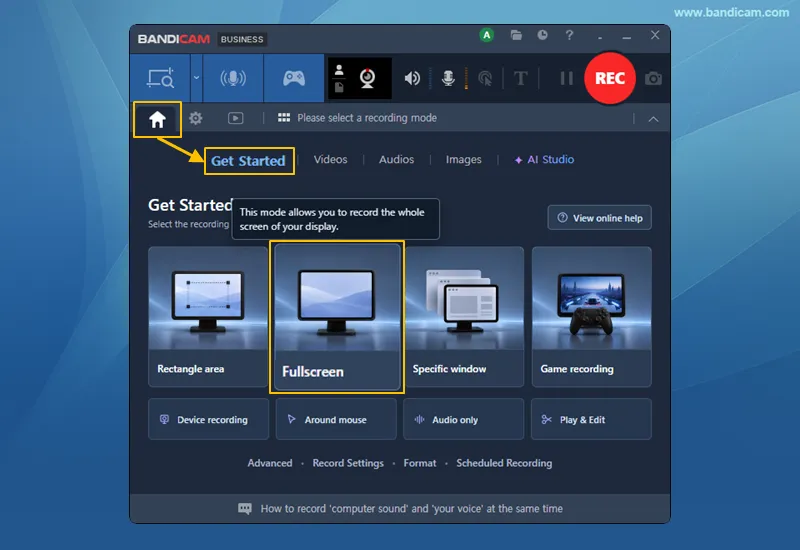
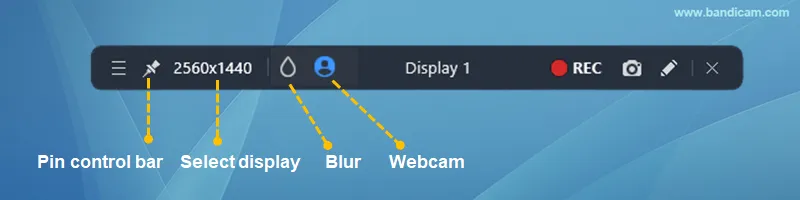
After choosing Fullscreen mode, move your mouse pointer to the top edge of the screen to show the control bar.

Step 2. Use the fullscreen controls.
Use the controls at the top of the screen before or during recording.
- Pin: Keep the control bar visible while recording.
- Select display: Choose the display you want to record.
- Blur: Add blur or remove blur to hide sensitive information. » Blur guide
- Webcam: Turn the webcam overlay on or off. » Webcam overlay guide
Step 3. Start and stop recording.
Click ● REC to start recording. Click ■ Stop to finish recording.
Step 4. Check the recorded video file.
Once you stop recording, the Bandicam video player will open automatically. You can play, Edit, Upload, or Transcribe the video.

Fullscreen recording settings
Choose the display, control bar option, hotkeys, settings, and video format as needed.
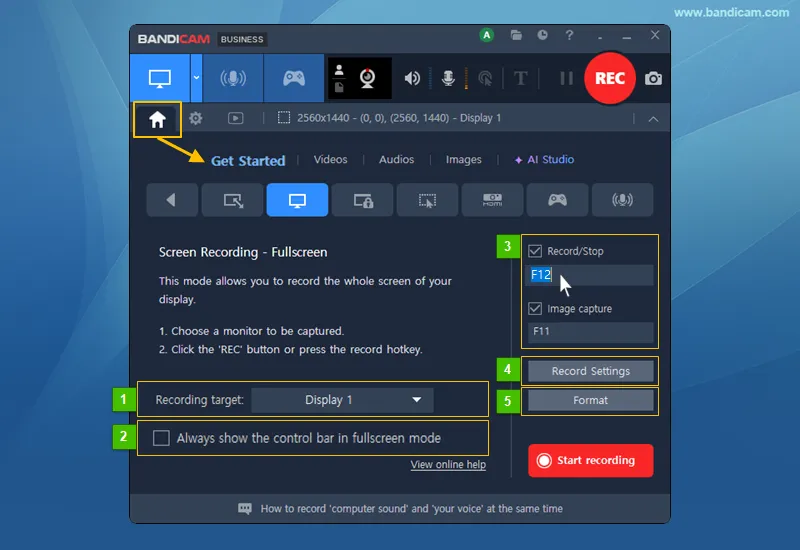
- Recording target: Choose all displays or a specific display to record.
- Control bar: Check this option if you want the control bar to stay visible in Fullscreen mode.
- Hotkeys: Enable, disable, or change the recording and screenshot hotkeys. The defaults are F12 and F11.
- Record Settings: Set sound, webcam, logo, mouse effects, and more. » Learn more about recording settings
- Format: Choose MP4 or AVI, and set the video size, FPS, codec, quality, and audio options. » Learn more about format settings
Useful tips
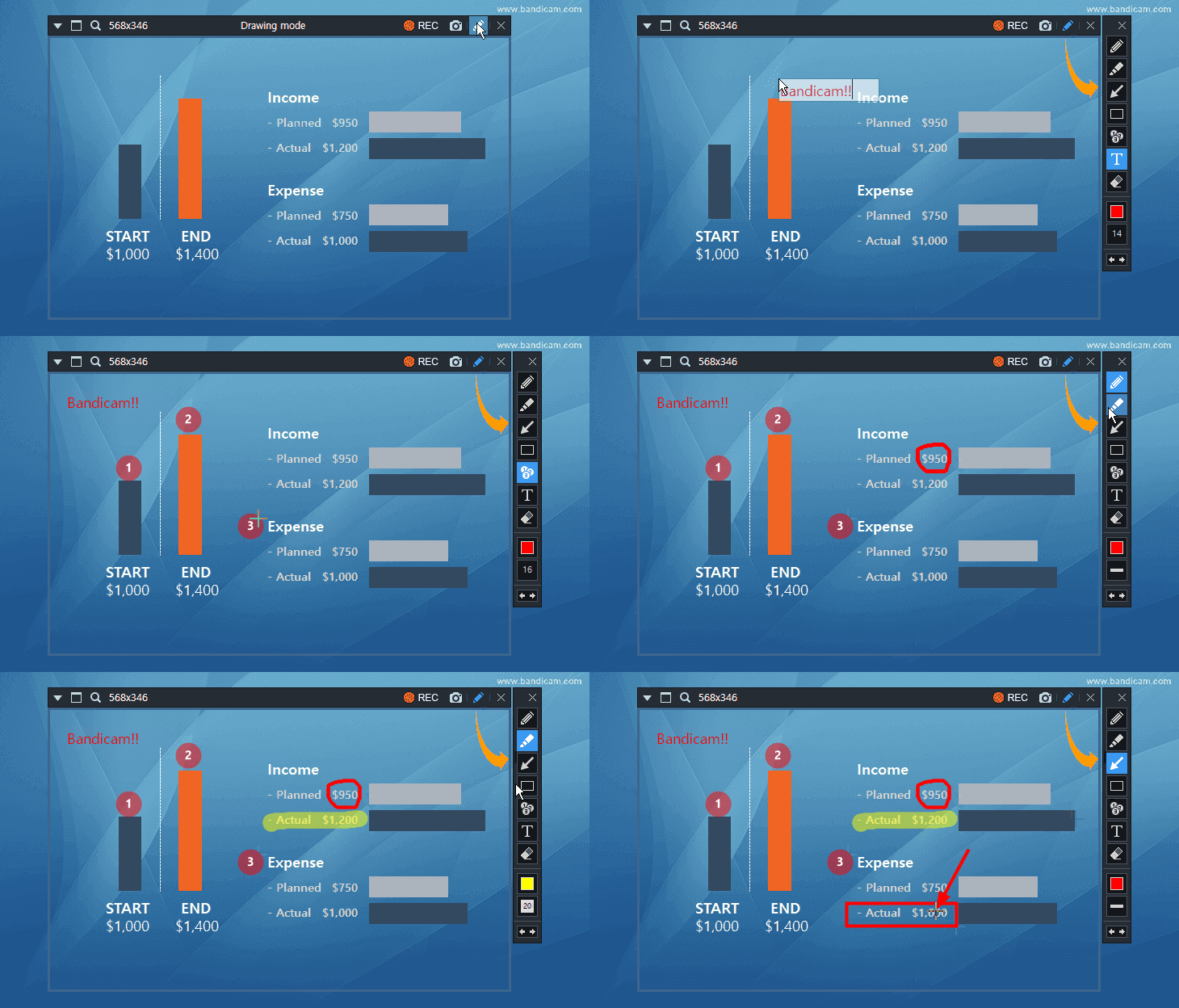
Use real-time drawing while recording.
You can add arrows, boxes, numbers, text, and highlights while recording in Screen Recording mode. » Learn how to draw on your screen
FAQs (Frequently Asked Questions)
1. The Fullscreen control bar is hidden. How can I keep it visible?
Move the mouse pointer to the top edge of the screen to show the control bar. To keep it visible, choose Always show control bar in Fullscreen mode.
2. How can I turn off the video player that opens after recording?
Go to Home > Video > Settings > Options and uncheck Open video player after recording.
