How to Transcribe Video to Text on Windows
Bandicam 2027 can convert the speech in a recorded video into text. After opening a video in the Bandicam built-in player, click Transcribe to generate a transcript from the video's audio. To use this feature, download and install Bandicam 2027.
Steps to Transcribe Video to Text
To convert a recorded video to text using Bandicam, follow these steps:
Step 1. Start recording your screen, webcam, or gameplay.

Step 2. When you stop recording, the Bandicam built-in player will open automatically.
To open the Bandicam built-in player manually, go to the Videos tab, select a file, and click Play.

Step 3. Click the Transcribe button to convert video to text.
When you click the Transcribe button, Bandicam will automatically analyze the audio and generate text from the video.
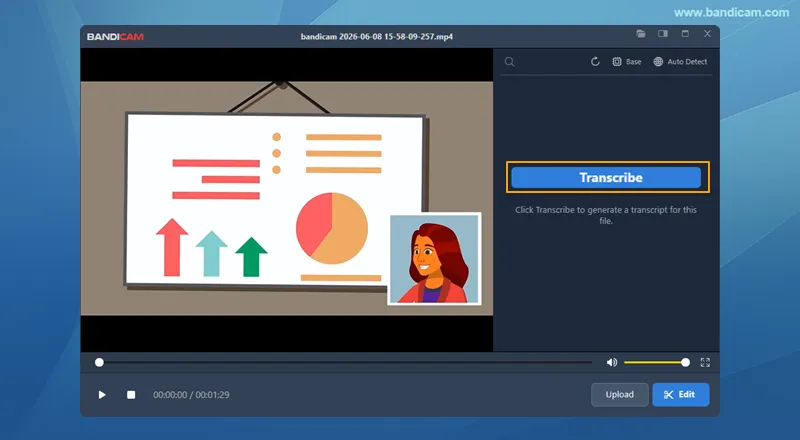
Step 4. Review and export the transcript.
After transcription is complete, review the generated text and use the options below:
- CC: Show or hide subtitles in the Bandicam built-in player.
- Export video with burned-in subtitles: Export a video with subtitles embedded in the video.
- Transcript options: Copy the transcript to the clipboard, save it as a TXT file, or save it as an SRT subtitle file.
- AI tools: Translate subtitles, summarize content, create a quiz, auto-edit the video, or create highlights.

In the Videos tab, you can open the output folder or view the video files:
- TXT/SRT files are saved in the output folder.
- The original file is kept, and a new subtitled video has _subtitle added to its name.

Useful Tips
![search]() Search: Use the search box to find specific words or phrases in the transcript.
Search: Use the search box to find specific words or phrases in the transcript.![refresh]() Refresh: After changing the AI model or language, click the refresh button to regenerate the transcript.
Refresh: After changing the AI model or language, click the refresh button to regenerate the transcript.![ai model]() Select AI Model: Click this icon to switch between AI models (Tiny, Base, Small, Medium, or Large Turbo).
Select AI Model: Click this icon to switch between AI models (Tiny, Base, Small, Medium, or Large Turbo).![Language]() Select Language: Click the language icon to manually choose the transcription language.
Select Language: Click the language icon to manually choose the transcription language.
 Search: Use the search box to find specific words or phrases in the transcript.
 Refresh: After changing the AI model or language, click the refresh button to regenerate the transcript.
 Select AI Model: Click this icon to switch between AI models (Tiny, Base, Small, Medium, or Large Turbo).
 Select Language: Click the language icon to manually choose the transcription language.
FAQs
1. What languages does the AI transcription support?
Bandicam supports multiple languages. You can use Auto Detect to let the AI recognize the speech automatically, or manually choose your language from the list for higher accuracy.
2. Which AI model should I choose for the best accuracy?
Bandicam uses the Base model by default. For higher transcription accuracy, simply switch to a larger AI model, such as Small, Medium, or Large Turbo.
3. Can I export subtitles or create a subtitled video for free?
The free version can export videos with a watermark and up to three burned-in subtitle lines. Copying the transcript or saving it as a .txt/.srt file is unavailable. To remove these export limits and enable transcript copying and saving, you need to purchase Bandicam 2027.