'Screen Recording' mode | Specific window
The 'Specific window' recording mode allows you to select and record a specific program window, even if it is covered by other program windows.
Furthermore, Bandicam 2025 adds a feature to capture audio exclusively from a specific window process.
Advantages of recording a specific window (Background screen recorder):
1. Record video meetings, live streams, or video lectures
- You can record a specific window, excluding what happens on other program windows. For example, you can record a video lecture or live stream while running other programs.
2. When you can’t use Bandicam’s Game recording mode
- If the FPS value does not appear on the game target in Bandicam's Game recording mode, try using the 'Specific window' recording mode instead. If you select a game application in the Specific window recording mode, you’ll be able to capture only the game window, even if it is covered by other program windows.
How to record a specific window while multitasking
We recommend this background recording method for capturing streaming videos or flash games, especially if you need to record a specific program running in the background.
1. Download Bandicam Screen Recorder.
2. Start Bandicam, choose the 'Specific window' mode, and select a program to record.
- For example, you can select and record a single program window, such as a web browser or game window.
- To capture audio only from a specific program, select the "Capture audio exclusively from a specific window process" option (This option is available only on Windows 11.)

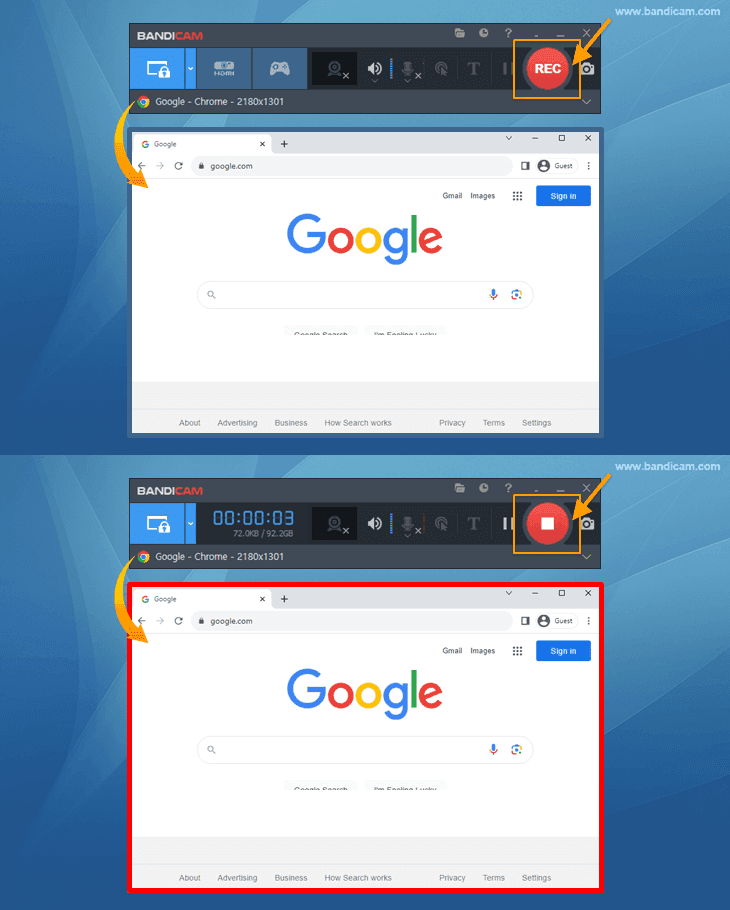
3. Click the '● REC' button to start/stop the recording.
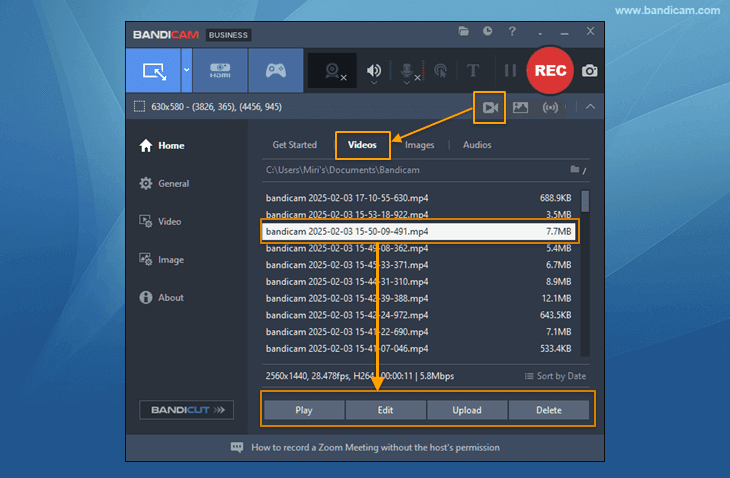
4. Click on the video icon to play, edit, or upload the captured videos to YouTube, Google Drive, or Vimeo.
This Window recording method only captures the selected program window, even if other programs overlap the chosen window during recording.
How to record part of the screen in a specific window
The 'Specific window' recording option allows you to record either the entire window or a specific area of the selected window.

1. Select the 'Specific window' mode, and choose the 'Select a recording area on specific window' menu.
To capture audio only from a specific program, select the "Capture audio exclusively from a specific window process" option.

2. Select the recording area in a specific window by dragging with the mouse.
Simply hover your mouse over the desired area, such as a video, and the recording area will be automatically detected and easily set.

3. Click the '● REC' button to start/stop the recording.

With this method, only the specified area of the selected window will be recorded, even if it is overlapped by other program windows during recording.
Precautions when recording a specific window
Background recording feature works on Windows 10/11.
- Selecting and recording a specific window is available in Windows 10/11. For Windows 7/8, you will not be able to record a specified window; everything on your PC screen will be recorded.
Make sure not to minimize the recorded window.
- You can record a specific window while multitasking, but if you minimize the recorded window, screen capture will not be possible.
Record in one web browser, work in another.
- We recommend you use a different web browser for other tasks while using the 'Specific window' recording mode to avoid recording new tabs opened within the same browser.
The Specific window recording mode doesn't capture additional popups, windows, or menus.
- Since it only captures the one window you specify, you cannot use the real-time drawing function, and the mouse right-click context menu (or additional popup menus in Photoshop) won't be recorded. Use the 'Rectangle on a screen' or 'Fullscreen' recording mode to record all popups and menus.
Record a Zoom meeting with 'Rectangle on a screen' or 'Fullscreen' recording mode.
- The recording will end if you share the screen or switch to full screen in Zoom when recording a Zoom meeting in a specific window. So, it's better to use the 'Rectangle on a screen' or 'Fullscreen' recording mode to record a Zoom meeting without interruptions.
Change the recording hotkey when recording a web browser.
- We recommend you change the recording shortcut key from F12 to avoid conflicts with the browser's developer tool, which also uses F12.
![Bandicam, recording hotkey]()

[FAQs] Black/White Screen Issue During Specific Window Recording
Videos turn black/white when a full-screen window covers the window playing the video
To ensure continuous rendering and screen recording even when the window is hidden, adjust the Chrome or Edge settings as follows:
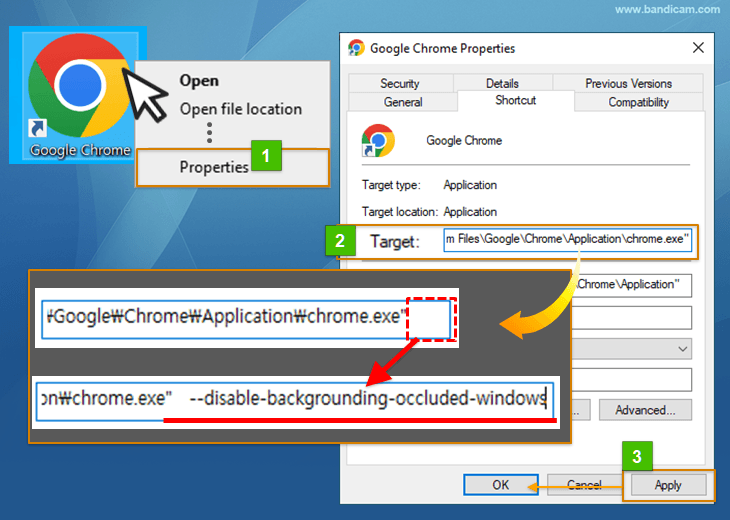
1. Chrome settings
- Right click on the Chrome shortcut -> Click on Properties -> Go to the Shortcut tab.
- In the target, add a space at the end, and then insert --disable-backgrounding-occluded-windows
- Click the Apply button, and then click the OK button. Finally, relaunch Chrome, and start recording a specific window.
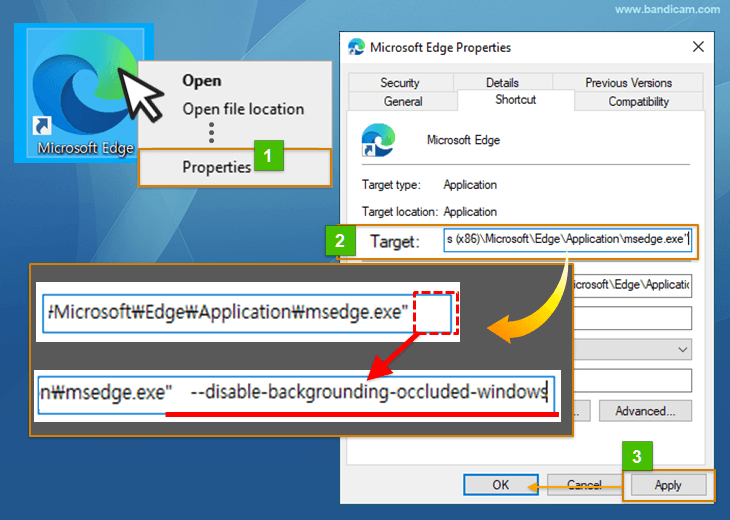
2. Edge settings
- Right click on the Edge shortcut -> Click on Properties -> Go to the Shortcut tab.
- In the target, add a space at the end, and then insert --disable-backgrounding-occluded-windows
- Click the Apply button, and then click the OK button.
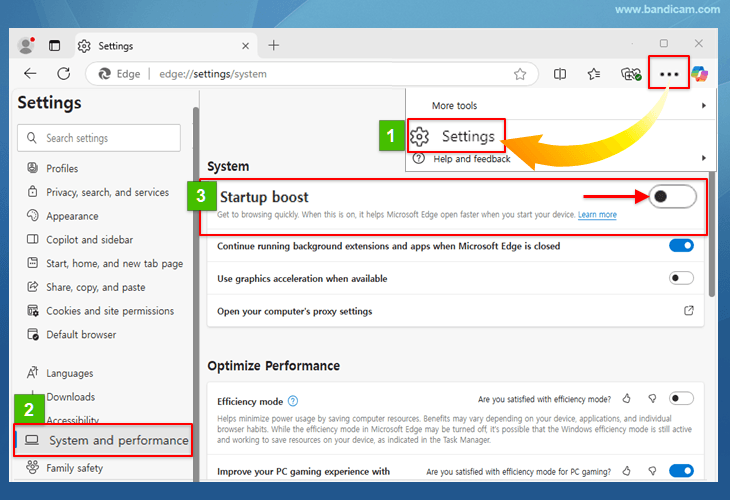
- Launch the Edge browser, and then go to Settings -> System and Performance -> Turn off Startup Boost option. Finally, relaunch Edge and start recording a specific window.