'Screen Recording' mode | Fullscreen
To record your entire computer screen, start Bandicam, choose the 'Screen Recording Mode' and select the 'Fullscreen' menu. The fullscreen recording menu bar will be shown at the top of your computer screen. The 'Fullscreen' recording mode allows you to record your entire screen.
Video tutorial of 'Screen Recording' mode (Full screen)
How to record your entire computer screen
1. Download Bandicam from the official website (https://www.bandicam.com/downloads/).
2. Start Bandicam and choose the 'Fullscreen' mode.
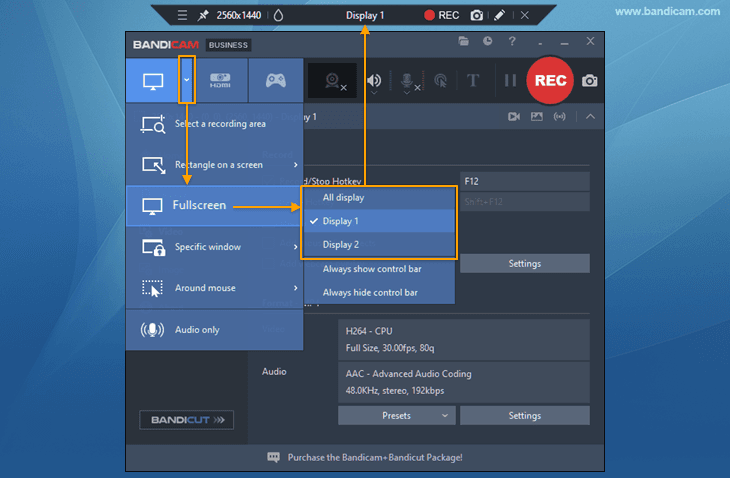
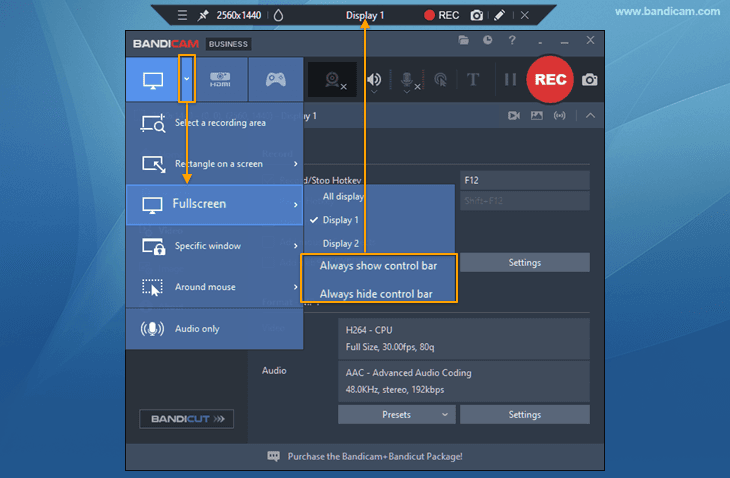
3. Show or hide the control bar in Fullscreen mode
- In "Fullscreen mode," the control panel will be displayed for about three seconds when you bring the mouse cursor to the upper edge of the screen.

- You can also check the option to always show or hide the control bar.
4. Click the '● REC' button or press the hotkey (F12) to start/stop the recording.

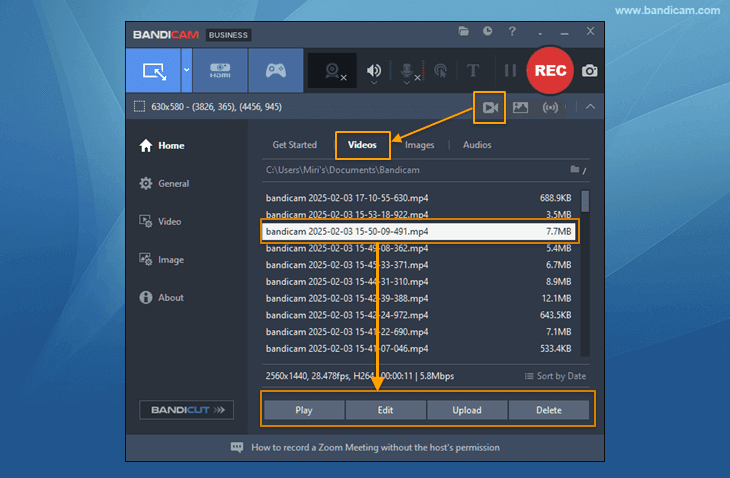
5. Click on the video icon to play, edit, or upload the captured videos.
Tip 1) Blur out any part of your screen while recording
Users can click on the blur icon to hide parts of their screen.
» How to blur screen while recording

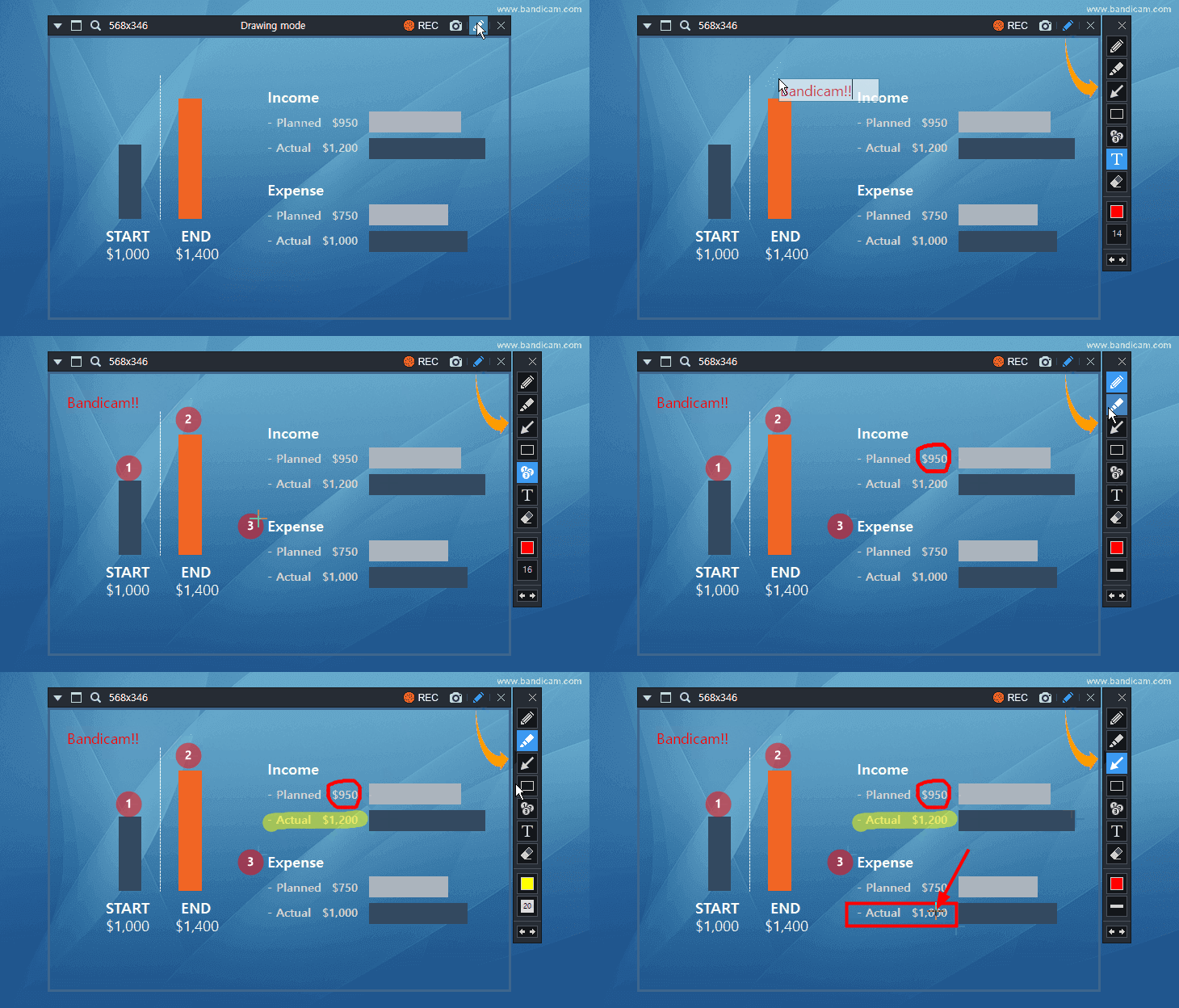
Tip 2) A real-time drawing function while recording the computer screen
Users can simultaneously add arrows, boxes, numbers or highlights while recording in 'Screen Recording' mode.
» How to draw on screen while recording